Account & Security
Your Budget Thing account is personal. It is the email address and password you sign in with, and it belongs to you alone.
Your budget lives somewhere else: in a workspace. A workspace can be shared with other people, and each of them signs in with their own account. Nobody shares a password to share a budget.
Keeping the two separate has some practical consequences:
- Changing your password does not affect anyone else in the workspace.
- Leaving a workspace does not delete your account, and deleting a workspace does not delete your account either.
- Your subscription sits at the account level, not on a single workspace. See Plans & Billing.
How we protect your account
Signing in is handled by a dedicated identity service, separate from your budget data, and Budget Thing's own servers never see your password. To learn what we do to protect your sign-in, your password and your data, and what you can do to help, see How We Keep Your Account Secure.
Account settings
To leave Account settings, select Back to Budget Thing at the top of the page. It takes you back to the page you came from, or to your workspace home if you opened Account settings directly. The button sits above the page title.
Account settings has two tabs:
- Profile — the personal information associated with your account, your start page, your email preferences, and Delete account. Your email address is the one you sign in with. It is shown but cannot be edited here (see Verifying your email).
- Security — your password, two-factor authentication and recovery codes.
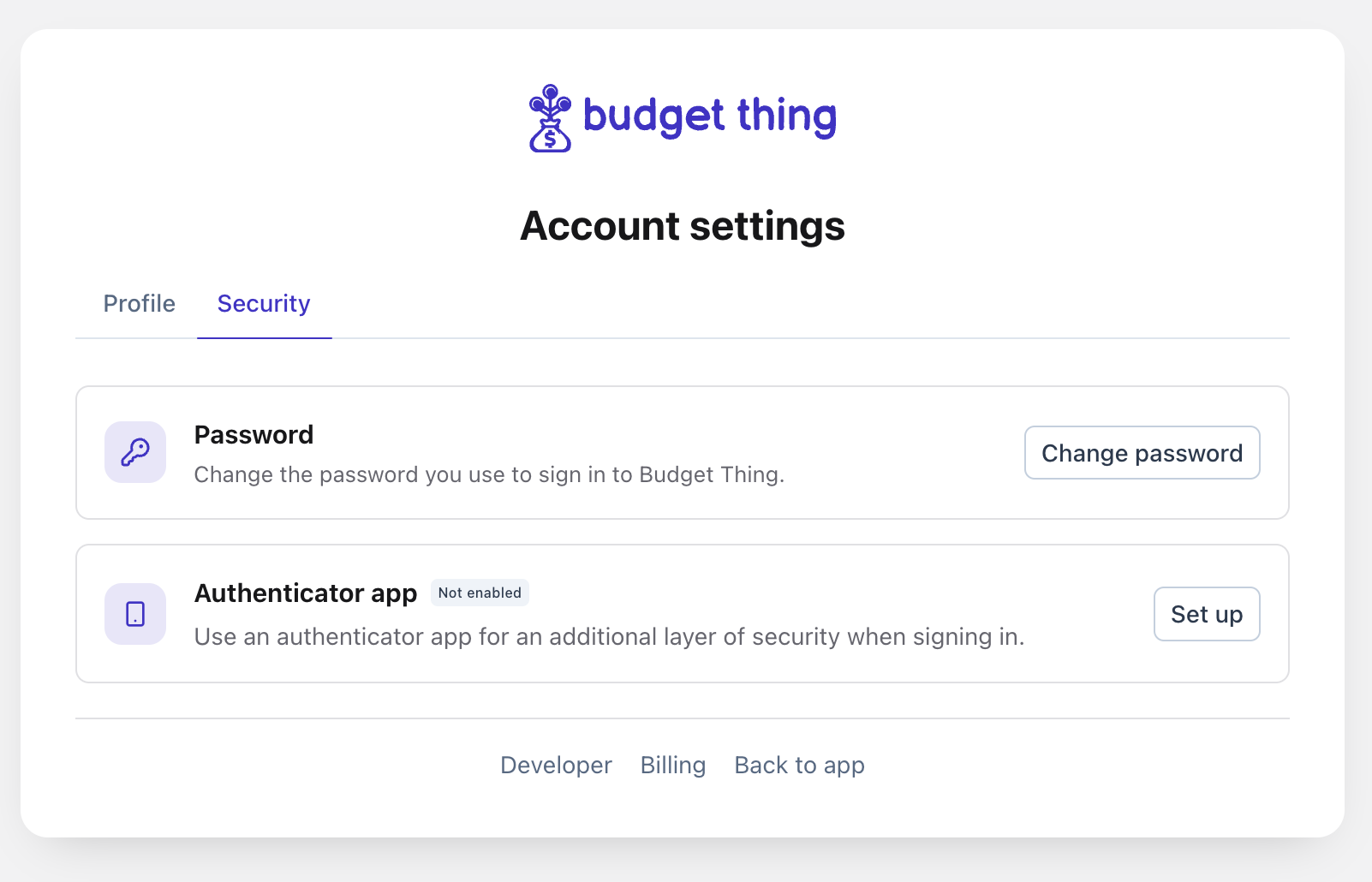
Three things live on the Security tab, each in its own row:
- Change Your Password
- Two-Factor Authentication
- Recovery codes, which only appear once two-factor authentication is on, covered in Recover Your Account
Browser console warning
If you open your browser's developer tools while using Budget Thing, the console shows a warning that it is meant for developers. Scammers sometimes persuade people to paste code there to "unlock" a feature or take over an account. Never paste code you don't understand into the console, and no Budget Thing team member will ever ask you to.
When we ask you to sign in again
For a few actions that could expose your data or lock others out, Budget Thing asks you to prove it's you again if you signed in more than about 13 minutes ago. You'll see a Confirm it's you step in place of the form, with Cancel and Continue to sign in. Choose Continue to sign in, sign in as usual (including your two-factor code if you use one), and Budget Thing brings you back to the same page with the dialog open again and empty. Nothing you typed before is kept, and nothing happens until you submit it yourself.
You're asked before you:
- create an access token
- create or download a workspace export
- invite someone to a workspace
- create a webhook, or change the URL of an existing one
- delete a workspace
- start an ownership transfer
- allow an AI assistant to connect to your account
- delete your account (see Delete Your Account)
Staff who administer Budget Thing are also asked before they assign or remove a platform role or delete another person's account.
If you sign in again within the last few minutes you are not asked. If a request is refused because the sign-in turned out to be too old (for example you left a dialog open for a long time), the same Confirm it's you step appears instead of an error message.
Email preferences
Budget Thing can send you occasional product updates, announcements and helpful information. These emails are optional, and you only get them if you ask for them.
- When you sign up, tick Product updates and announcements on the registration form. The box starts unticked.
- At any time afterwards, open Account settings, stay on the Profile tab, and use the Product updates and announcements switch under Email preferences. Turn it off to stop these emails, or on to start receiving them.
- From a card on your dashboard. If you're on the Free plan and haven't chosen yet, your workspace dashboard shows a card asking Want product updates by email? Select Yes, keep me posted to opt in, or No thanks (or close the card) to decline. The card is shown once. Either answer is saved to your account, so it never comes back, on any device, and we don't follow it up with an email. If you turned product emails off before, or you're on a paid plan, you won't see the card.
The change is saved as soon as you flip the switch, and a confirmation appears: you won't receive product updates and announcements, or you'll receive product updates and announcements. If it says we couldn't update your email preferences, the switch stays where it was; try again.
If you turned on Product updates and announcements, are on the Free plan and haven't imported any data a day or so after signing up, you may get one "getting started / switching from another app" email. It points to the import options for bringing in an existing budget. It is sent at most once, never to anyone who has imported data or has a paid plan, and turning the switch off, or using its Unsubscribe link, stops it.
Under the same heading, Bank connection reminders controls the emails Budget Thing sends before a Plaid bank connection expires (see Reconnect before access expires). Unlike product updates, it starts on, because missing a reminder can stop your bank syncing. Turn it off to stop them. Turning it back on before the expiry still sends the reminder that is due. A confirmation appears when you change it, and if saving fails the switch stays where it was.

Bill reminders
Upcoming bill reminders email you before a bill is due and on its due date, while the payment is still open (see Email reminders). It is in the same Email preferences section and starts off: nothing is sent until you turn the switch on.
Once it is on, Send the first reminder appears under it. Choose how many days before the due date the first email arrives, from 1 day before to 7 days before (3 days if you don't choose). The due-date reminder is always sent as well. A confirmation appears when you change either setting, and if saving fails the switch or the days stay where they were. Turn the switch off to stop the emails; the days you chose are kept for next time.
It is a personal setting that follows you across workspaces, and it covers only
bills in workspaces whose plan includes bills, so there is no plan restriction on
the switch itself. You can also change it through the API:
notificationPreferences.bill_reminders and billReminderLeadDays on
PATCH /v1/me (see the
API reference).
Unsubscribe from a reminder email
Each bill reminder email has an Unsubscribe from bill reminders link. It opens a page that doesn't need you to sign in, and it changes nothing until you select Turn off these emails. It turns off bill reminders only; product emails and your other preferences are untouched. To turn them back on, sign in and use the switch under Account settings → Profile → Email preferences. The link is personal to you and to bill reminders, so don't forward the email if you don't want someone else to be able to switch the reminders off.
Unsubscribe from an email
Every product email has an Unsubscribe link. It opens a page that doesn't need you to sign in. Select Unsubscribe on that page to stop product emails; nothing changes until you do. The page then confirms it, and offers a link to sign in and turn product emails back on under Account settings → Profile → Email preferences. If the link isn't valid, the page says so and points you to the same switch. Unsubscribing is the same as turning the switch off. Mail apps that show their own unsubscribe button use the same link. If a product email bounces or you mark it as spam, Budget Thing turns the switch off for you too.
The product updates switch covers product emails only, the bank reminders switch covers bank reminders only, and bill reminders are their own setting. Messages about your account itself, such as email verification and account recovery, are still sent.
Delete your account
To permanently delete your account and personal data, use Delete account on the Profile tab in Account settings. Review the impact and confirm the request. See Delete Your Account and Delete Your Data for the full steps and what may be retained.
Verifying your email
Budget Thing asks you to verify your email address before you continue using it. Verification matters more than it looks: account recovery is sent to that address, so an unverified or out-of-date address is the most common reason someone cannot get back in.
The email address shown on your Profile is the one you sign in with. Budget Thing keeps it in step with your sign-in details, and it can't be edited from your profile in the app or through the API. Invitations to a workspace are matched to this address (ignoring capitals), so it has to be verified before you can see or accept them.
Your email address can't currently be changed, either in the app or through support. Make sure the address you sign up with is one you will keep.