Change Your Password
Your password protects your Budget Thing account, which in turn protects every workspace you can reach.
Change it
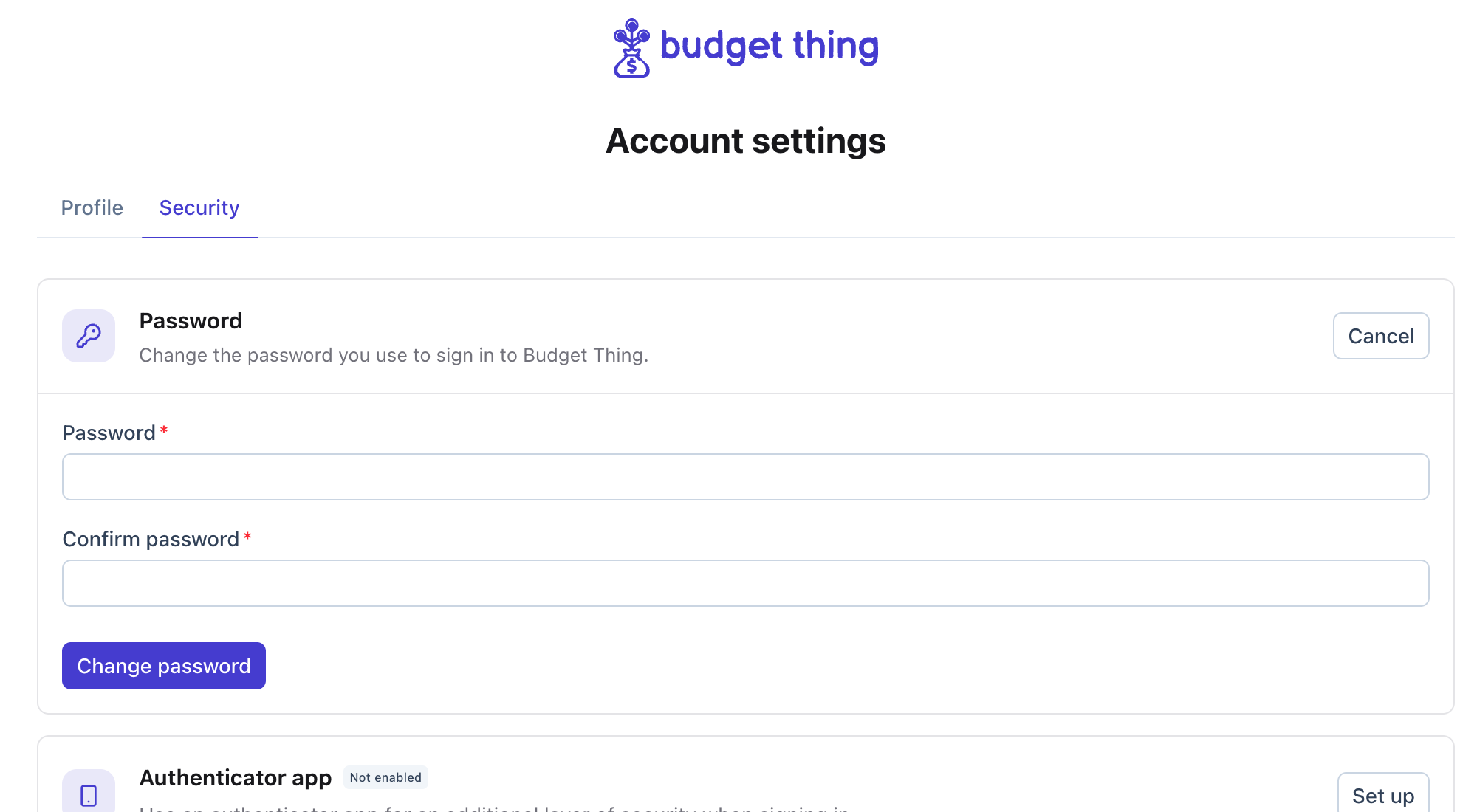
- Open Account settings and select the Security tab.
- On the Password row, select Change password.
- Enter the new password, confirm it, and select Change password again.
You are not asked for your current password on this form, but Budget Thing may ask you to confirm that it is really you before the change is accepted. If it does, complete that check and the change goes through.
What Budget Thing requires
A new password is rejected if it:
- is shorter than the minimum length, or longer than the maximum,
- is too similar to your email address or username, or
- appears in known data breaches.
The last one is worth taking seriously. A password that has appeared in a breach is already in the lists attackers try first, however complex it looks.
A long random password stored in a password manager beats a memorable one, and you never have to type it. Pair it with two-factor authentication.
If you cannot sign in
You do not need your old password to set a new one. Use Forgot password? on the sign-in page instead — see Recover Your Account.
Other devices are signed out
Changing your password signs you out everywhere else. Every other browser and device signed in to your account is sent back to the sign-in page the next time it does anything, and has to sign in with the new password. The browser you changed the password in stays signed in.
Personal access tokens and connected apps, such as an AI assistant, aren't signed out by a password change. If you think one of them has been exposed, open the account menu, select Developer, and revoke it there. See AI Assistants.