Sessions and Signing Out
Signing in creates a session in that browser. The session is what keeps you signed in between visits, and signing out is what ends it.
Sign out
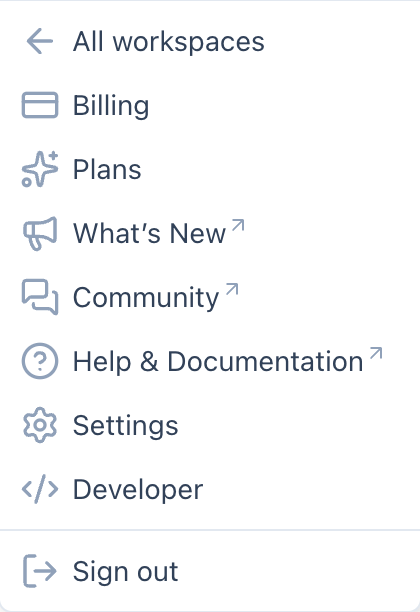
Open the account menu and select Sign out. Budget Thing ends the session in that browser and returns you to the sign-in page.
Signing out affects only the browser you are using. It does not disturb anyone else in a shared workspace, and it changes nothing about your data.
Sessions and two-factor authentication
A session records how strongly you have authenticated, not only that you signed in. If your account has two-factor authentication enabled, some actions ask you to complete the second step before they will proceed, even though you are already signed in.
You may also be asked to confirm that it is you before a sensitive change, such as setting a new password. This is normal and not a sign that something is wrong.
When sign-in gets stuck
If sign-in keeps looping back to an authentication error, that page offers Clear session and try again. Clearing the stale session and starting over resolves most of these loops.
Sessions also expire on their own. Being asked to sign in again after a while is expected.
Separately, a few sensitive actions, such as creating an access token, exporting your data or deleting a workspace, ask you to sign in again if your last sign-in was more than about 13 minutes ago. See When we ask you to sign in again.
Signing out of other devices
Budget Thing doesn't show a list of your active sessions or devices, and you can't end a session in one particular browser from another.
To sign out everywhere else, change your password. That ends every session except the one in the browser you're using, so anyone signed in elsewhere, including someone who shouldn't be, has to sign in again and no longer knows the password. Recovering your account with Forgot password? does the same. If you're concerned that someone else has access, also turn on two-factor authentication.
Personal access tokens and connected apps aren't sessions, so changing your password doesn't sign them out. Revoke them from Developer in the account menu.