Two-Factor Authentication
Two-factor authentication adds a second step to signing in: as well as your password, you enter a six-digit code from an authenticator app on your phone. Someone who learns your password still cannot get in.
Budget Thing supports authenticator apps. The Authenticator app row on the Security tab of Account settings shows whether it is Enabled or Not enabled.
Set it up
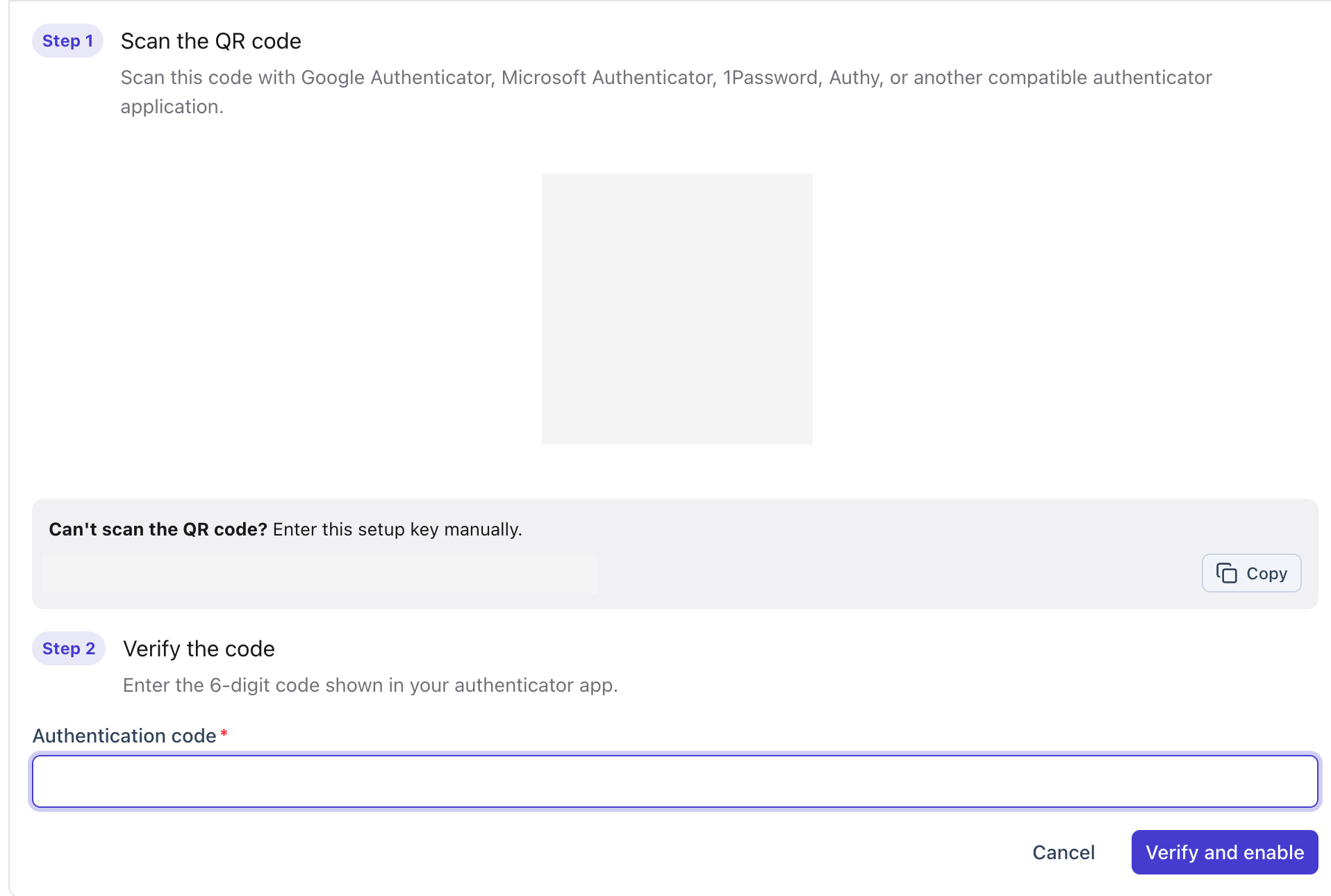
- On the Security tab, find Authenticator app and select Set up.
- Scan the QR code with Google Authenticator, Microsoft Authenticator, 1Password, Authy, or another compatible authenticator app.
- If you cannot scan, select Can't scan the QR code? and enter the setup key manually. Copy puts it on your clipboard.
- Enter the six-digit code your app now shows and select Verify and enable.
Once enabled, you are asked for a code from your authenticator app when additional verification is required.
Recovery codes only become available once two-factor authentication is enabled, and they are what gets you back in if you lose your phone. Set them up straight away — see Recover Your Account.
Signing in with a code
After your password, Budget Thing asks for your Authentication code. Enter the six digits from your authenticator app.
If you cannot reach the app, select Use a recovery code and enter one of the codes you saved. Each recovery code works once.
Signed in as the wrong person? Sign out and log in again on that screen returns you to sign-in.
Turn it off
On the Authenticator app row, select Manage, then Disable two-factor authentication, and confirm. Your account will no longer require an authenticator code when signing in, which makes it less secure.
Passkeys and security keys
The authenticator app is the only second factor you can set up on the Security tab. You can't add a passkey or security key as a second factor next to your password. A passkey, including one stored on a security key, is a separate way to sign in. It counts as two-factor authentication, so if you sign in with a passkey you aren't asked for the authenticator code. Password sign-ins still ask for it, and changing security settings can too. Add or remove passkeys in the Passkeys row on the Security tab. See Sign in with a passkey.