Edit an Account
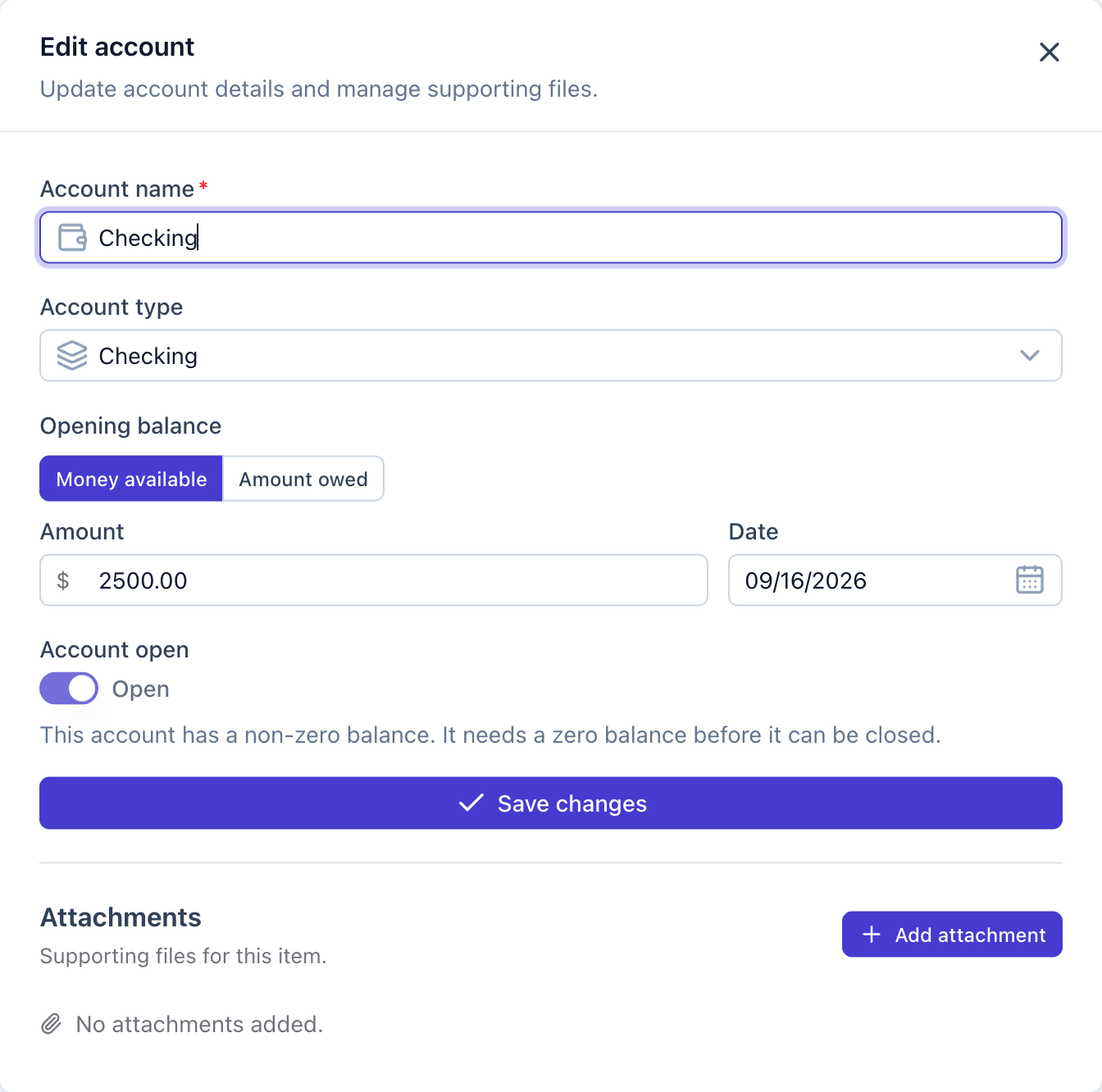
Open the account and choose Edit. The Edit account dialog covers renaming, changing the type, correcting the opening balance and closing the account.
Rename an account
Change Account name and save. Nothing else moves — transactions, balances and any bank connection stay exactly as they were. Renaming is safe to do at any time.
Change the account type
Change Account type and confirm. Budget Thing asks you to confirm because the change affects how the balance is displayed and where the account appears in reports. Existing transactions are not rewritten.
You can move an account to any other type, including from an asset type such as Checking to a liability type such as Credit Card (or back), even when the account already has transactions. The account keeps its transactions and its effect on your net worth; only how it is classified and displayed changes. Changing an account to Credit Card gives it a payment category of its own.
If Budget Thing can't save the new type, the account keeps its current type and nothing else is altered.
Correct the opening balance
The opening balance has an Amount, a Date and a direction. Edit them here rather than hunting for the transaction in the register.
An opening balance that has been marked cleared or reconciled cannot be changed. To correct it, undo the reconciliation for that account first — see Reconciled Transactions.
Close an account
Turn off Account open. Closed accounts are kept for history but marked as no longer in use, so the record of what happened in them survives.
An account can only be closed once its balance is zero. If there is still money in it — or still a debt owed on it — move the remaining balance out with a transfer first, then close it.
Set Account open back on to reopen a closed account.
Where closed accounts appear
- Accounts page: a closed account stays in its usual group, marked Closed. Open it from there to see its history or to reopen it.
- Sidebar: closed accounts are hidden, including from your favorites.
- Command palette: closed accounts aren't offered for adding a transaction.
- Account pickers: closing an account doesn't remove it from the account lists in other dialogs, such as From account and To account when you record a transfer. A closed account can still be chosen there, so check that you picked the right one.
Delete an account
Deleting is separate from closing and is permanent — it removes the account and cannot be undone. Close the account instead if you only want it out of the way; closing keeps the history that your past reports depend on.
Only the workspace owner can delete an account, and an account can't be deleted while it has transactions recorded in it.
A credit card or loan also can't be deleted while its payment category still holds money, because that money would otherwise drop out of your budget. The delete dialog says so and offers Move money, which opens the move money dialog with the payment category already picked. Move the whole amount to Ready to Assign or another category, then delete the account again. Budget Thing never moves the money for you. Once the account is deleted, the record of money that was assigned to its payment category and moved out again stays in your workspace's history, so past figures still add up.
If the account is linked to a bank connection, deleting it also discards any downloaded transactions still waiting for review and removes the account's bank-sync link. If it was the last account mapped to that bank connection, the connection is disconnected too and the bank is told to drop its access (for Plaid, the connection is removed at Plaid). If other accounts from the same bank are still linked, the connection stays in place.