Manage Connections
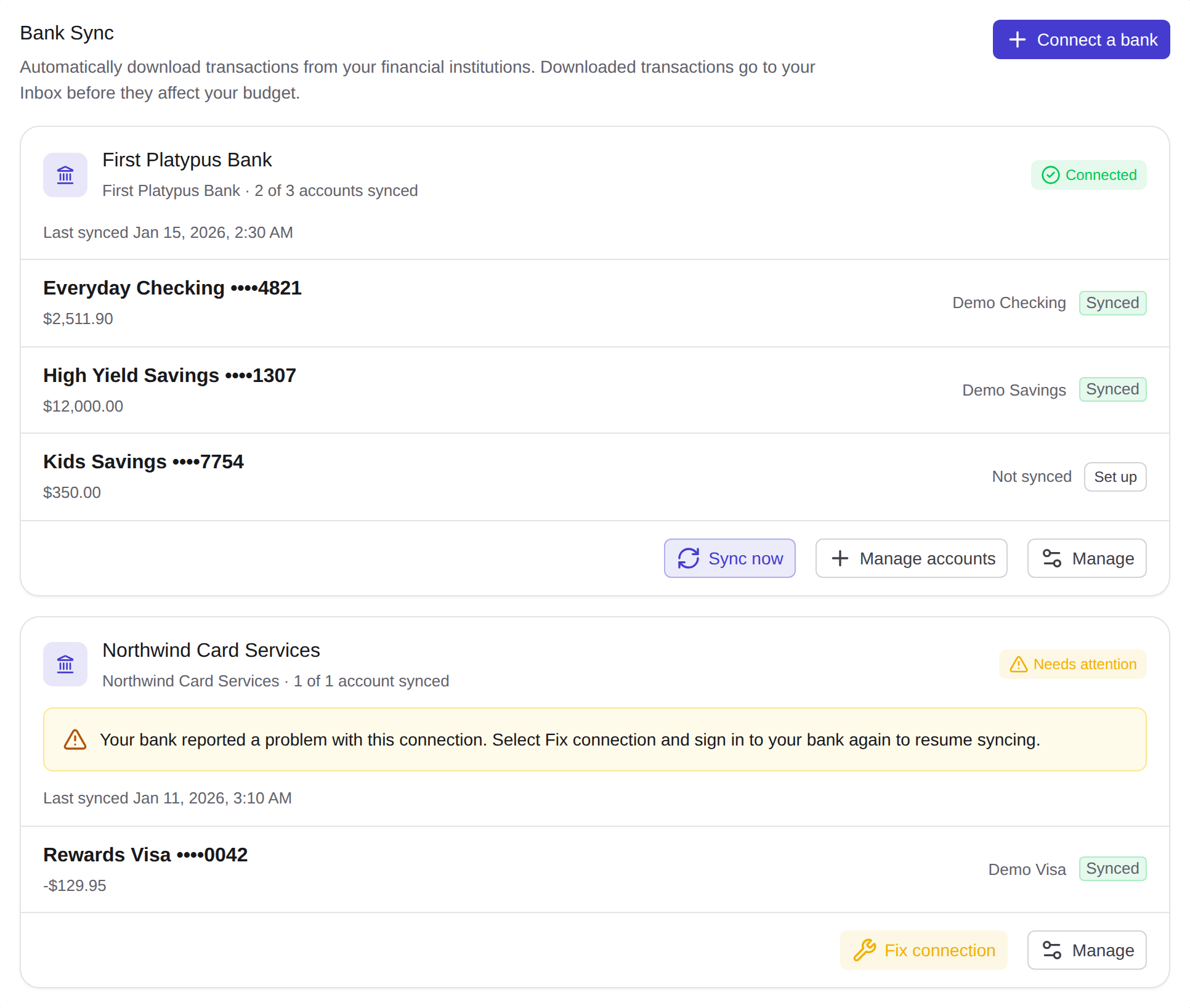
The Bank Sync settings page lists every connection you have, how many of its accounts are syncing, and when it last synced. Choose Manage on a connection to work on it.
What a connection's status means
| Status | What it means |
|---|---|
| Connected | Ready to sync. |
| Syncing | A sync is running now. |
| Needs attention | Reconnect with your financial institution to continue syncing. |
| Connection error | The last attempt did not complete successfully. |
| Setup incomplete | Setup was never finished. Finish or restart it. |
| Disconnected | No longer actively syncing. |
An individual account can also show Off, meaning bank sync is not connected for that account.
When a sync fails, the connection card says why and what to do:
- We couldn't reach your bank during the last sync. Budget Thing keeps retrying on its own. Nothing is needed unless it lasts for days.
- Your bank responded, but we couldn't save the new transactions. Nothing was lost, and Budget Thing retries on its own.
- Your bank reported a problem with this connection. Choose Fix connection and sign in to your bank again (see Re-authenticate a broken connection).
- An account you synced is no longer shared with Budget Thing. Choose Manage to review which accounts your bank shares.
Sync now
Sync now pulls new activity immediately instead of waiting. Budget Thing reports what changed as a count of transactions added, updated and removed, and anything new waits for review on the account's page.
Only one sync runs per connection at a time; if you ask again while one is running, Budget Thing tells you a sync is already in progress.
Rename a connection
Change Connection name in the manage dialog. This is Budget Thing's label for the connection, which helps when you have more than one at the same provider. It does not affect anything at the bank.
Refresh accounts
Refresh accounts asks the provider for its current list of bank accounts. Use it when you have opened a new account at the bank, or when an account you expected was not discovered the first time. Newly discovered accounts still need mapping — see Connect an Account.
Add accounts to a Plaid connection
For a Connected Plaid connection, Manage accounts opens the connection's account list. Choose Add another account from your bank to go back through Plaid and share more accounts. They join the existing connection, so you do not need a second one. New accounts are marked New and still need mapping.
SimpleFIN does not offer Manage accounts. Use Refresh accounts instead.
Re-authenticate a broken connection
A connection marked Needs attention has stopped syncing until you prove who you are again. Choose Fix connection, or Reconnect SimpleFIN for a SimpleFIN connection, and complete the provider's flow.
Repairing keeps the same connection, its mappings and its history, and your mapped accounts resume syncing right away. Removing and recreating does not keep them, so try the repair first.
If a connection stays broken for 30 days
A connection that has been Needs attention or in Connection error and has not synced successfully for 30 days is disconnected automatically, so Budget Thing does not keep holding access to a bank you are no longer using. While it is at risk, the connection card says Will be removed on a date unless repaired. Choose Fix connection or Reconnect before that date to keep it.
If the connection is removed:
- Your accounts, transactions and rules stay. The accounts that were linked become manual accounts, exactly as if you had chosen Remove connection.
- Budget Thing tells your bank to drop its access.
- You get an email naming the connection. To start syncing again, link the bank from Bank sync with Connect another bank.
Seven days before the removal date, Budget Thing emails you a reminder. It goes to the person who connected the bank, or to the workspace owner if that person is no longer a member of the workspace. Turning off Bank connection reminders under Email preferences stops the reminder, but you still get the email after a removal. A connection that is healthy but idle is never removed.
Reconnect before access expires
When a financial institution tells Plaid that your consent is about to lapse, the connection card shows a Reconnect soon notice with the date. The connection keeps syncing until then. Choose Reconnect and complete the provider's flow to keep your history and rules; nothing is duplicated.
SimpleFIN does not report an expiry date, so no countdown is shown for it.
Reminder emails and the settings dot
Budget Thing also emails you about an expiring Plaid connection, so you do not have to open the app to find out. You get one reminder when the expiry is seven days away or less, and one more when it is a day away or less. If your bank only tells Budget Thing late, you get a single email, not two. The email goes to the person who connected the bank, as long as they are still a member of the workspace with the Owner, Admin or Editor role. If they have been removed or have left the workspace, nobody is emailed for that connection. It names the connection and the expiry date.
- If you reconnect, the reminders stop. If the bank later sets a new expiry date, the reminders start again for that date.
- To stop these emails, turn off Bank connection reminders under Email preferences in your account settings. See Email preferences.
- While any connection in a workspace needs attention, or expires within seven days, a dot appears on the workspace settings cog at the top of the sidebar. It clears once every connection is healthy again. A sync that failed and is retrying on its own does not show the dot.
Remove a connection
Remove connection stops synchronization and ends the provider's authorization. Existing Budget Thing transactions and historical import records remain — removing a connection does not remove your data.
You don't need to disconnect your accounts first. Removing a connection also unlinks every account mapped to it: those accounts become manual accounts, keep all their transactions, and stop syncing with the bank. To sync them again, link the bank from Bank sync with Connect another bank and map the accounts again.
Deleting a Budget Thing account that is mapped to a connection also removes its mapping and any downloaded transactions still waiting for review. If it was the last account mapped to the connection, the connection is disconnected as well and the bank is told to drop its access. Deleting a workspace disconnects all of its connections the same way.