Mark a Bill as Paid
Mark as paid records the payment for a bill occurrence in one step: Budget Thing creates the transaction and links it to the occurrence together, so the bill shows as paid and the money has left your account.
Use it when the payment is not in Budget Thing yet. If the transaction already exists — imported from your bank, or entered by hand — match it to the bill instead, so it is not recorded twice. For a Debt Center bill there is nothing to match: a transfer already recorded into the debt's account is linked to the bill automatically.
Start from the list
On Upcoming, each bill's next open occurrence has a check-mark button (Mark paid on a narrow screen). It opens the occurrence with the payment form ready, so you see what will be recorded before you confirm it. Only the next open occurrence of each bill has the button; a paid or skipped one does not.
You can also open any open occurrence and choose Mark as paid.
Fill in the form
The form starts from the occurrence and the bill:
- Paid from — the bill's account, if it has one. Choose another if you paid from somewhere else. Archived accounts are not offered.
- Amount — what is still owed: the whole expected amount, or what remains if the occurrence is already partly paid.
- Date — today. A future date is allowed and is noted as such.
- More details — a note for the transaction. The payee and category come from the bill.
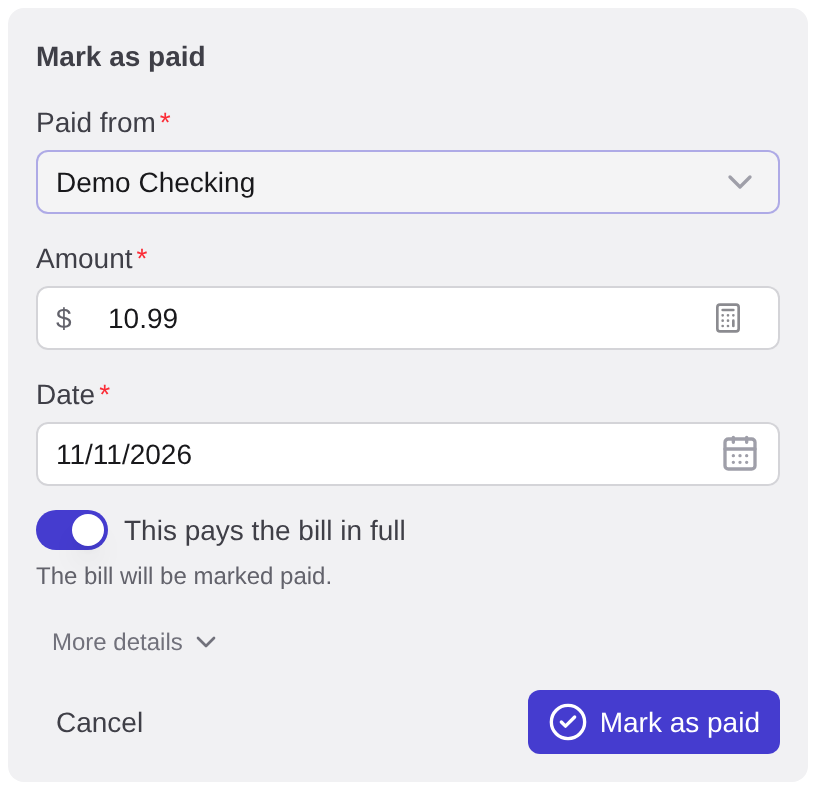
Does this pay the bill in full?
The switch This pays the bill in full follows the amount: paying at least what remains turns it on, paying less turns it off. Change it yourself when the estimate is not what you expect. For example, turn it on for a final payment that is smaller than expected. Once you touch the switch, it stays as you set it.
- On — the occurrence becomes Paid.
- Off — the occurrence becomes Part paid and stays open, showing how much is left.
When a bill is partly paid
An occurrence that already has a payment shows Expected, Paid so far and Remaining at the top of the form. The amount starts at what remains. Paying more than remains is allowed; the form tells you by how much.
When you pay a different amount
Paying more or less than the expected amount is fine: the occurrence is still paid, and the bill's expected amount stays as it is. If the last payment of a bill ends up more than 5% from what it expects, Budget Thing treats it as a possible price change so you can decide whether to update the bill: the bill's details show a Price up or Price down message with Update expected amount and Dismiss buttons and your recent payments under Price history. It never changes the amount for you.
Pay a debt payment
A payment on a bill that Debt Center manages is a transfer from the account you choose to the debt's account, not an expense, so it counts toward your payoff and not as spending. The form says Transfer to and the debt's name, and has no category.
Debt payments settle the oldest open payment first, so Mark as paid is offered on that one. On a later payment you are pointed to the earlier one instead. Pay it first, then come back.
Undo a payment
- Remove the link — in Payments, choose Remove match. The transaction stays in your account; only its link to the bill goes, and the bill becomes open again.
- Delete the transaction — the link goes with it, and the bill becomes open again.
- A debt payment's link cannot be removed on its own. Budget Thing links it automatically because it pays a debt in your plan. To change it, edit or delete the payment transaction.
If something goes wrong
Budget Thing says why a payment could not be recorded, and keeps what you typed:
- the occurrence was already paid, or was skipped;
- an earlier payment on the same debt is still open;
- the account is not open, or is the debt's own account;
- you do not have permission to record payments (viewers cannot).
Retrying the same submission, for example after a dropped connection, records the payment once.