Business email settings
When you email an invoice, a quote or a payment reminder from Budget Thing, the email carries your business's own look: your logo (or name), your color and your sender name. Email settings is where you choose that, and where replies go.
Open Business in your business workspace and open the Email section (listed on the left, or in the section picker on a phone). Owners and admins can change the settings. Other members can see them but not edit them. The business tools need a plan that includes them to save changes.
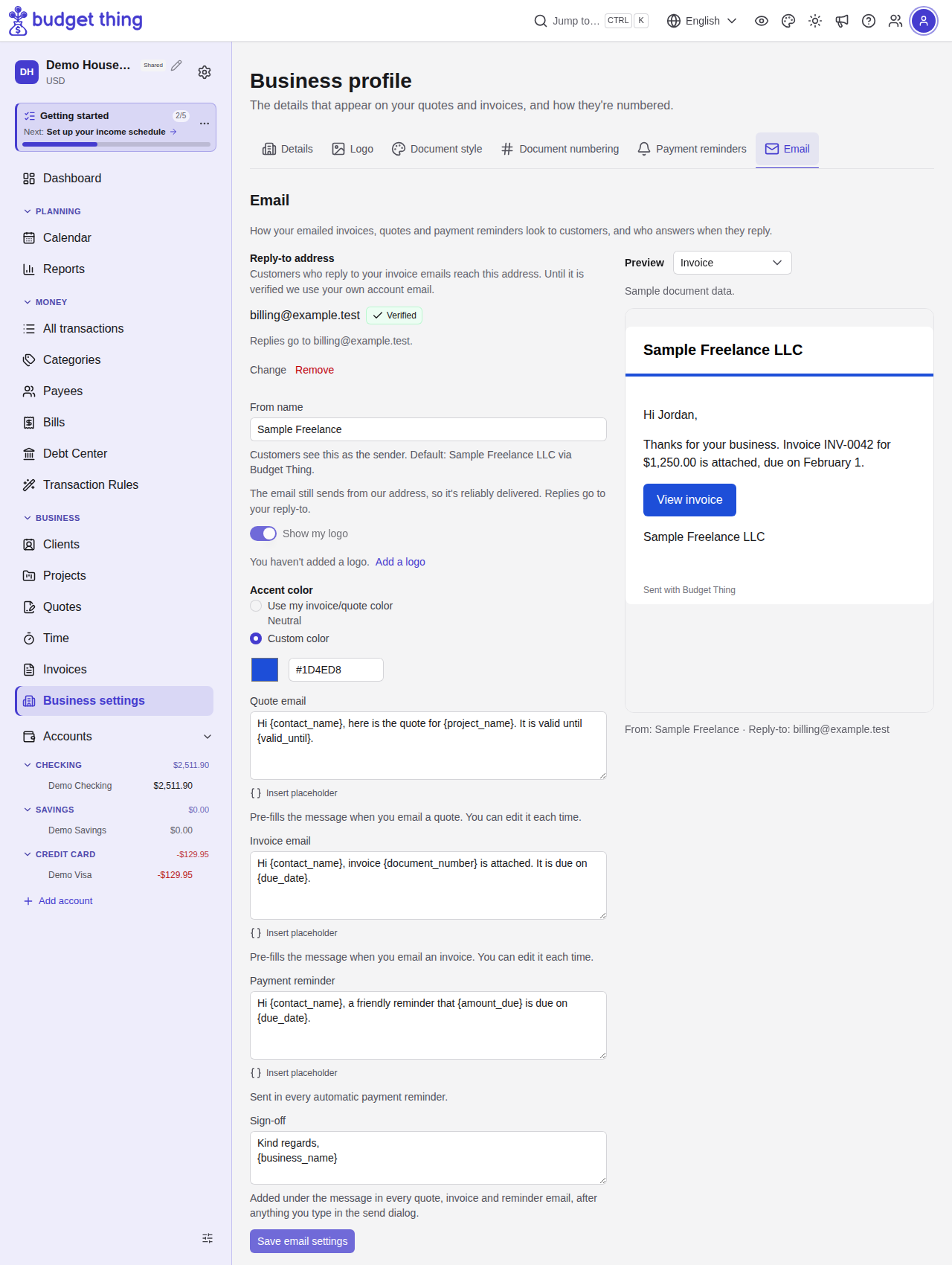
Reply-to address
By default, a client who replies to one of your emails reaches the person who
sent it. A reply-to address sends replies somewhere else, such as
billing@yourcompany.com.
We only use an address once you've proved it's yours:
- Type the address and select Send code. We save the address and email a 6-digit code to it.
- Enter the code and select Verify. The address shows a green Verified mark and replies now go to it.
Things to know:
- Until it's verified, replies go to your own account email, as before. A reply-to you've typed but not verified shows Not verified and isn't used.
- The code works for 15 minutes and for five wrong guesses. After that, select Send new code.
- Resending: you can ask for a new code once a minute (the page counts down), and up to five times an hour for the workspace. A new code replaces the old one.
- Changing the address stops us using it straight away. Until you verify the new one, replies go to your account email.
- Removing it asks you to confirm, and replies then go to your account email. There's no undo: to bring it back, add the address and verify it again.
- If you mistype it, select Change next to the code message, fix it and send a new code.
Sender name
Clients see your emails as coming from your business name via Budget Thing.
Type a From name to replace that completely, for example Acme Billing.
Leave it empty to keep the default.
A name can be up to 80 characters. It can't contain an @ or an email address,
and it can't include "Budget Thing", so nobody can mistake your email for ours.
The email is still sent from Budget Thing's address, which keeps it reliably
delivered, and replies go to your reply-to address.
Logo and color
- Show my logo puts your business logo at the top of the email. Switch it off, or if you haven't added a logo, the email shows your business name instead. Logos larger than 1 MB are left out and the name is shown.
- Accent color is used for the top border and the links. Choose Use my invoice/quote color to match your documents, or Custom color to pick another.
The color has to be easy to read on white. A custom color that's too light can't be saved; the page offers a darker version to use instead. If the color you inherit from your document style is too light, the email is sent in neutral gray and the page tells you so.
Messages
Each kind of email has its own message, so a quote can read differently from an invoice or a reminder:
- Quote email: the message the send dialog starts with when you email a quote.
- Invoice email: the same for an invoice.
- Payment reminder: the message in every automatic payment reminder. It replaces the personal note the reminder settings used to have.
You can edit or clear the message each time you send a quote or invoice, and leave a message empty to start with a blank one. Messages are plain text, up to 1,000 characters.
Placeholders
Select Insert placeholder under a message to put a placeholder where your cursor is. It's replaced with the real value when you open the send dialog (so you can still edit the result) or when a reminder goes out. The list only offers the placeholders that work for that message.
| Placeholder | Filled with | Quote | Invoice | Reminder |
|---|---|---|---|---|
{contact_first_name} | First name of the contact the email goes to | Yes | Yes | Yes |
{contact_name} | Full name of that contact | Yes | Yes | Yes |
{client_name} | The client's name | Yes | Yes | Yes |
{business_name} | Your business name | Yes | Yes | Yes |
{project_name} | The project the document belongs to | Yes | Yes | Yes |
{document_number} | The quote or invoice number | Yes | Yes | Yes |
{total} | The document total | Yes | Yes | Yes |
{valid_until} | The date the quote is valid until | Yes | ||
{due_date} | The invoice's due date | Yes | Yes | |
{amount_due} | The balance still owed | Yes |
A line whose placeholder has no value is removed. For example, "Here is the
quote for {project_name}." disappears when the document has no project, rather
than reading "Here is the quote for .". A document for a client only, with no
project, has no {project_name}, so put it on a line of its own. Lines without
placeholders are never removed, and blank lines left behind are tidied.
A placeholder that isn't in the table, or isn't valid for that kind of email
(such as {amount_due} in a quote), counts as having no value, so its line is
removed. That includes ones you type by hand and misspell. Text in braces that
isn't a lowercase name, such as { note }, is left as written.
Sign-off
The Sign-off is added under the message in every quote, invoice and payment reminder email, for example "Kind regards, the Acme team". It's set once here, not per email. The send dialogs show it under the message, read-only, with a link back to Email settings. Leave it empty to add nothing. Plain text, up to 500 characters; placeholders work here too.
Preview
The Preview shows a sample Quote, Invoice or Payment reminder email, using the settings on screen, including changes you haven't saved. It's a sample: the client, project, amounts and numbers are made up, and the placeholders in your message are filled from them. Your business name, logo, sender name and reply-to are real. Under the preview, a line shows the sender name and reply-to address that will be used. On a small screen, select Show preview to open it.
What changes in the emails
- The email header shows your logo or business name, and the footer says only "Sent with Budget Thing". Budget Thing's own logo and colors aren't used.
- The same look applies to payment reminders.
- Sign-in, invitation and other account emails from Budget Thing are not changed. Neither is the verification code email, which comes from Budget Thing.
- When your clients can pay an invoice online, the invoice email and its payment reminders also have a View and pay invoice button that opens the invoice page. Otherwise the emails are the same as before. The email preview doesn't show the button.
- Emails you've already sent don't change.