Invoices
An invoice bills a client, either for the work of one project or, with no project, for lines you add by hand. You build it as a draft, issue it to freeze it and give it a number, then email it, share a link or download the PDF, and record the payments that come in. Invoices live in a business workspace: start one from a project's page, from a client's page or from the Invoices page in the left menu, which lists them all.
Find an invoice
Select Invoices in the left menu to see every invoice in the workspace,
newest first, as a table with one row per invoice: the invoice number
(Draft until it is issued), the client, the project, the status (with how
much of it is paid and whether it is overdue), the issue and due dates, the
total and the amount still due. Select a column heading to sort by it, and
select a row, or press Enter on it, to open the invoice. An address ending in
/invoices/new takes you to this list; use New invoice above the table to
start one. On a phone each
invoice is a single line with its number, client, status and total. Use the tabs to show All, Drafts,
Issued, Overdue or Void invoices, and the client list to show one
client's invoices. Select the project name to open its project; an invoice with no project shows No project. A project's page and a client's page also list their own
invoices.
To find an invoice by its number, type part of it in the search box above the
list: 42 finds INV-0042, and letter case doesn't matter. Search works
together with the tabs and the client list. Drafts have no number yet, so they
are hidden while you search. If nothing matches, select Clear search to see
the list again.
Start an invoice
You can start an invoice in three places:
- A project's page: under Invoices, select New invoice. The invoice is for that project and its client.
- The Invoices page: select New invoice, choose the client, and optionally a project. The project list shows that client's active projects.
- A client's page: select New invoice (in the header or on the Invoices tab). The client is already chosen, and you can pick one of their projects or leave it as No project.
Choose a project to bill its quotes and logged time, or leave the project out for a client-only invoice. The form opens as a wide dialog with the fields grouped under Client, Dates, Payment terms and Text on the invoice; on a phone it is a single-column sheet with Cancel and Create invoice always in reach. Editing a draft's details uses the same form. Every other field is optional:
- Client reference, such as the client's purchase order number.
- Billing period: the first and last day the invoice covers. Enter both or neither.
- Due date: leave it blank to follow the payment terms when you issue. The terms come from the project if it has its own, else from the client, else from the workspace default. See Payment terms for how the due date is set.
- Payment terms: the form shows where the terms come from, for example From project: Net 15. Select Set own terms to give this invoice its own, with the same options as for a client, or Reset to inherited to follow the project, client or workspace default again.
- Notes, shown with the lines. Notes can be formatted with bold, italic and lists.
- Payment instructions and Footer: left blank, the invoice defaults you set under Document style are used. Quotes have their own defaults.
Select Create invoice. It opens so you can add lines. A project that is archived can't have new invoices, and neither can a client that is archived. A draft invoice whose project is archived, or a client-only draft whose client is archived, can't be edited or issued: its page hides Edit and the draft actions and links to the project or client. Restore it first. When there is no project, the terms come from the client, then the workspace default.
Client-only invoices
A client-only invoice bills a client without a project: a one-off job, a retainer or anything else you want to charge for that isn't tracked as project work. It works like any other invoice: add lines, issue it, email it or share a link, download the PDF and record payments.
- Lines: add item, hour and fixed-fee lines with Add line. From quote, Bill deposit and Apply deposit list the accepted quotes of the invoice's client, including client-only quotes that don't have a project yet. Add time and Add expenses need a project, so they aren't offered; a note above the lines says so. To bill logged time, create the invoice from a project.
- Starting from a quote: on an accepted client-only quote, the Billing tab's Start invoice creates a client-only invoice for its client. Add the quote's lines, or a deposit, from the invoice. A deposit invoice you drafted before the quote got a project stays valid after you link it, and a later invoice for the project can apply that deposit.
- Payment terms come from the invoice itself, the client's default terms or the workspace default.
- Where you see it: the Project column on the Invoices page and the invoice's heading show No project. The PDF and the shared page leave the project line out.
- Numbering: the invoice uses your business profile's numbering pattern.
A pattern that contains
{PROJECT}can't number an invoice with no project, so issuing stops with a message and an Open numbering settings button; remove{PROJECT}from the pattern on the Document numbering tab, then issue again. See Document numbering. - Recurring invoices can bill a client with no project too: set one up on the client's page. See Recurring invoices.
Add lines
Budget Thing works out each line's total and the invoice's total; you never add them up yourself. A draft holds up to 200 lines.
- From quote bills lines of an accepted quote of the project (or, on a client-only invoice, of the client). Pick the quote and tick the lines. Each quote line is billed in full, keeping its unit (items, hours or a fixed fee) and its details, and a line that another invoice already bills or has in a draft isn't listed.
- Add time opens the Bill time dialog for the project's logged time that is billable, has an hourly rate and isn't billed yet. Choose how many hours to bill (the rest is written off and can be restored), an optional accepted quote the lines count toward, and whether the time shows as one summary line per rate, grouped lines (by task, project or quote) or one line per entry, then check the preview. Billing time works per project: an invoice bills only time logged on its own project, so to bill time from several projects, make one invoice for each (a client with several projects: bill each project from the Time page, one at a time). You can also bill time from the Time page, which can create the draft invoice for you. Billed time can't be edited or deleted until you delete its line, delete the draft or void the invoice; then it is unbilled again. See Time tracking.
- Add expenses opens a dialog listing the project's unbilled, billable expenses. Tick the ones to bill (all start ticked), choose whether they show as one line per expense, one summary line or one line for the project, edit the line text, then check the preview, which shows each line and the invoice total after. Each expense bills its cost plus its markup, as entered, and each line gets your default tax rate, if you have one. An invoice bills only expenses of its own project. Billed expenses can't be changed until you delete their line, delete the draft or void the invoice; then they are unbilled again. A note above the lines shows how many unbilled expenses the project has and what they would add.
- Add line adds a line of your own: an Item (the name, on one line), optional Details (see Format your text), what it is Billed in, and an optional discount from 0 to 100 percent. Billed in Items it has a quantity (up to four decimals) and a price per unit; billed in Hours it has the hours and an hourly rate; a Fixed fee has only an amount.
One invoice can mix all three. On the invoice an hours line reads
2.5 hrs × $120.00/hr. On the PDF the columns are headed Qty and
Unit price, an hours line reads 2.5 hrs at $120.00/hr, and a fixed fee
leaves the quantity and price blank. When every line is billed in hours the
headings read Hours and Hourly rate.
- Bill deposit bills part of an accepted quote up front. Pick the quote and confirm the amount. It is prefilled with the deposit set on the quote or, when the quote sets none, the deposit percentage in the project's or client's payment terms applied to the quote total before tax. The suggestion is only a starting point: any amount you type is used. The deposits on a quote's invoices can't add up to more than the quote total before tax.
- Apply deposit credits a deposit you already billed on an issued invoice, as a negative line, so the client pays only the balance. It is prefilled with all the deposit left to apply and can't be more than that. Two drafts can't apply the same deposit, and an invoice that bills a deposit can't be voided while other invoices apply it.
Use the arrows to put lines in order and the bin to delete one. Only lines you added by hand can be edited with the pencil; lines from a quote or from time keep the quantity and price they were billed at, and a deposit line's amount can't be changed (delete the line and add it again).
Details and formatted text on the PDF
A line's Details print on the PDF in full, directly under the line's Item, in smaller, gray text. Bullet lists, numbered lists, bold and italic print as formatted; a bulleted list can have one level of sub-points. The amounts stay on the item's own row. A line with long details can continue onto the next page: the table heading is repeated there, and a page never starts or ends with a single row of details on its own.
Notes use the same formatting, in the normal size and color of the invoice.
Anything the formatting doesn't cover, such as headings, links, images, tables or
code, prints exactly as you typed it. The shared invoice page shows this same
PDF, so it looks the same there. Notes you wrote before this existed print
formatted too if they contain list or emphasis marks such as - at the start of a
line or *word*.
Bill a quote in stages
A typical job: finalize and send the quote, bill a deposit when it is accepted, bill the work as it is done, and finish with an invoice that applies the deposit.
- On a draft invoice select Bill deposit and issue the invoice.
- Bill the work on later invoices with From quote or Add time.
- On the final draft select Apply deposit. The credit shows as a negative Deposit applied line, and the invoice total can't go below zero.
The accepted quote's page shows what is quoted, billed on issued invoices, still on drafts and remaining in a summary strip under its title, and has a Billing tab with the same for each line, the deposit position, and billable time that no invoice bills yet. Billing a line for more than it quotes is shown with a warning but is never blocked.
Sales tax, VAT and GST on invoices
You can add sales tax, VAT or GST to a invoice. Each line has one tax rate, or none, and new lines get your default rate. Prices and line totals are before tax: Budget Thing adds the tax on top, calculates it once for each rate on the whole invoice, and shows a subtotal, a row for each rate and the total. Drafts follow your current rates; when you issue an invoice, its lines keep the rates they had. A deposit is calculated before tax, and the credit that applies it reverses the tax charged on it. Set up your rates in Business → Tax rates.
Budget Thing adds the tax you choose. It doesn't check which rates or invoice rules apply to you. This isn't tax advice.
See Sales tax, VAT and GST on documents for the rules, the PDF layout and the limitations.
Preview and download
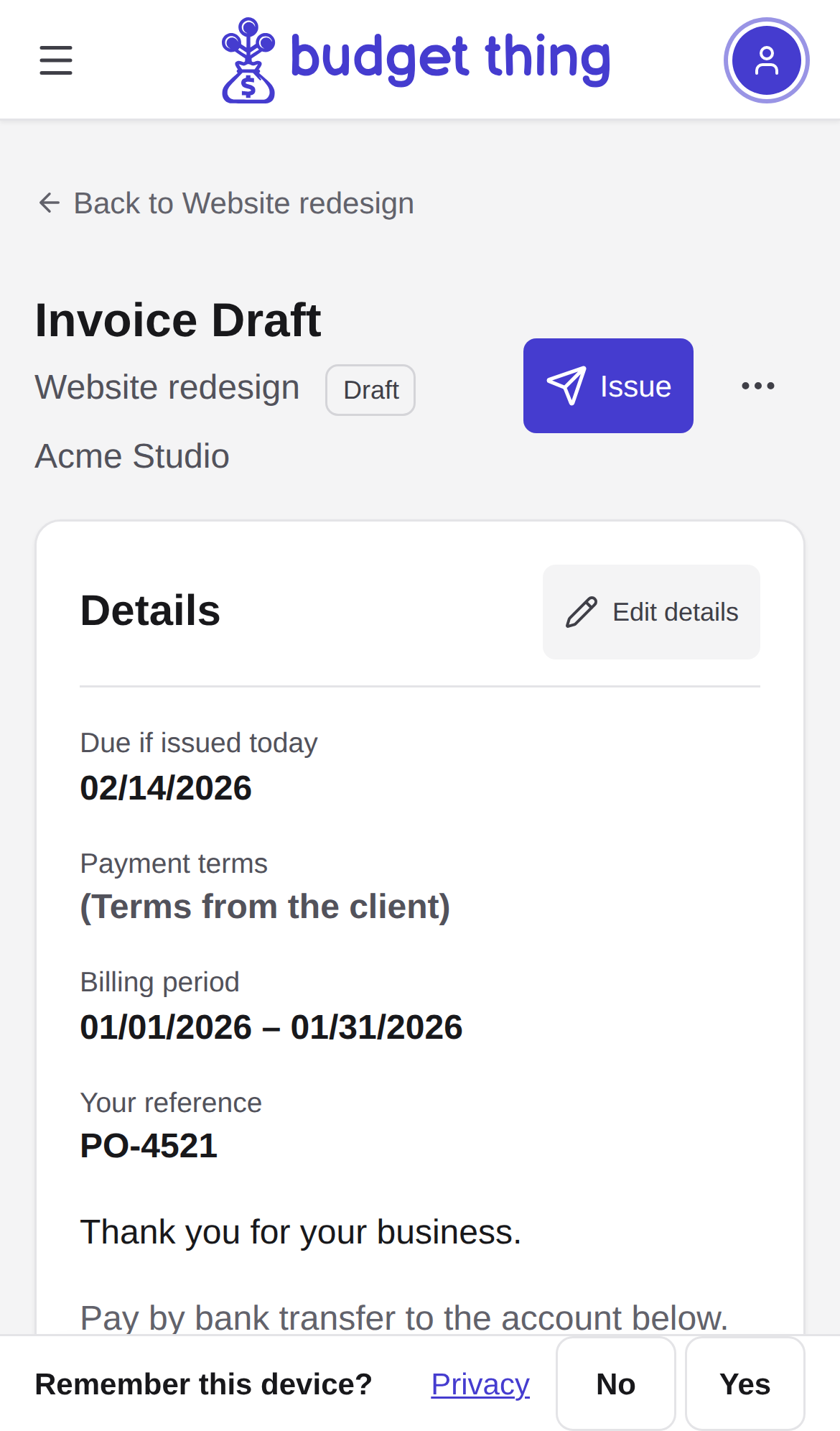
On a wide screen the buttons for these sit in the row at the top of the invoice. On a phone (a screen narrower than about 480 pixels) Issue stays beside the invoice number as the main action, and Preview and Download PDF move into the More actions (⋯) menu next to it, so the row never wraps.
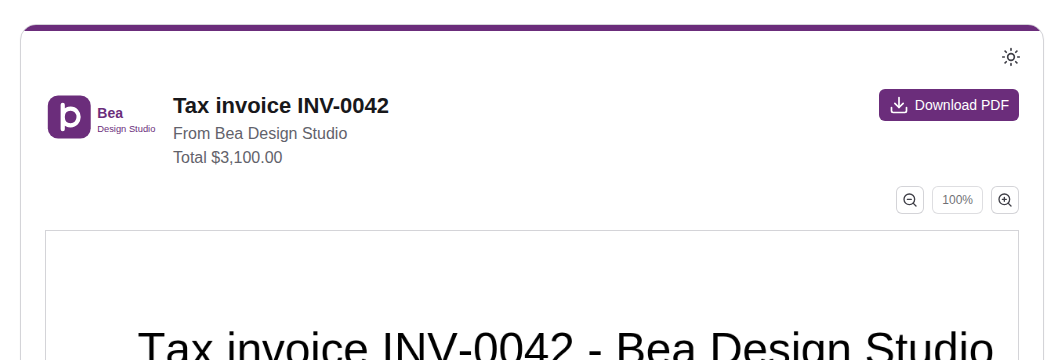
Preview shows the invoice as page images without leaving the page. Zoom with the buttons above the pages, by pinching on a touch screen, or by holding Ctrl or Cmd and scrolling (50% to 400%). When zoomed in, drag or swipe to pan, and select the percentage to fit the width again. The shared page works the same way. A draft is marked as a draft and has no number yet. Download PDF saves the file. For an issued or void invoice both give you exactly the document the client received, whatever you have changed in the business profile or the client since. If your business profile has a logo when you issue the invoice, it's printed at the top (on the left or right, as set in your Document style), in the downloaded PDF and in the PDF behind a share link, and the share page shows it small beside the invoice's title; an invoice issued before you added a logo stays without one. The PDF's labels are in English.
How the invoice looks (its template, accent color, font, logo position and size, title and which fields appear) comes from your Document style. A draft uses the style you have now. When you issue the invoice, it keeps the style it was issued with: changing your style later never changes an issued invoice, or the page and PDF behind its share links.
Issue the invoice
Select Issue and confirm. Issuing gives the invoice its number from your numbering pattern, sets the issue date to today in your workspace's time zone, works out the due date and freezes it: the lines and details can't change afterwards. Issuing doesn't email anyone. An invoice needs at least one line and a total above zero (tax included). If a line uses an archived tax rate, move it to an active rate or to no tax first. Only a draft can be deleted.
After you issue it, the page shows what has been paid and the balance due, and the More actions menu has:
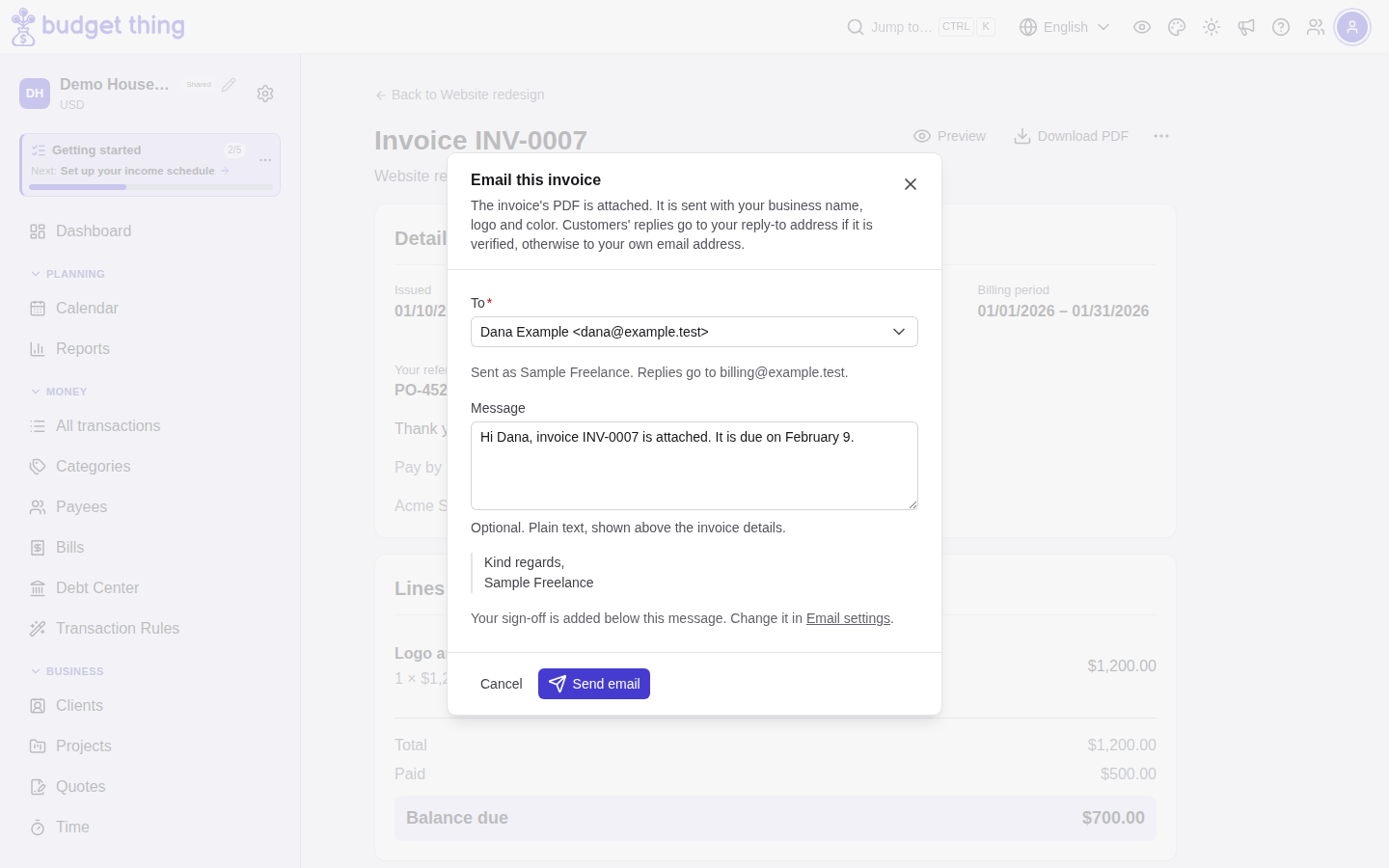
- Email to client: choose one of the client's contacts that has an email address, add an optional message and select Send email. The PDF is attached. The message starts with your Invoice email message from Business email settings, with its placeholders already filled in, if you've set one; you can edit it before sending. Your sign-off is shown under it and added to the email. The email is sent from Budget Thing's address with your business name via Budget Thing as the sender (or your own sender name), and replies go to your verified reply-to address, or to your own email address until you've set one. The email shows your business logo (or your business name when there is no logo) and your accent color, with a small "Sent with Budget Thing" footer. Choose all of this in Business email settings. The Emails list shows each attempt and whether it was sent, failed or bounced. If too much of your recent mail bounces or is reported as spam, Budget Thing pauses sending from the workspace until those reports are more than 30 days old. Check your clients' email addresses, or contact support.
- Create share link: pick how long the link works (7 to 365 days) and copy it. The link is a page on the Budget Thing web app: anyone with it can view the invoice there and download the PDF, with no sign-in. The page follows the visitor's light or dark setting and has a small sun/moon button in its top corner to switch; the choice is remembered on that device, and the PDF and printing stay light. It is shown once, so copy it before you close the box. The Share links list shows each link's expiry and when it was last opened, and Revoke stops one straight away. Once online payments are on, the same page also shows how much has been paid and what is still owed, the payment methods you chose for the invoice, and Pay with Stripe. Then the invoice email and its reminders also get a View and pay invoice button. It uses one link, shown as Created for emails, that every email for the invoice reuses; revoke it and the next email makes a new one. When that link is within a week of expiring, the next email replaces it, and the button in earlier emails stops working.
- Void invoice.
Record payments
An issued invoice has a Payments section. When money arrives, select Record payment and fill in:
- Amount: it starts at the balance due. Enter less for a part payment. A payment can't be more than the balance.
- Date received: the day the money arrived, not a day in the future.
- Method: bank transfer, card, cash, check or other. Stripe is a method too, but only Budget Thing sets it, on payments a client made online: you can't pick it, and a payment recorded that way can only have its note and its deposit link changed. See Get paid with Stripe (not yet published).
- Reference and Note, both optional. The reference is usually the client's or the bank's reference for the payment.
- Budget: choose Don't add to the budget to record the payment on the invoice only, so your accounts and budget don't change. Choose Add an income transaction to also create an uncleared income transaction for the same amount and date in the account the money arrived in. Pick an income category, or leave it empty and the money goes to Available to Assign. If your bank is connected, the deposit later merges into that transaction instead of being counted twice. Choose Link to an existing deposit when the money is already in your budget as an income transaction: pick it from the list, which shows income that payments don't fully claim, your client's deposits first, with what is still unclaimed of each. Search by payee, memo or account to find another. If some deposits can't be checked, the list says how many are missing; search again to retry. Several payments can share one deposit, as long as together they add up to no more than it. If a payment would claim more than the deposit has left, Budget Thing refuses it and says how much is left: pick another deposit or lower the amount.
The invoice's Paid amount, Balance due and Paid status update straight away: Unpaid, Partly paid or Paid. Each payment in the list has a pencil to change its amount, date, method, reference or note, and a bin to delete it, which puts the balance back up. Changing or deleting a payment never changes or deletes its income transaction: the money still arrived. A payment shows In budget when it has a transaction and Transaction deleted when that transaction has since been deleted. To move a payment to a different deposit, edit it and choose Link to an existing deposit; it replaces the earlier link. Use the unlink button to detach a payment from its transaction and leave both in place.
Each payment has a Set aside for taxes button (a piggy bank) that opens a dialog suggesting how much to move into your tax category. See Set money aside for taxes.
To match a bank deposit to one or more invoices from the transaction itself, see Match a deposit to invoices.
A payment suggested from a bank deposit shows From bank. You can't record a payment on a draft or void invoice.
Void an invoice
A mistake in an issued invoice can't be edited. Select Void invoice, add an optional reason and confirm. The invoice keeps its number and lines and shows Void. The time it billed returns to Unbilled (time you wrote off while billing it comes back too), the quote lines it billed count as unbilled, and its share links stop working. Then make a new invoice.
An invoice with payments recorded against it can't be voided. Delete its payments first.
An invoice with an issued credit note can't be voided either. Void the credit note first, or leave the invoice and credit it.
Credit part or all of an issued invoice
An issued invoice never changes, but you can reduce it afterwards with a credit note: a refund of one line, a goodwill discount or a billing mistake. The invoice keeps its number and lines, and its balance drops by the credit.
Due date and overdue invoices
The invoice page shows the due date, or the date it would get if you issued it today, and the terms in force. On a draft it also says whether they come from the invoice, the project, the client or the workspace default. Once you issue an invoice its terms are fixed, whatever you change later, and its due date follows them until you change it yourself (see below).
Change the due date of an issued invoice
If a client agrees to pay later, open the issued invoice and choose Change due date next to the due date, pick the new date and save. The date can't be earlier than the issue date. The due date and the Overdue badge (if the new date has already passed) update straight away. The invoice keeps the payment terms it was issued with, and the page notes the date you changed it. The action is there for owners, administrators and editors on a plan with business tools; it isn't shown on drafts (edit the date in Edit details) or void invoices, or to read-only roles.
An issued invoice that is past due with a balance left shows an Overdue badge with the number of days late. Use the Show filter on the project's invoice list to see Overdue only.
Recurring invoices
If you bill a project or a client on a rhythm, such as a monthly retainer, set up a recurring invoice and Budget Thing makes the draft for you.
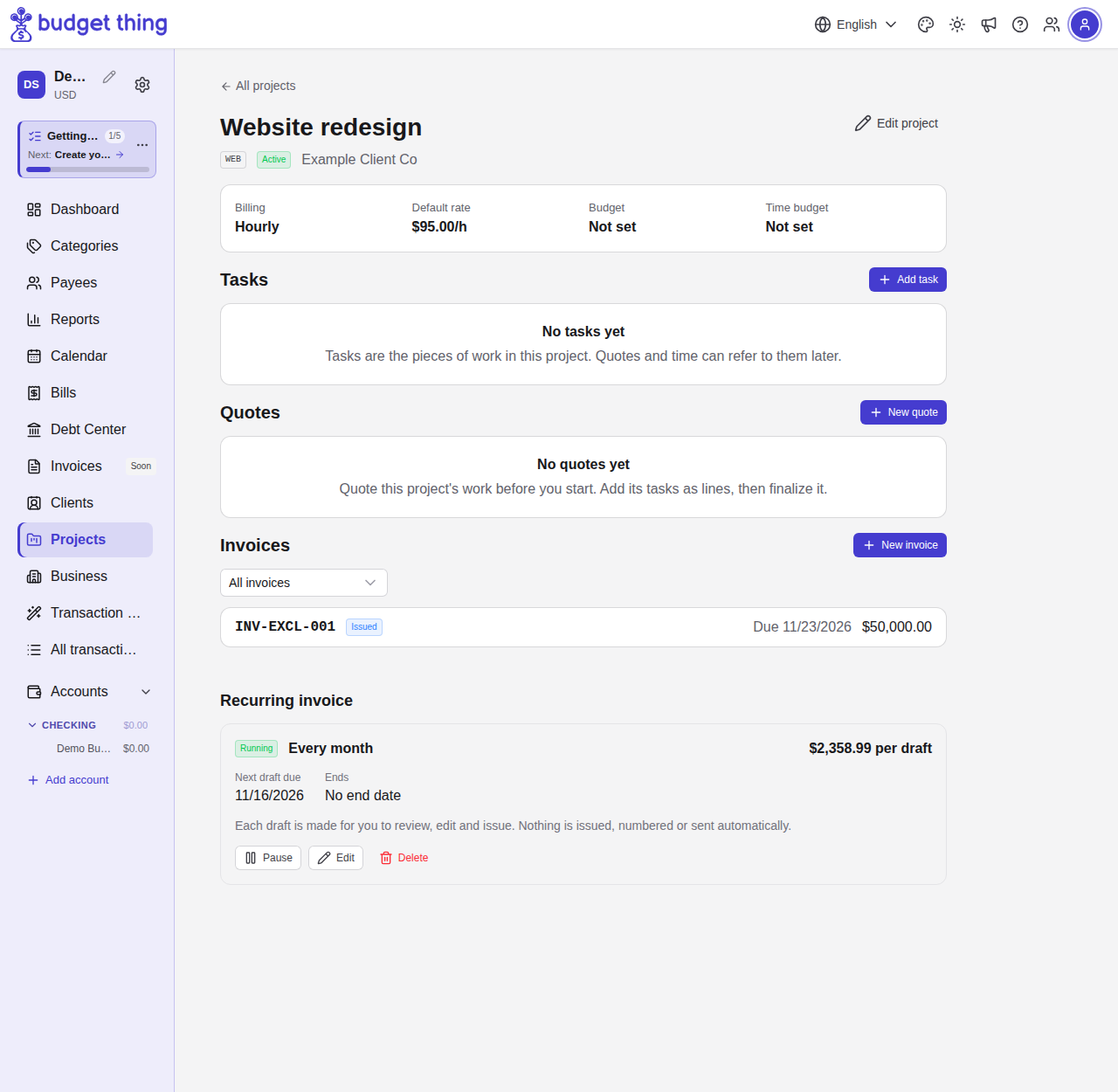
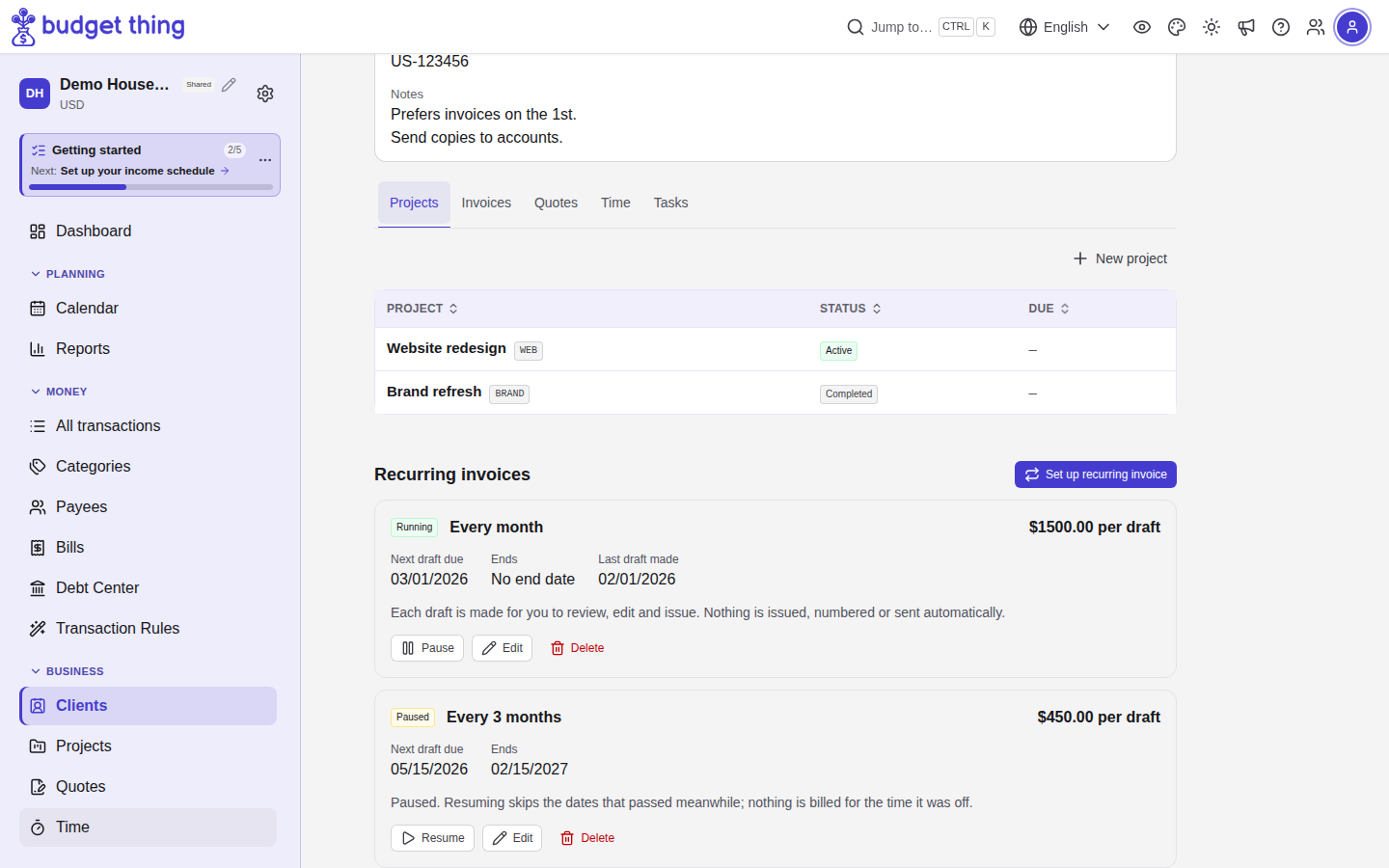
For a project, open the project, choose Recurring invoices in its section menu and select Set up recurring invoice. For a client with no project, open the client's page and, under Recurring invoices, select Set up recurring invoice; its drafts are client-only invoices. Choose how often (every week, 2 weeks, 4 weeks, twice a month, every month, 2, 3, 4 or 6 months, every year or 2 years), the first due date (today or later) and, if you want one, a last due date. Add the lines every draft starts with, each billed in Items, Hours or as a Fixed fee like the lines you add to an invoice (each can have details), and optionally a reference and notes, which you can format like an invoice's notes. A project has one recurring invoice; a client can have several without a project, and Set up recurring invoice adds another.
On each due date Budget Thing creates an ordinary draft from those lines. It never issues, numbers, emails or shares anything by itself: you open the draft, check it, change what needs changing and issue it. A draft made this way shows a Recurring badge on its page.
- Pause stops new drafts. When you Resume, the dates that passed while it was paused are skipped, and nothing is billed for that time.
- Edit changes how often, the last due date, the lines, the reference and the notes. Drafts already made keep what they had. The first due date can't change: delete the recurring invoice and set up another to start elsewhere.
- Delete stops the drafts. The drafts and invoices it already made stay.
- Monthly and longer rhythms keep the first due date's day of the month, or the month's last day when it is shorter.
- A missed due date is only drafted if it was within the last 7 days, so a long downgrade or an old backup never brings a burst of backdated drafts. Nothing is drafted while the project (or, for a client's own recurring invoice, the client) is archived or the plan doesn't include business tools. An archived client's recurring invoices show Not drafting and can't be changed until you restore the client.
Payment reminders
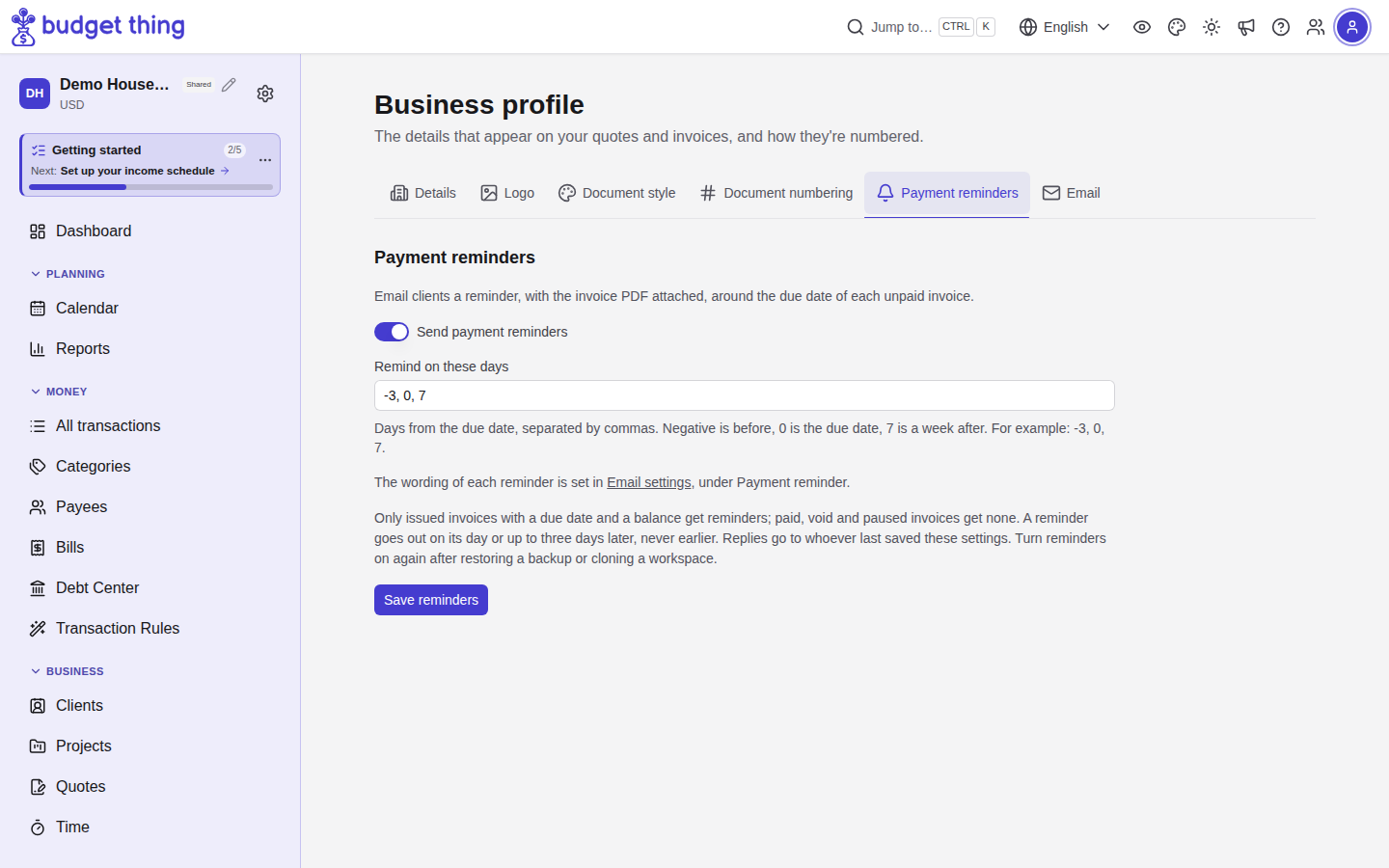
Budget Thing can email your clients a reminder for unpaid invoices. Reminders are off until you turn them on.
Open Business settings in the workspace and, on the Payment reminders tab, turn on
Send payment reminders and choose the days to remind on, counted from each
invoice's due date: a negative number is before, 0 is the due date and 7 is a
week after. Use 1 to 6 different days from -30 to 90, such as -3, 0, 7.
The wording of the reminder is the Payment reminder message in
Business email settings, which also
holds your sign-off.
- Only issued invoices with a due date and a balance get reminders. Paid, void and paused invoices get none.
- Once online payments are on and your client can pay the invoice, the reminder has the same View and pay invoice button as the invoice email, with the same link.
- A reminder is sent on its day or up to three days later, never earlier. If several are owed at once, only the latest is sent, and each is sent once per invoice, day and due date. A failed reminder isn't retried.
- It goes to the first of the client's contacts that has an email address, with the invoice PDF attached. It looks like other invoice emails, with your business logo (or name) and accent color and a small "Sent with Budget Thing" footer. It uses the same sender name as other invoice emails (see Business email settings). Replies go to your verified reply-to address if you've set one, otherwise to the person who last saved the reminder settings (or the workspace owner if they can no longer edit).
- If sending is paused for the workspace because of bounces or complaints, a reminder that comes due meanwhile is recorded as skipped and not sent later.
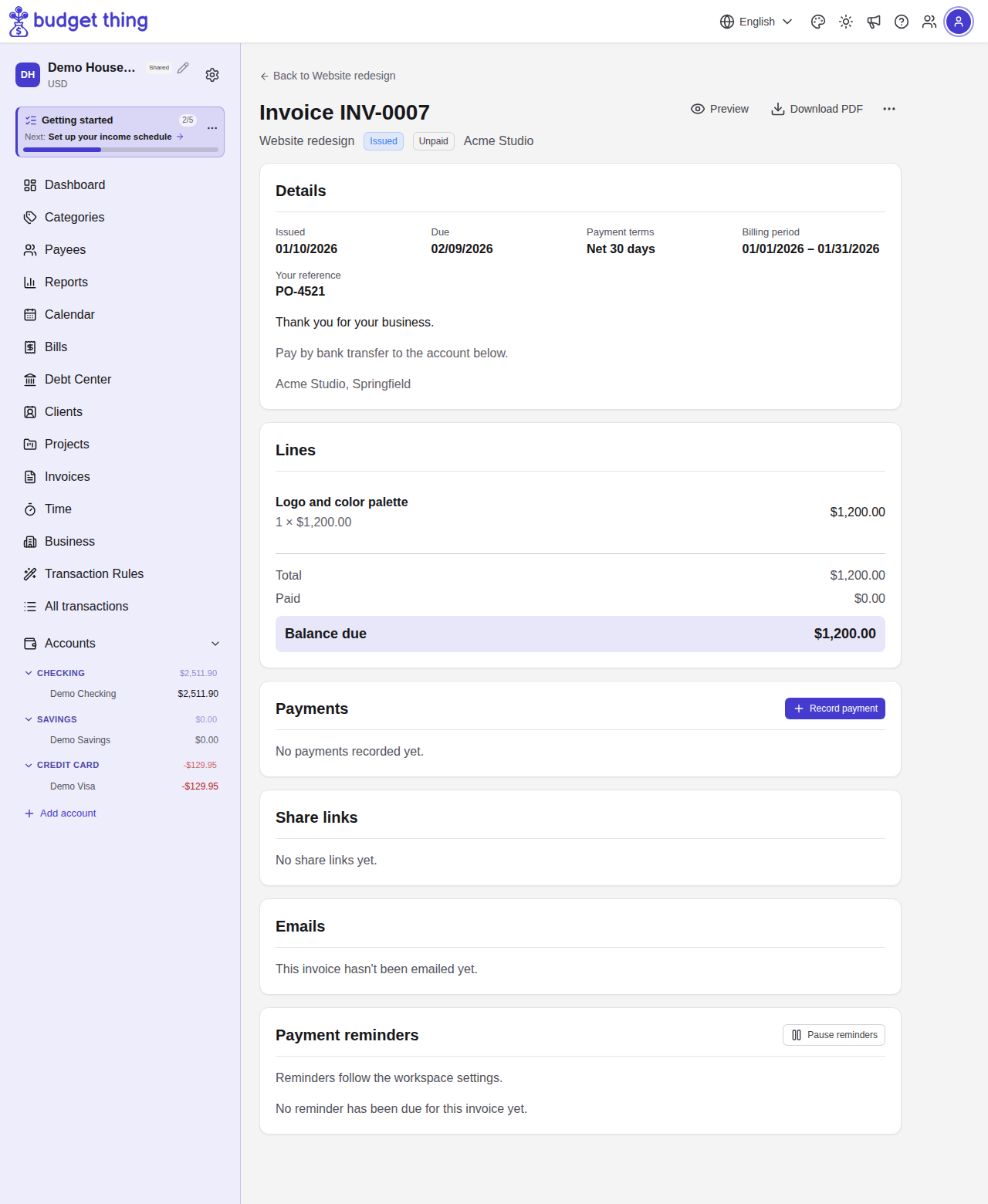
On an issued invoice, the Payment reminders section lists what was sent or not, with the outcome of each: Sent, Failed, No recipient (no contact has an email address), Skipped or Sending. Pause reminders stops reminders for that invoice only, whatever the workspace settings say, and Resume reminders starts them again. If the invoice has no due date, the section says so: no reminders can be sent until you add one.
Credit an issued invoice
An issued invoice can't be edited. To reduce it, for example after a refund or a mistake, issue a credit note from the invoice's actions menu. The invoice shows the credits and the new balance. An invoice with an issued credit note can't be voided until the note is voided.
Statuses
| Status | Meaning |
|---|---|
| Draft | Being built. Editable and deletable, with no number. |
| Issued | Numbered and frozen. Shows Unpaid, Partly paid, Paid or Credited (credit notes cover the whole invoice and nothing was paid), and Overdue once the due date has passed with a balance left. A refund or lost dispute on a Stripe payment lowers what is paid, so a refunded invoice goes back to Partly paid or Unpaid. Disputed is shown on top while a client's bank is disputing one of its Stripe payments; see Refunds and disputes on Stripe payments (not yet published). |
| Void | Canceled. Keeps its number and lines. |
| Credited | Credit notes cover the whole invoice and nothing was paid. |
What your plan allows
Creating and editing invoices, issuing, voiding, emailing and sharing them, and recording or changing payments, needs a plan that includes business tools (Solo Business). After a downgrade invoices stay visible, and you can still preview and download them and revoke share links, but you can't change or issue them or record payments.
Setting up, pausing, editing or deleting a recurring invoice, changing the reminder settings and pausing an invoice's reminders need the same plan; after a downgrade you can still read them, and no new drafts or reminders are made.
Invoices and their payments are included in workspace backups, data exports and when you clone a workspace. Share links and email records are not. Recurring invoices are in backups and data exports but not in clones, so a cloned workspace never starts drafting invoices on its own; set them up again there. A restored backup keeps them; a missed due date is only drafted if it was within the last 7 days, so a restore never makes a burst of backdated drafts. The reminder settings and the reminder log are in data exports only: after you restore a backup or clone a workspace, turn reminders on again.