Quotes
A quote prices work for a client before you start. It can be for one of the client's projects, or for the client alone, with no project yet (a client-only quote). You build it as a draft, finalize it to freeze it and give it a number, then email it, share a link or download the PDF. Quotes live in a business workspace: on each client's and project's page, and all together on the Quotes page.
Find your quotes
Select Quotes under Business in the left menu to see every quote in the workspace, newest first. Each row shows the quote's number (Draft until it is finalized), client, project, status, issue date (the day it was finalized), valid-until date and total. A quote with no project shows No project. Select a row to open the quote, and select a column heading to sort.
Use the tabs above the list to show only Drafts, Sent, Accepted, Declined or Expired quotes. All also shows revisions that a newer version has replaced, marked Superseded. A final quote whose valid-until date has passed counts as Expired, not Sent. On a phone the tabs keep their full names and the row scrolls sideways when they don't all fit. A client's page also lists that client's quotes.
Use the project filter beside the tabs to show one project's quotes, only quotes with No project, or all of them.
To find a quote by its number, type part of it in the search box above the
list: 7 finds Q-0007, and letter case doesn't matter. Search works together
with the tabs. Drafts have no number yet, so they are hidden while you search.
If nothing matches, select Clear search to see the list again.
After a plan downgrade the list stays readable, but New quote is hidden; see Feature availability.
Start a quote
Select New quote on the Quotes page and choose the client the quote is for. The project is optional: leave it on No project to quote the client alone, or pick one of that client's projects. You can also start a quote from a client's page, where the client is already chosen, or from a project's page, where the project is. The quote opens on its own page, so a long quote with many lines and details fits without any dialogs. The page has sections, top to bottom:
- Client and project, when you start from the Quotes page.
- Title and Valid until.
- Introduction, Lines, Notes and terms and Payment and deposit, described below.
Fill in:
- Title.
- Introduction, shown above the lines. It, Terms and Notes can be formatted with bold, italic and lists.
- Terms, shown below the lines. A new quote starts with your Default quote terms (set under Document style; empty until you set them), and you can change them on each quote.
- Notes, shown below the lines and the total and above the Terms. Use it for scope notes, such as what the quote doesn't include. It's optional, and a quote without notes looks the same as before.
- Footer and Payment details, printed at the bottom of the quote. A new quote starts with the footer and payment defaults you set under Document style (empty until you set them), and you can change them on each quote. They're frozen with the rest of the quote when you send it.
- Valid until: the last day the client can accept the quote. It starts thirty days from today in your workspace's time zone. Clear it for no expiry.
- Deposit: none, a percentage of the total before tax, or a fixed amount (also before tax). It is printed on the quote and can't be larger than the total before tax.
Add your lines in the Lines section (see Add lines). The bar at the bottom of the page stays in view with the estimated total, Cancel and Save draft. Nothing is saved until you select Save draft; then the quote opens. Cancel leaves without saving. If you have changed anything, Budget Thing asks first (Stay keeps your changes, Leave and discard drops them), also when you use the back link, the browser's back button or the menu, or close the tab. If Save draft finds a problem, focus moves to the first field to fix, and Add line puts the cursor in the new line's Item. A project or client that is archived can't have new quotes.
Edit a draft
On a draft, select Edit (in Details) or Add line or the pencil on a line. All of them open the same page, with everything you already entered: details, lines, notes, terms and deposit. Change what you need, then select Save draft. A line you remove, reorder, add or edit is changed when you save. Sent, accepted and declined quotes can't be edited; make a new version to change one.
A draft whose project is archived, or a client-only draft whose client is archived, can't be edited or sent either. Its page hides Edit and the draft actions and says why, with a link to the project or client; opening the edit page directly goes back to the quote. Restore the project or client first. A draft in an active project can still be edited when its client is archived. If it was archived in another tab while you were editing, Save draft tells you which one, and your changes stay on the page until you restore it and save again.
Client-only quotes
A client-only quote is for a client with no project. Use it to price a job before you have set up a project for it, or for work that never needs one.
- Lines: add item, hour and fixed-fee lines with Add line on the quote's page. Add from tasks and the Time tab need a project, so they aren't offered; a note above the lines says so.
- Numbering: the quote uses your business profile's quote numbering pattern.
If the pattern contains
{PROJECT}, finalizing stops with a message and an Open numbering settings button, because there is no project code to put in the number. The default pattern doesn't use{PROJECT}. A quote keeps its number when it later gets a project. - Sharing, emailing, versions and the PDF work as for any quote. The PDF and the shared page leave the project line out.
- Declining a client-only quote leaves nothing to clean up: no project was created.
Start or link a project
Once a client-only quote is accepted, its page offers two actions, in the banner under the title and in the More actions menu:
- Start project from this quote creates a project for the client. Its name starts as the quote's title, and you can change it. Tick Create tasks from the quote lines to add one task per quote line, in order, priced like the line (hours as an hourly task with that estimate, other lines as fixed-price tasks). Budget Thing opens the new project on its Tasks section afterwards.
- Link to existing project lists the client's active projects. Pick one to attach the quote to it.
Either way the quote and its earlier versions join the project, and the project's page lists them. A quote can only be linked once: after that the quote shows its project, the two actions are gone, and the project can't be changed. What the client sees doesn't change. Only the newest version of an accepted quote can be started or linked.
Time can be logged against the quote once it belongs to a project. Before that, it has no time to show, and the Billing tab leaves out the project's unbilled time. To bill it before it has a project, see client-only invoices.
Add lines
A line has an Item (its name, on one line), optional Details, a unit it is billed in, a price and an optional discount. Budget Thing works out each line's total and the quote's total; you never add them up yourself.
Choose what each line is Billed in, so one quote can mix hourly work, counted items and fixed fees:
| Billed in | You enter | The client sees |
|---|---|---|
| Items | A quantity and a price per unit. | The quantity, such as 3, and the price. |
| Hours | The hours and an hourly rate. | The hours, such as 2.5 hrs, and the rate, such as $120.00/hr. |
| Fixed fee | Only an amount. | The amount; the quantity and rate are left blank. |
On the PDF the columns are headed Qty and Unit price. When every line is billed in hours they read Hours and Hourly rate instead.
- Add from tasks lists the project's billable tasks that aren't on the quote yet, all ticked. An hourly task becomes a line billed in hours: its estimate (one hour when it has no estimate) at its own rate or the project's default rate. A fixed price task becomes a fixed fee at its price. A task with no price becomes a line marked Needs a price, which you then fill in.
- Add line adds a line of your own, such as a hosting setup fee. On the quote's editing page each line is a card with its Item, Details, unit, quantity, price and discount, so you can write every line in one place.
Details is for what the line includes: select Add details under the item and type, for example, a short list of what is covered. Details show under the item on the quote and in the line list, and they are copied when the line is billed on an invoice. See Format your text.
The quantity or hours can have up to four decimals (1.5 hours). The discount is a
percentage of that line, from 0 to 100. Use the arrows to put lines in order and
the bin to delete a line; on the quote's page, the pencil opens the editing page.
The total shown while you edit is an estimate; the final total is worked out when
you save. A line that comes from a
task shows the task's name, and you can stop pricing it from the task when you
edit it. A quote holds up to 200 lines.
Details and formatted text on the PDF
A line's Details print on the PDF in full, directly under the line's Item, in smaller, gray text. Bullet lists, numbered lists, bold and italic print as formatted; a bulleted list can have one level of sub-points. The amounts stay on the item's own row. A line with long details can continue onto the next page: the table heading is repeated there, and a page never starts or ends with a single row of details on its own.
The Introduction, Terms and Notes use the same formatting, in the normal size
and color of the quote. Anything the formatting doesn't cover, such as headings,
links, images, tables or code, prints exactly as you typed it. The shared quote
page shows this same PDF, so it looks the same there. An introduction or terms
you wrote before this existed print formatted too if they contain list or emphasis
marks such as - at the start of a line or *word*.
Format your text
Details, Introduction, Terms and Notes share one editor. Above the box are four buttons: Bold, Italic, Bulleted list and Numbered list. You can also press Ctrl+B or Cmd+B for bold and Ctrl+I or Cmd+I for italic, or type the marks yourself:
| You type | You get |
|---|---|
**bold** | bold |
*italic* or _italic_ | italic |
- item, * item or • item at the start of a line | a bullet |
1. item at the start of a line | a numbered list |
| Two spaces before the marker | an item nested one level in |
Press Enter in a list to start the next item, and Enter on an empty item to end the list. Press Tab on a list item to nest it and Shift+Tab to bring it back; on a phone, use the indent and outdent buttons. Select Preview to see the formatted text before you save. Each box holds up to 4,000 characters and the counter under it shows how many you have used.
Only bold, italic, bullets and numbered lists are formatted. Anything else, such as headings, links, images or tables, is shown exactly as you typed it. A line break in a paragraph stays a line break.
If your introduction, terms or notes already contained lines starting with -
or 1. , or words between * marks, they now show formatted in the app.
Sales tax, VAT and GST on quotes
You can add sales tax, VAT or GST to a quote. Each line has one tax rate, or none, and new lines get your default rate. Prices and line totals are before tax: Budget Thing adds the tax on top, calculates it once for each rate on the whole quote, and shows a subtotal, a row for each rate and the total. Drafts follow your current rates; when you send a quote, its lines keep the rates they had. The deposit is calculated on the quote subtotal, before tax, and the invoice that bills it adds the tax. Set up your rates in Business → Tax rates.
Budget Thing adds the tax you choose. It doesn't check which rates or invoice rules apply to you. This isn't tax advice.
See Sales tax, VAT and GST on documents for the rules, the PDF layout and the limitations.
Preview and download
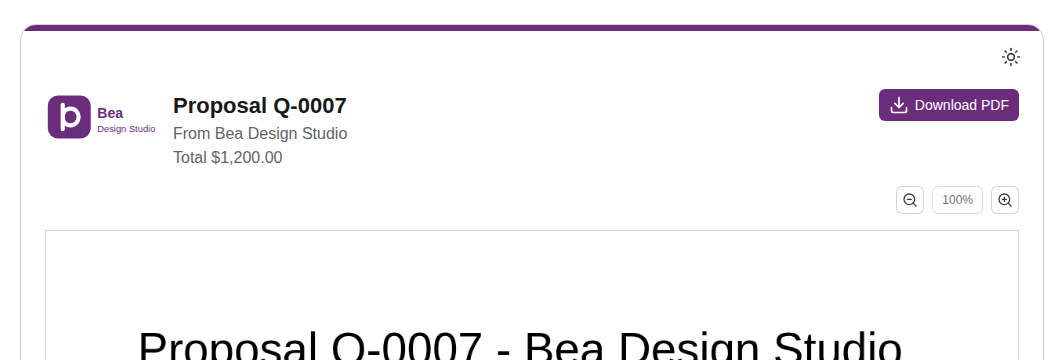
Preview shows the quote as page images without leaving the page. Zoom with the buttons above the pages, by pinching on a touch screen, or by holding Ctrl or Cmd and scrolling (50% to 400%). When zoomed in, drag or swipe to pan, and select the percentage to fit the width again. A draft is marked as a draft and has no number yet. Download PDF saves the file. Both work before and after finalizing, and for a quote you've finalized they give you exactly the document the client received, whatever you have changed in the business profile or the client since. The PDF's labels are in English. If your business profile has a logo, it's printed at the top of the PDF, on the left or right as set in your Document style; quotes without one look the same as before. A draft shows your current logo. A finalized quote keeps the logo it was finalized with, so a quote you finalized before adding your logo has none; to send it with your logo, create a new version and finalize that.
How the quote looks (template, accent color, font, logo, title and fields) comes from your Document style. A quote keeps the style it had when you sent it, in the PDF and on the page a client opens from a share link, with the logo small beside the title; changing your style or logo later doesn't change it.
Finalize the quote
Select Finalize and confirm. Finalizing gives the quote its number from your numbering pattern and freezes it: the lines and details can't change afterwards, and only drafts can be deleted. Finalizing doesn't email anyone: download the PDF and send it yourself, or email it from Budget Thing. A quote can't be finalized without at least one line, or with a deposit larger than the total before tax, and a valid until date in the past has to be changed first.
After you finalize it, Download PDF gives you the final, numbered quote. Use the More actions menu to:
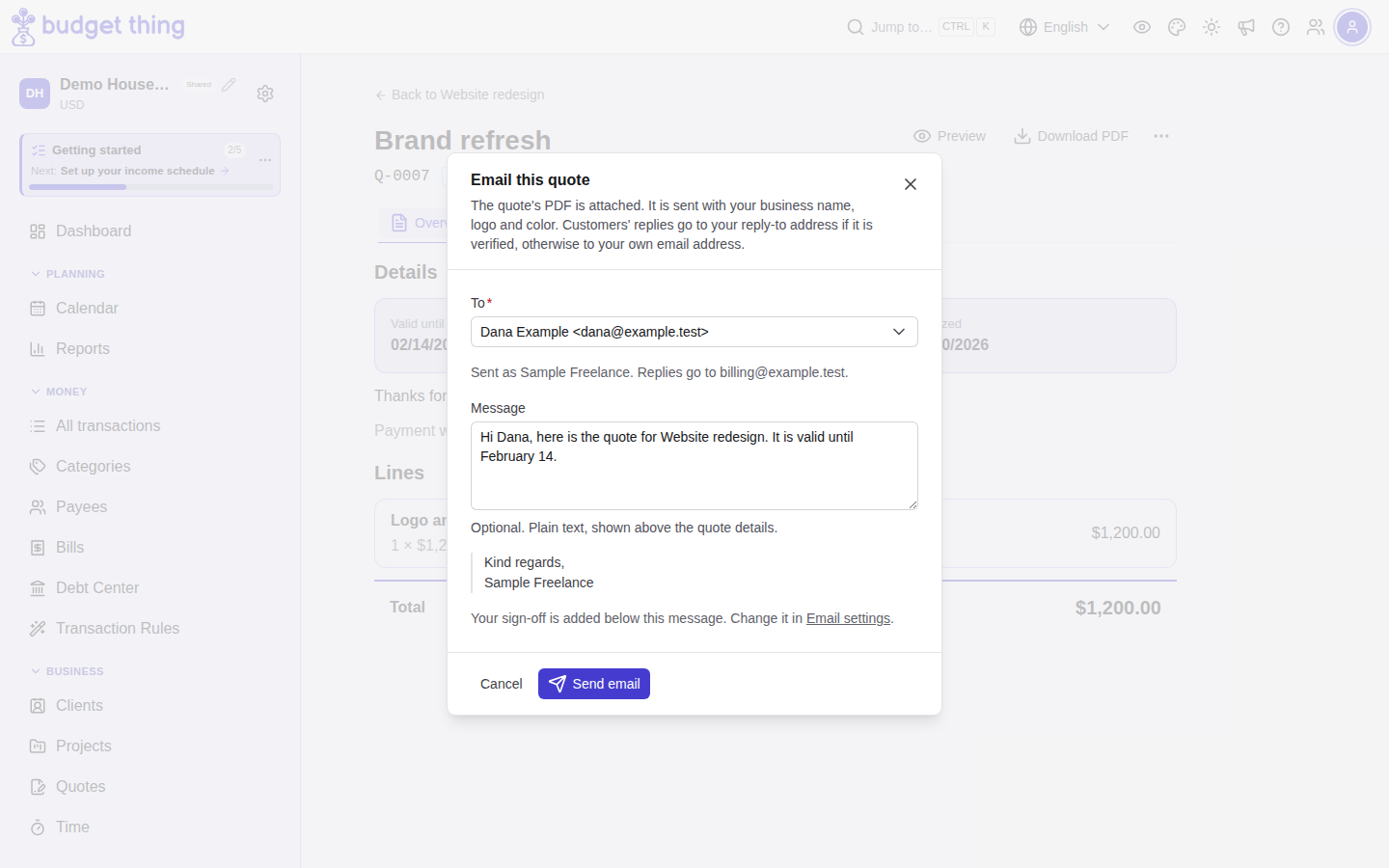
- Email to client: choose one of the client's contacts that has an email address, add an optional message and select Send email. The PDF is attached. The message starts with your Quote email message from Business email settings, with its placeholders already filled in, if you've set one; you can edit it before sending. Your sign-off is shown under it and added to the email. The email is sent from Budget Thing's address with your business name via Budget Thing as the sender (or your own sender name), and replies go to your verified reply-to address, or to your own email address until you've set one. The email shows your business logo (or your business name when there is no logo) and your accent color, with a small "Sent with Budget Thing" footer. Choose all of this in Business email settings. The Emails list shows each attempt and whether it was sent, failed or bounced. You can only email a contact of the client, so add the address to the client first. If too much of your recent mail bounces or is reported as spam, Budget Thing pauses sending from the workspace until those reports are more than 30 days old. Check your clients' email addresses, or contact support.
- Create share link (also a button on the Sharing tab): pick how long the link works (7 to 365 days) and copy it. The link is a page on the Budget Thing web app: anyone with it can view the quote there and download the PDF, with no sign-in. It is shown once, so copy it before you close the box. The Share links list, on the Sharing tab, shows each link's expiry and when it was last opened, and Revoke stops one straight away. A link also stops working once the quote is replaced by a newer version.
- Mark accepted or Mark declined, to record the client's answer.
- Create new version, to change the quote.
Change a quote you've finalized
A finalized quote can't be edited. Select Create new version instead: Budget Thing makes a draft copy with the same lines. The earlier quote stays on record and becomes Superseded when you finalize the new version, which gets its own number. Each page links to the other. Deleting a draft version brings back the quote it was replacing.
A quote that already has invoices can't be revised; make a separate quote for the extra work.
See what has been billed
Billed and quoted amounts are compared before tax, so tax on an invoice never makes a quote look over-billed.
A quote's page is split into tabs: Overview (details, lines and total), Sharing (share links and emails, once the quote is finalized) and, once the quote is accepted, Billing and Time (the time logged under this quote, opening on unbilled time). A quote that isn't accepted shows Time only if time is already logged under it, so existing time never disappears. A quote with no project never shows Time, because time is logged on a project. A link to the Time tab of a quote that doesn't show it opens Overview.
An accepted quote also shows a summary strip under its title: the quoted total, what issued invoices have billed, what draft invoices hold (only when there is something on drafts) and what remains, with one progress bar. If issued invoices bill more than the quote, a warning says so; nothing is blocked.
The Billing tab has a bar for each line, the deposit (set on the quote, billed, on drafts, applied and left to apply, shown only once there is a deposit to report) and the project's billable time that no invoice bills yet ("No billable time" when there is none). For a quote with no project, the tab instead offers Start invoice, which creates a client-only invoice for the client; add the quote's lines or a deposit from that invoice. To bill a deposit or the work, see Invoices.
Statuses
| Status | Meaning |
|---|---|
| Draft | Being built. Editable and deletable, with no number. |
| Final | Finalized: numbered and frozen. |
| Accepted / Declined | You recorded the client's answer. |
| Superseded | Replaced by a newer version. |
A final quote whose valid-until date has passed also shows Expired, and one that has invoices shows Invoiced. Both are worked out from the dates and invoices, and you don't set them.
What your plan allows
Creating and editing quotes, finalizing, emailing, sharing and answering them needs a plan that includes business tools (Solo Business). After a downgrade quotes stay visible, and you can still preview and download them and revoke share links, but you can't change or finalize them.
Quotes are included in workspace backups, data exports and when you clone a workspace. Share links and email records are not.