Calendar Filters
The Calendar's filtering is done through Display settings, in the header next to the month controls. There are two choices to make, and both are per event type.
Show or hide an event type
Turn any of the four types off and its events leave the grid:
- Income
- Expenses
- Paychecks
- Bills
Hiding a type is genuine filtering, not dimming — a hidden type is not fetched at all. Turning everything off leaves the month empty, and the Calendar says so rather than looking broken.
Common uses:
- Turn off Income and Expenses to see only what is still expected.
- Turn off Paychecks and Bills to see only what has actually happened.
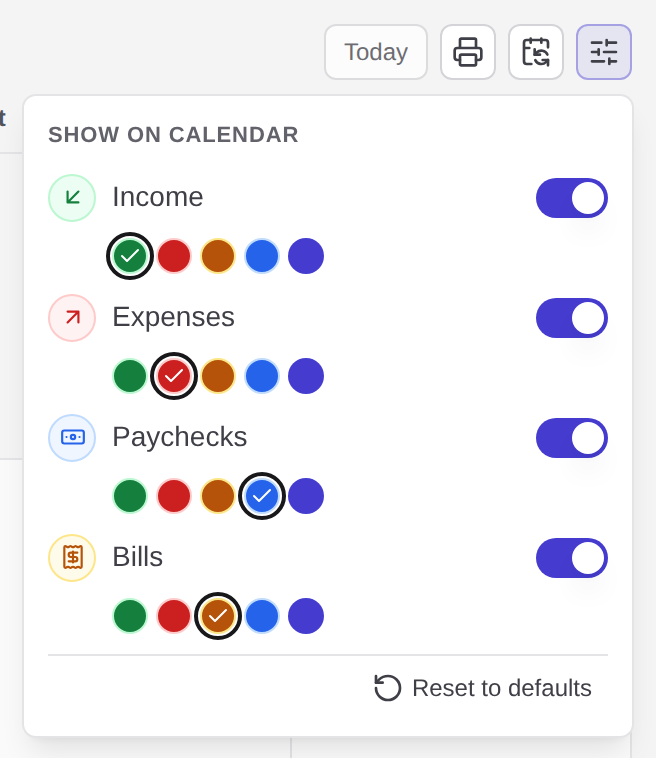
Change a type's color
Each type can be set to Green, Red, Amber, Blue or Indigo. Colors are applied as you choose them, without reloading the month. See What Appears on the Calendar for the defaults and what each one means.
Reset to defaults
Reset to defaults puts every type back on and restores the default colors.
Your choices are remembered per workspace
Display settings are a viewing preference, not budget data. They are stored in your browser for the workspace you are in, so a shared household workspace and a personal one can highlight different things — and your choices do not change what anyone else sees.
Because they are stored locally, display settings do not follow you to another browser or device, and private browsing may not keep them past the session.
Filters and your calendar subscription
If you subscribe to the Calendar in Google Calendar, Apple Calendar or Outlook, the link you copy includes the event types you are showing at that moment. Colors don't carry over; your calendar app uses its own.
Changing your filters afterward doesn't change a subscription you already added. To update it, copy the link again from Subscribe to this calendar and subscribe with the new one. This doesn't reset your link, so other subscriptions keep working.
What cannot be filtered
Filtering is by event type only. There is no filter by account, category, payee or amount on the Calendar. To narrow the ledger itself, use Filters on the transactions list.