Subscribe in Your Calendar App
You can see your Budget Thing calendar in the calendar app you already use: Google Calendar, Apple Calendar, Outlook, or any app that can subscribe to an iCal link. Paychecks, bills, income and expenses then sit next to the rest of your schedule, and your calendar app keeps them up to date.
Calendar subscriptions are available on all plans, including Free.
Get your link
- Open Calendar in the workspace you want to see.
- In the header, select Subscribe to this calendar (the calendar icon with arrows, next to Display settings).
- The first time, select Create calendar link.
- Select Copy link, or Open in calendar app to subscribe in one step on devices that support it.
Each person in a shared workspace gets their own link, and each workspace has a separate link.
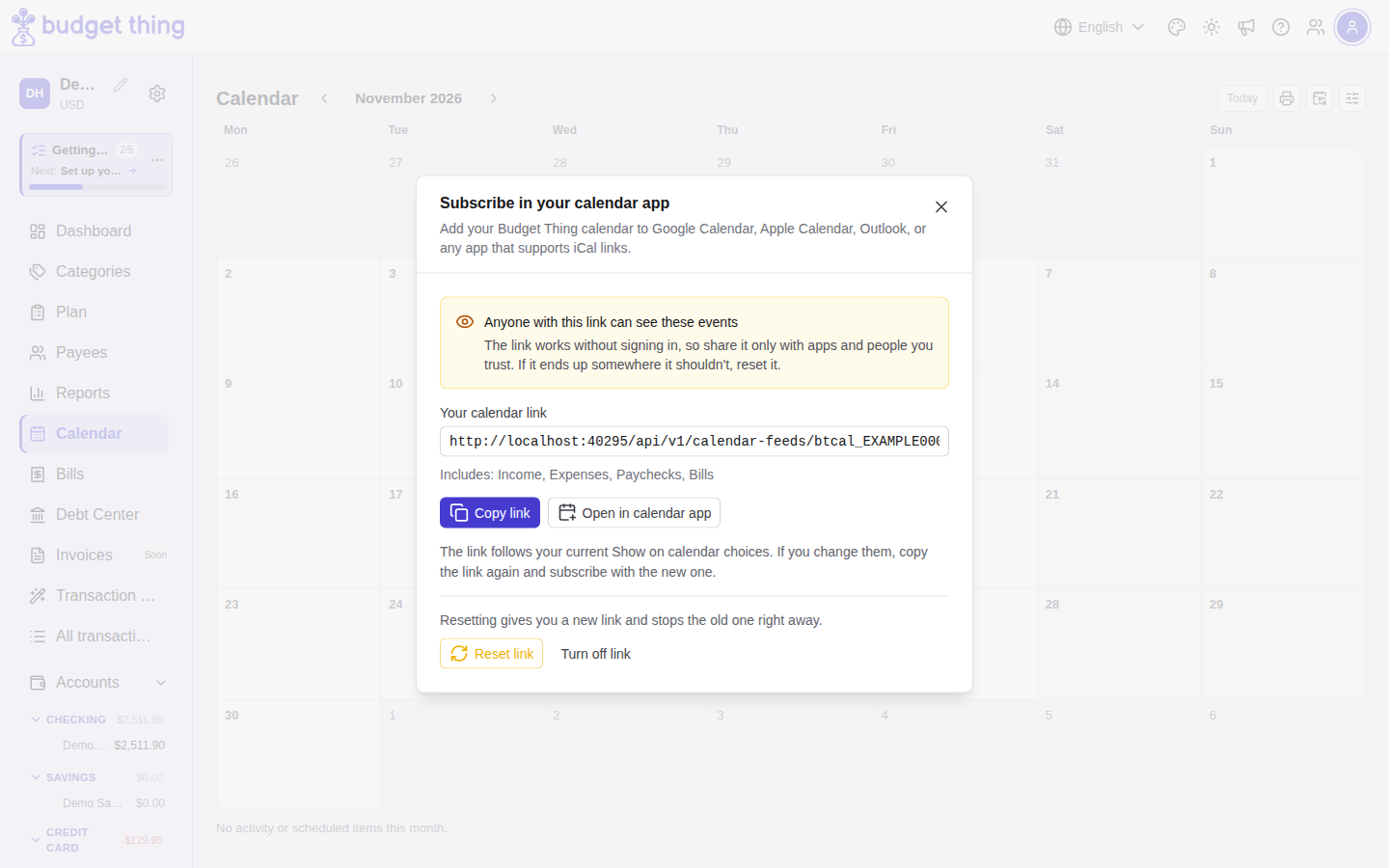
Add it to your calendar app
- Google Calendar (on the web): next to Other calendars, select +, then From URL. Paste the link and select Add calendar.
- Apple Calendar on a Mac: choose File > New Calendar Subscription, paste the link and select Subscribe. On iPhone or iPad, go to Settings > Apps > Calendar > Calendar Accounts > Add Account > Other > Add Subscribed Calendar.
- Outlook (on the web): select Add calendar, then Subscribe from web. Paste the link, give the calendar a name and select Import.
Your calendar app decides how often it checks for changes, usually somewhere between every few minutes and once a day. Google Calendar can take up to a day. A change you make in Budget Thing shows up the next time your app refreshes.
What the subscription shows
- Every event is an all-day event that doesn't mark you as busy.
- Each event shows its type, name and amount, for example Bill: Rent $1,250.00, in your workspace's currency format.
- It covers the last 90 days and the next 12 months, and moves forward on its own.
- It holds up to 25,000 events. Very few workspaces reach that; if yours does, the events furthest in the future are left out.
- Events are shown in English.
These are the same events the Calendar shows. See What Appears on the Calendar.
It follows your calendar filters
The link includes the event types you have turned on under Show on calendar. If you show only Bills and Paychecks, the subscription shows only bills and paychecks.
Your filters are saved in your browser, so the link carries them with it. If you change your filters later, the subscription you already added doesn't change. To update it, open Subscribe to this calendar again, copy the link and subscribe with the new one (you can remove the old subscription from your calendar app). The secret part of the link stays the same, so this doesn't reset anything.
If every event type is hidden, there is nothing to subscribe to, and the dialog asks you to turn at least one type back on.
Keep the link private
The link works without signing in. Anyone who has it can see the events it shows, including names and amounts. Only add it to apps you trust, and don't post it anywhere public.
Reset the link
Reset the link if it has been shared with someone who shouldn't have it, posted somewhere by mistake, or added to a device you no longer use.
- Open Subscribe to this calendar.
- Select Reset link, then confirm with Reset link.
The old link stops working right away, and every calendar subscribed to it stops updating. Copy the new link and subscribe again in the calendar apps you want to keep.
To stop sharing your calendar altogether, select Turn off link instead. You can create a new link at any time.
When a subscription stops updating
A subscription stops updating, and your calendar app may show an error, when:
- the link was reset or turned off;
- you left the workspace or were removed from it;
- the workspace was deleted;
- you are a member of someone else's workspace and its owner's plan no longer includes sharing.
If you can still open the workspace, get a new link and subscribe again.