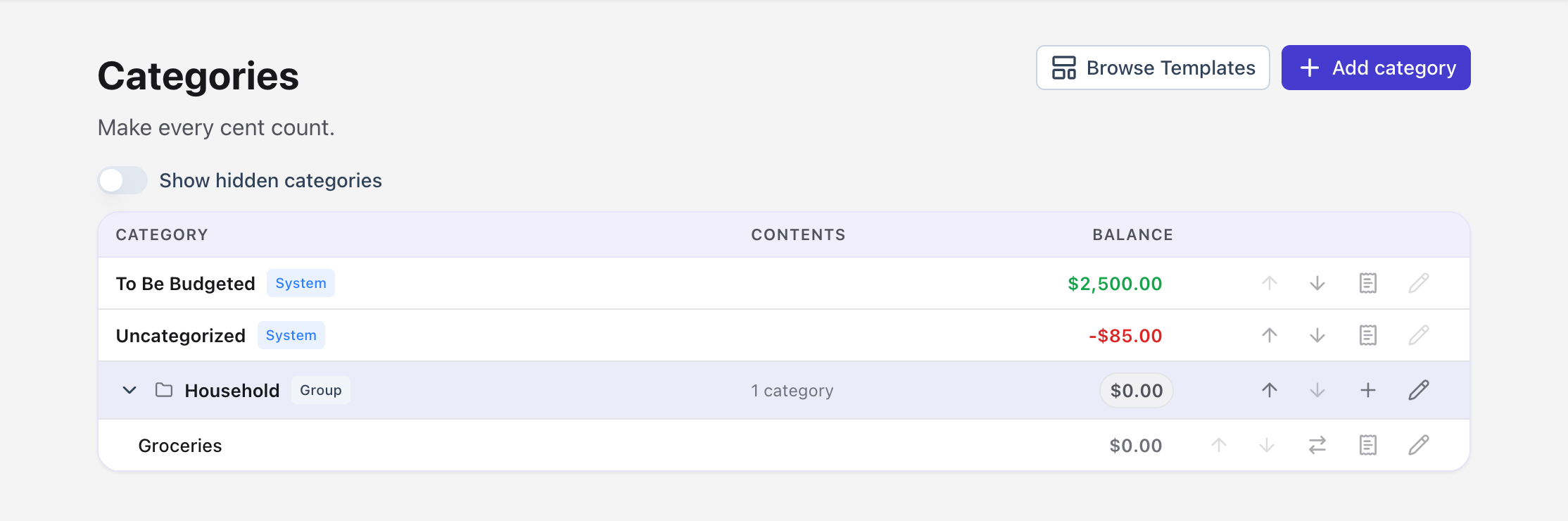
Category Groups
A category group keeps related categories together and shows their combined total. Groups are what make a long budget readable.
What a group is
A group is a category with grouping switched on. The app describes it plainly: groups have no transactions of their own; they are a container for the categories nested inside them.
That has two consequences:
- A group cannot be chosen on a transaction. Only the categories inside it can.
- A group cannot be funded directly. You fund the categories inside it, and the group shows the total.
Groups carry a Group badge in the category list, along with a count of the categories they contain, and can be expanded or collapsed.
One level of nesting
Nesting stops at one level. A category is either top level or a child of a group; a category inside a group cannot contain further categories.
Top-level categories that are not in any group are allowed. If you only have a handful of categories, you do not need groups at all.
Creating a group
Choose Add group at the top of the Categories screen (on a phone, choose Add, then Add group). It is visible in every view. The form opens with This is a group on, and the submit button reads Add group.
To add a category straight into an existing group, use Add category to group on that group's row. The Parent group field is preset for you.
Moving a category into or out of a group
Open the category and change Parent group. Choosing No group (top level) moves it back out to the top level.
Moving a category between groups does not touch its balance, its transactions or its planned amounts. Only where it appears in the list changes.
Reordering
Categories and groups appear in a deliberate order rather than alphabetically. In Edit mode on the Categories screen, drag a row by its grip handle to change it:
- Drop a category above or below another row to put it there, in that row's group.
- Drop it on a group's heading to move it into that group (the top half of the heading puts it above the group instead).
- Drag a group by its handle to reorder the groups.
A blue line shows where the row will land. You can also use Move up and Move down, which work from the keyboard and with a screen reader, or the ⋯ menu on a row and choose Move to group to pick a new group (or No group). On a phone there is no dragging: use the ⋯ menu, or Organize and Move up / Move down. To make other changes, choose Edit and change the Parent group in the form.
Ordering is a display preference. It affects the category list, the Plan Ahead table and the Plan table, and nothing else.
Categories the app manages itself cannot be reordered — the app will tell you System categories can't be reordered. See System Categories.