Categories
Categories are the jobs you give your money. Every unit of money you hold sits either in a category or in Left to assign, waiting for one.
Categories are structure, and structure should be stable. Deciding how much goes into each category is a separate activity, covered in Planning Your Budget.
First time here
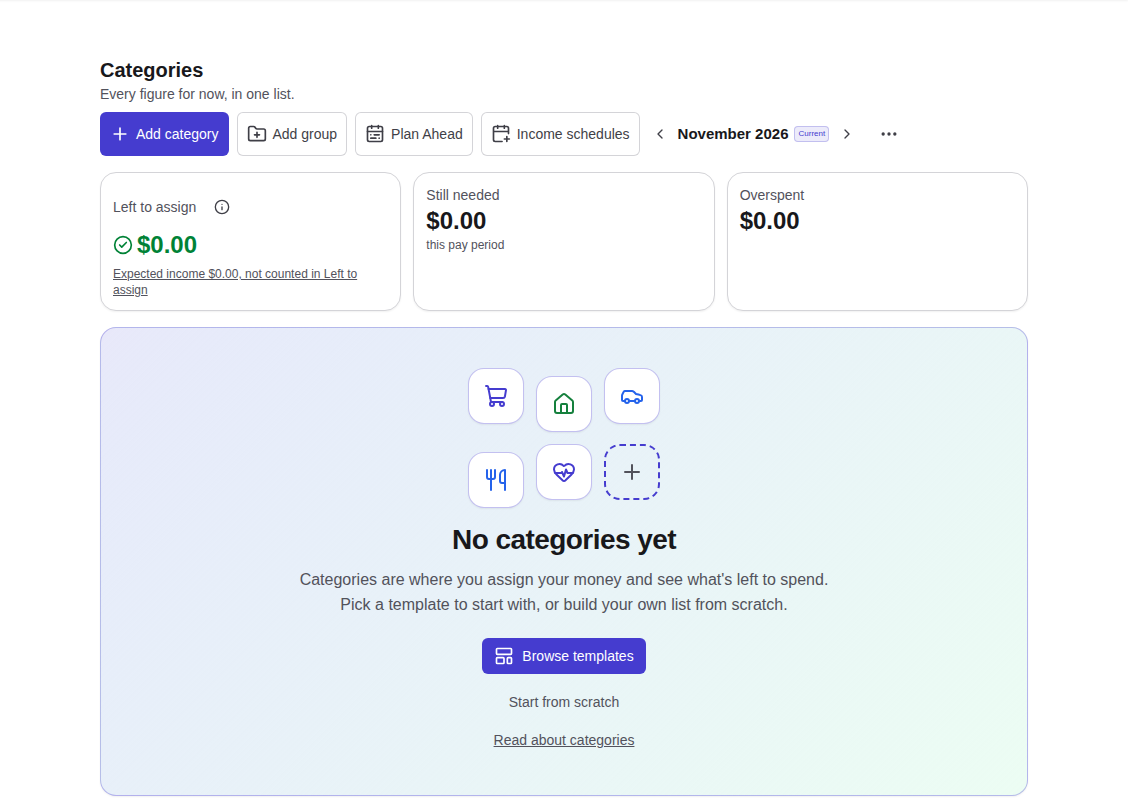
A workspace with no categories opens Categories on an illustrated welcome card (a loose grid of category tiles with a dashed empty one) that explains categories are where you assign your money. Choose Browse templates to open the category templates straight away, or choose Start from scratch to create your own first category. With no categories yet, the screen has no "waiting to be assigned" banner, and Add group is a quieter outline button.
Categories and category groups
A category group is a category that acts as a container. It has no transactions of its own; it totals up the categories nested inside it. In the category list a group carries a Group badge and can be expanded and collapsed.
Nesting is one level deep. A category is either top level or inside a group — a category inside a group cannot itself contain more categories.
A structure that works for most people:
- Bills — rent or mortgage, utilities, insurance, subscriptions
- Everyday — groceries, fuel, eating out
- Goals — emergency fund, holiday, replacement car
Start broad. Splitting a category later is easy; consolidating thirty half-used categories is not. If you would rather not build a structure from nothing, import a category template.
If you need to track something that spans several categories — a holiday, a home project — use tags rather than adding categories.
Categories the app manages for you
Some categories are created and maintained by Budget Thing itself, including To Be Budgeted, Uncategorized and a payment category for each credit card. They carry a System badge and cannot be renamed, hidden or deleted. See System Categories.
The Categories screen
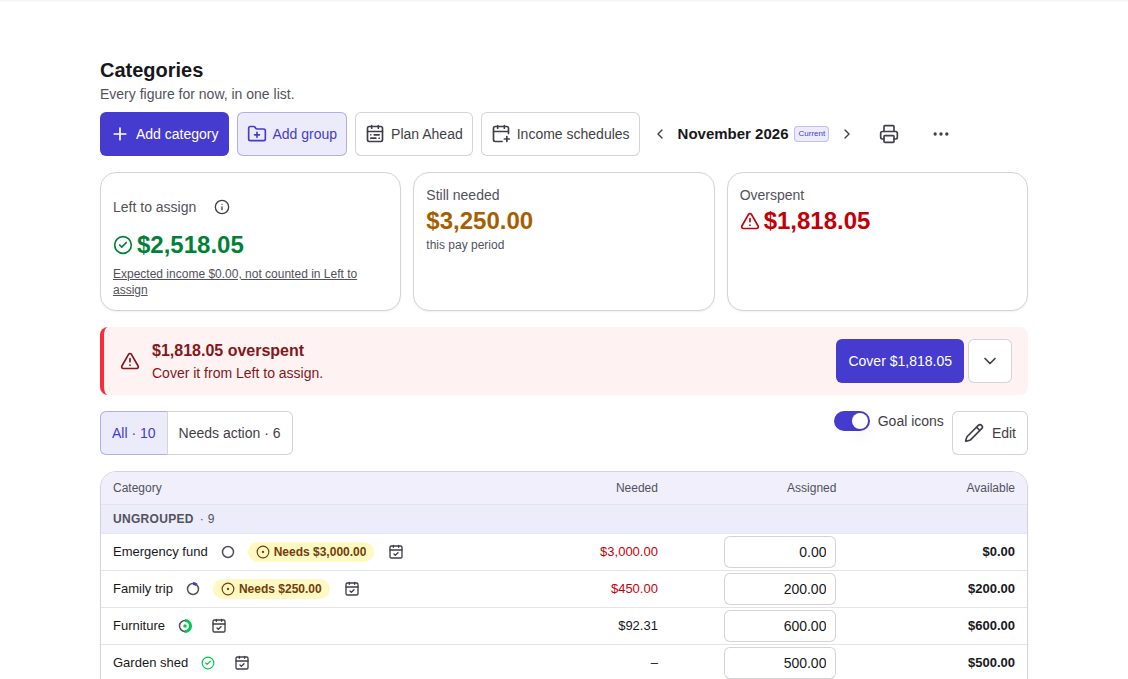
The Categories screen is the one list of all your categories for the current pay period, in your own group order. Each row shows what the category Needed, how much you Assigned and what is Available. The Needed amount is plain text. A category that needs attention carries a small flag beside its name: red Over $38.10, amber Needs $60.00 or blue Due Dec 3 · $620.00. On a wide screen the amber flag shows just the icon and amount (for example $60.00); hover it, or use a screen reader, for the full Needs $60.00. A covered category has no flag. Long names are shortened to stay on one line; hover a name to see all of it. The calendar button that sets a planned amount appears when you point at a row or tab to it (always visible on a touch screen). An amount you planned for a category counts as needed, even when the category has no target: it is flagged Needs until you assign it. You assign money in the same list. See Assign Money on the Categories Screen.
Each group heading is a button with a chevron: select it to collapse the group and hide its categories, or select it again to expand them. Groups are open when you arrive, except a group you have named Hidden Categories, which starts collapsed and is always the last group in the list, below System. That is only a group's name: it is separate from hiding a category with the Hidden switch. Every heading shows the Assigned total for its categories (the sum of their Assigned amounts, in the budget's currency, so a group with a negative amount can total less) and it updates when you change an assignment. The total counts all of the group's categories, even when the Needs action filter hides some of them. Which groups you open or close is not remembered after you leave the screen, and moving Hidden Categories to the bottom only changes how the screen is displayed, not your group order.
A category with a target also shows a small goal icon right after its name, before any flag. What it measures depends on the target:
- Reach a balance and Reach an amount by a date targets end, so the icon measures the whole goal. A tick means the whole goal is funded, nothing less. A ring with a dot in the middle means on track: this pay period's share is assigned, but the whole goal is not funded yet. A ring filled to the share of the whole goal you have reached, without the dot, means you are behind this period. An empty ring means nothing is funded and nothing is assigned this period.
- Keep an amount available and Add an amount regularly targets repeat and have no end, so the icon measures the current pay period: a tick when this period is funded, a ring filled to how much of the requirement you have assigned, or an empty ring when nothing is assigned yet.
Point at the icon to read the state in words, such as "On track this pay period, 45% of whole goal" or "Target 45% funded this pay period", and select it to open the category's details. Turn the Goal icons switch above the list off to hide them; the choice is remembered for you in this browser and does not change what other people see.
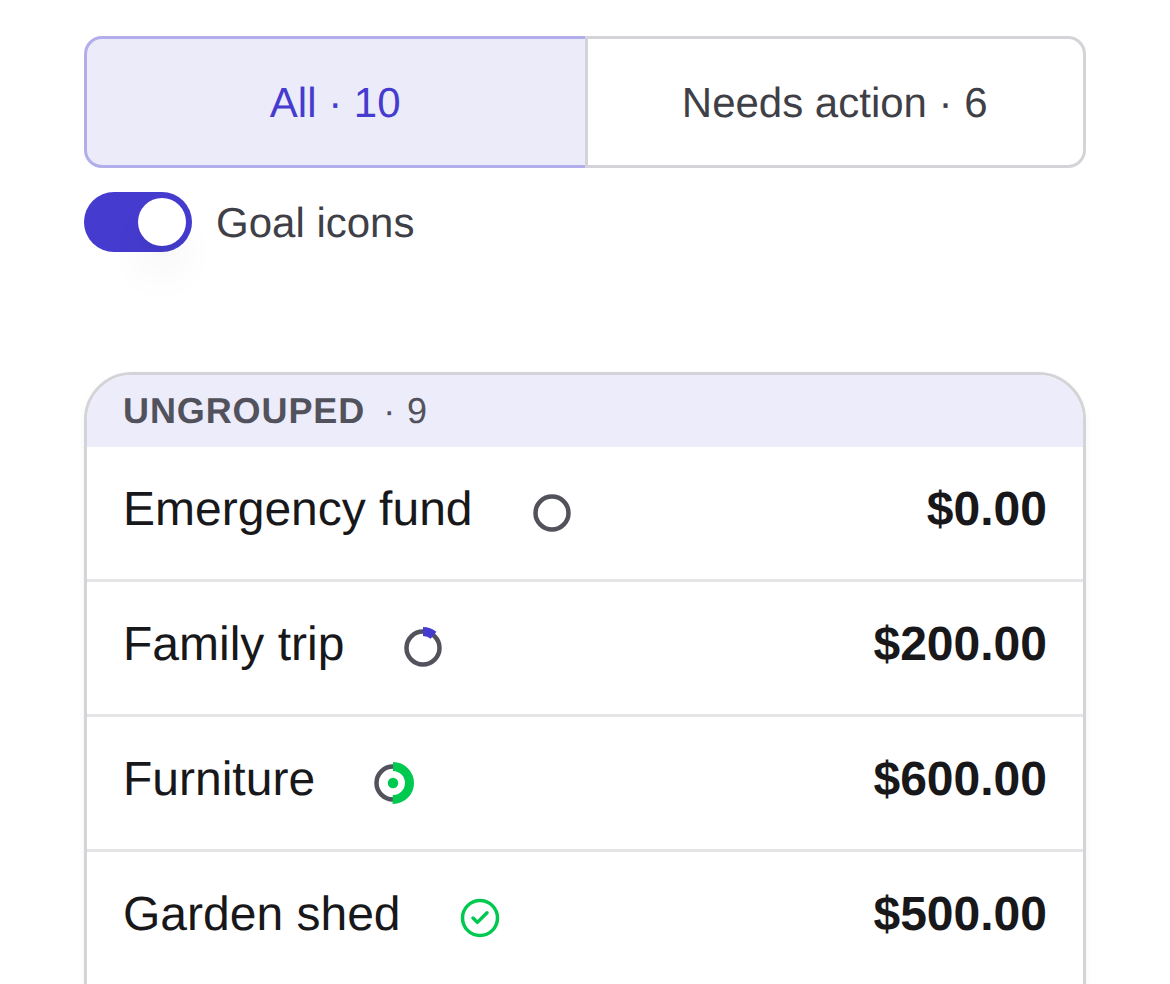
Choose Needs action above the list to show only flagged categories, with the count on the button. Choose All to see everything again. The screen remembers your choice.
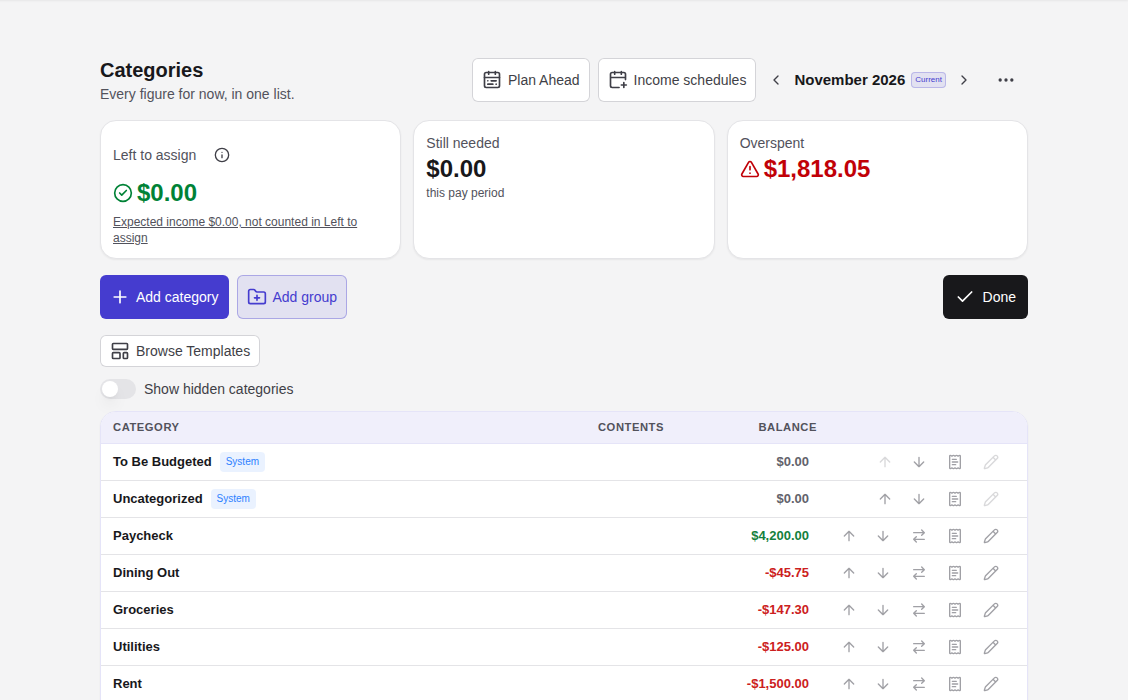
Choose Edit to add, rename, reorder, move, hide, delete and import categories and groups on the same screen, then Done to go back to the list. Edit is also in the ⋯ menu.
Take the budget into a spreadsheet
The budget for the pay period on screen can be downloaded as a CSV file: open the ⋯ menu in the Categories header and choose Export CSV. It has Planned, Assigned, Activity, Available and the target position for every category, and works for past periods too. A run of up to 24 periods is available through the API. See Export a budget period.
What a category balance means
A category balance is an all-time running total: everything ever assigned to the category, less everything ever spent from it. It rolls forward continuously — no period boundary resets it, and nothing is swept back to Available to Assign when a budget period ends.
A balance can go negative if you spend more from a category than it holds. Budget Thing does not quietly cover the difference for you; see Overspending.
Separate numbers stay separate
Budget Thing tracks these as distinct concepts rather than merging them into one figure:
| Concept | Question it answers |
|---|---|
| Available | How much can this category spend now? |
| Left to assign | How much arrived money has no category yet? |
| Target | How much do I want to set aside for this category, and how often? |
| Assigned | How much did I put into the category this pay period? |
A category does not need a target. Without one it simply shows No target, and you can still assign money to it whenever you like.
A spending category can also take part in round-up, which moves the change from each of its purchases into a savings category you choose. You can round up only the categories you pick, or every spending category except the ones you exclude.