Category Templates
A category template is a ready-made set of groups and categories you can import into a workspace, then edit like anything else. Templates are a starting point, not a commitment.
Templates also suggest an emoji for each group and category. While you review a template you can use those emojis as part of your category names, place them before or after the name, or turn them off entirely — see Emojis in template names.
The templates on offer
| Template | Suits |
|---|---|
| First Steps (suggested start) | A small, approachable starting budget without a large number of categories. |
| Growing Up | A child or teenager learning to manage spending, saving and giving. |
| Campus Life | A student managing school costs, living expenses and limited income. |
| On Your Own | A single adult living independently. |
| Life Together | A married or partnered couple without children. |
| Family Life | Married or partnered adults raising children. |
| One-Parent Household | The expenses and priorities of a single-parent household. |
| Homeowner | Home ownership, maintenance and long-term replacement costs. |
| Variable Income | Freelancers, contractors, commission-based and self-employed work. |
| Small Business | A business workspace: operating costs, people, marketing, taxes and reserves. |
| Retirement Years | Retired households managing fixed income, health costs, travel and estate expenses. |
Small Business
Small Business is a budget for running a small business. Its wording is region-neutral, so it fits wherever you trade. It has seven groups:
| Group | Categories |
|---|---|
| Operating Costs | Rent / Workspace, Utilities, Software & Subscriptions, Phone & Internet, Office Supplies, Equipment |
| People | Payroll, Contractors & Freelancers, Benefits, Training |
| Sales & Marketing | Advertising, Website & Hosting, Events & Sponsorships, Client Gifts |
| Professional Services | Accounting & Bookkeeping, Legal, Bank & Payment Fees |
| Travel & Meals | Travel, Business Meals, Vehicle & Mileage |
| Taxes & Compliance | Income Tax Set-Aside, Sales Tax / VAT, Licenses & Permits, Business Insurance |
| Reserves & Owner | Cash Reserve, Equipment Replacement, Owner's Pay / Draw |
In a business workspace the template list shows Small Business first, marked Recommended for businesses. In a personal workspace it appears in its usual place, after Variable Income.
Import a template
The first time you open Categories in a workspace that has few categories of its own, a short tip titled Start with a template points at the Browse Templates button. Choose Browse templates to open the templates straight away, or Got it to dismiss the tip. It is shown once per workspace in each browser. On a phone the tip opens above the button so it doesn't cover your categories. You can also open the templates from the Add menu with Add from template.
In a workspace with no categories at all, the empty state leads with Browse templates, which opens the templates directly, and offers Start from scratch as a link to create your own categories instead. The tip still appears once you have created categories.
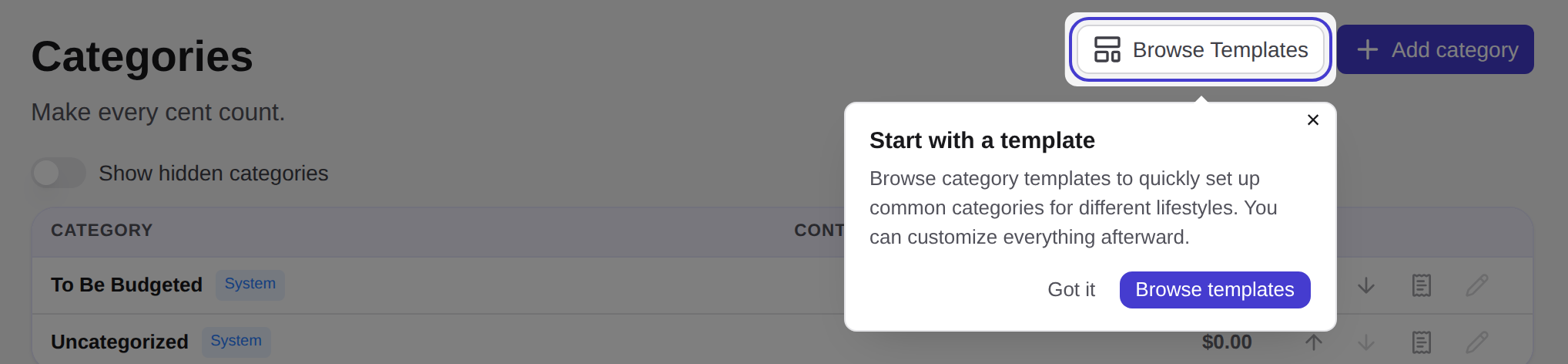
- Open Categories and choose Browse Templates.
- Choose Preview on a template.
- Review every group and category it contains before anything is imported.
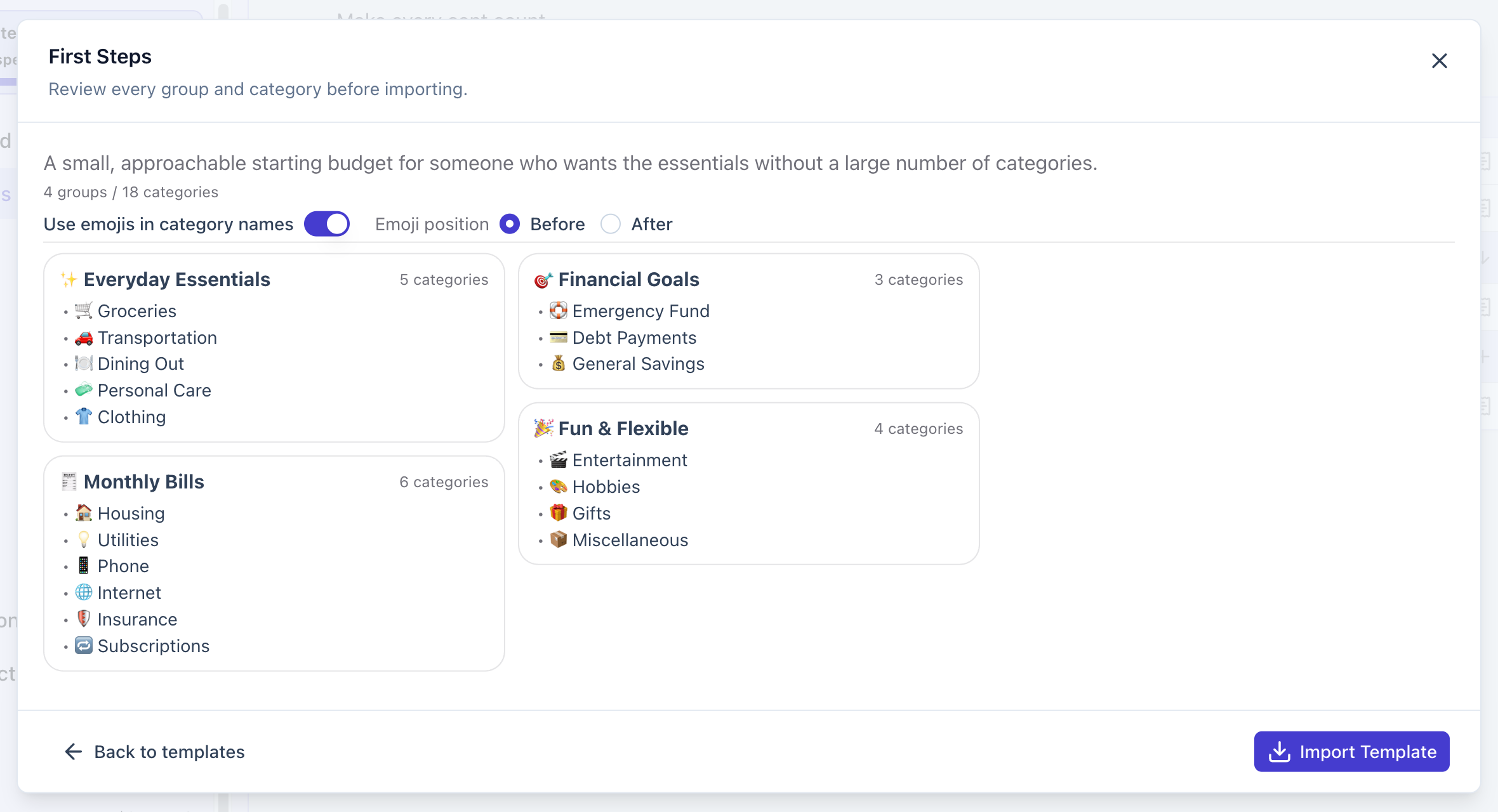
- Decide whether to Use emojis in category names.
- If you keep them, choose whether the emoji sits Before or After the name.
- The review updates immediately, so the names you are reading are exactly the names that will be created.
- Choose Import Template.
- Read the confirmation, which restates the emoji choice you just made.
- Confirm the import.
When the workspace already has categories, the confirmation is explicit about what will happen: missing groups and categories are added, existing matching ones are skipped, and nothing already in the workspace is renamed, removed, reordered or overwritten. In an empty workspace that note is left out.
Your emoji choice carries from the review straight into the confirmation, so you never have to make it twice. Cancel takes you back to the review if you want to change it.
Emojis in template names
Every built-in template suggests an emoji for each of its groups and categories — 🏠 for Housing, 🛒 for Groceries, 💡 for Utilities. The review is where you decide what happens to them, and the list redraws as you choose.
With emojis on and Before selected, the Monthly Bills group of First Steps is created as:
🧾 Monthly Bills
  🏠 Housing
  💡 Utilities
  📱 Phone
  🌐 Internet
  🛡️ Insurance
With After selected:
Monthly Bills 🧾
  Housing 🏠
  Utilities 💡
  Phone 📱
  Internet 🌐
  Insurance 🛡️
And with Use emojis in category names turned off, plain text:
Monthly Bills
  Housing
  Utilities
  Phone
  Internet
  Insurance
There is one placement choice and it covers groups and categories together. You do not pick a position for groups and a separate one for their categories.
The emoji becomes part of the name
An emoji you accept here is not a decorative icon sitting beside the category. It is written into the name itself, so the category really is called 🏠 Housing — the same as if you had typed the emoji while creating the category yourself. Choosing After creates Housing 🏠 instead.
That is worth knowing for two reasons. Anywhere a category name appears — the category list, Categories screen, a transaction, a report — the emoji comes with it. And because it is just text in the name, you can rename the category afterwards to change the emoji or drop it, exactly as you would edit any other name.
Turn the option off and you get ordinary plain-text names with nothing added.
Emojis and your language
Template group and category names appear in your language, and the suggested emojis are the same in every language. The emoji is simply added to the translated name, so a Spanish workspace gets 🏠 Vivienda where an English one gets 🏠 Housing.
What the emoji choice does not change
The choice applies only to the names a template import actually creates.
- Groups and categories that already match are still skipped, as they always were. An existing category is never renamed to add or remove an emoji.
- Importing a template still does not rename, remove, reorder or overwrite anything in the workspace, whichever emoji options you picked.
- Matching is on the finished name. 🏠 Housing and Housing are two different names, so importing the same template once with emojis and once without creates both — re-importing with the same choice safely skips everything instead.
What you get back
The result screen reports what changed — groups created, categories created, and anything that already existed and was therefore skipped, listed by name.
If the workspace already contains everything in the template, the result reads Nothing to import.
Importing a template adds empty categories. It creates no targets, assigns nothing and changes no balance. Use Plan Ahead to plan amounts and set targets, and the Categories screen to assign money.
Importing needs workspace-management permission. Without it you can still browse and preview every template, but the import action is unavailable.
You can import more than one template, and you can import a template into a workspace that already has categories — matching names are skipped rather than duplicated.