Export Your Data
Budget Thing lets a workspace owner or admin download a complete copy of the workspace's data. An export holds your accounts and transactions, your budgeting and planning information, and the files you have attached, so your records stay yours and are not locked inside Budget Thing.
If you only want some transactions, such as this month's, as a spreadsheet, you don't need a complete export: see Export only some transactions.
An export is for taking your data with you. Budget Thing cannot read an export back in, so it is not a way to undo a change or rebuild a workspace. To restore a workspace's data into a new, empty workspace, create a backup and restore it. To keep a second copy of a workspace inside Budget Thing, clone it instead — see Your Data.
Create an export
- Open the workspace.
- Open Workspace Settings.
- Select the Data tab.
- Find Export data.
- Choose Create export.
- Wait for the export to reach Ready.
- Choose Download.
If you signed in more than about 13 minutes ago, Create export and Download first show a Confirm it's you step. Choose Continue to sign in, sign in again, and you come back to the Data tab to choose the action again. See When we ask you to sign in again.
Budget Thing prepares the export in the background, which takes a few minutes for a large workspace. You can leave the page while it is being prepared and come back later — it carries on without you and will be waiting under Recent exports. Nothing is emailed to you when it finishes; come back to the Data tab and check.
Only one export of a workspace is prepared at a time. Create export becomes available again once the one in progress has finished.
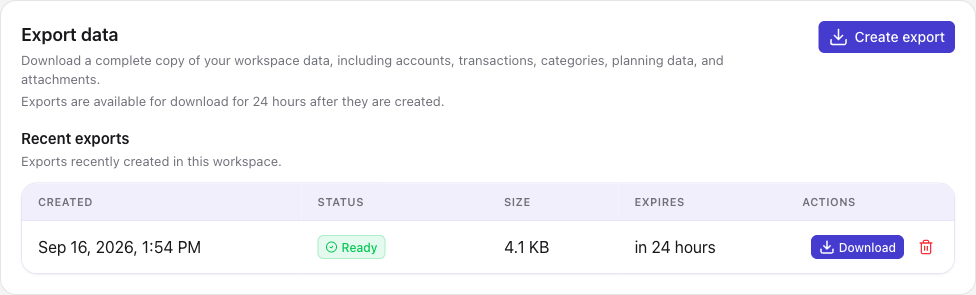
Recent exports
Recent exports lists the exports created in this workspace recently, newest first. Each one shows when it was Created, where it has got to, its Size once the file exists, and when it Expires.
| Status | What it means |
|---|---|
| Queued | Waiting to be prepared. |
| Preparing | Budget Thing is building the export. |
| Ready | Finished, and available to download. |
| Failed | The export could not be created. Create another one. |
| Expired | The 24-hour download period has passed. |
A Ready export has a Download action beside it. Any export can be removed with Delete export.
What is included
An export covers the data the workspace holds, grouped here the way you think about it rather than the way it is stored.
Accounts and transactions
Accounts and their opening balances, transactions, splits, transfers, payees, the remembered payees that fill in the payee for bank descriptions, tags and reconciliations.
Budgeting and planning
Category groups and categories, targets, the plan for each budget period, assignments, money moved between categories, funding profiles and income schedules.
Bills and recurring activity
Bills and their occurrences, scheduled transactions and credit card payment plans.
Other workspace data
Transaction rules, the workspace's own budgeting preferences and budget period schedule, and your attachments — the uploaded receipts and documents themselves, not just a list of them.
What is not included
The export contains your workspace data, not Budget Thing's internal system data. Bank credentials, authentication secrets and the technical plumbing that runs the service are never part of it, and neither is who has access to the workspace.
Where an account was connected to a bank, the export names the provider — Plaid or SimpleFIN — so you can see where those transactions came from. The connection itself stays behind.
File format
The download is a single ZIP archive. Inside it:
| Item | What it is |
|---|---|
data.json | The complete, structured copy of your workspace data. |
| CSV files | Common records in spreadsheet form. |
attachments/ | Your uploaded files. |
workspace.json | The workspace itself — its name, currency, formatting and budget period settings. |
manifest.json | What the archive contains, how many records of each kind, and anything that had to be left out. |
The CSV files are there for convenience, so you can open your data in a
spreadsheet or feed it to something else without reading JSON. They cover
accounts, categories, payees, remembered payees, tags, transactions, transaction splits,
transaction tags, reconciliations, targets, transaction rules and attachments.
data.json is the complete copy — not every detail has a CSV, so use the
JSON file when you want everything.
If a text value in a CSV file (a memo or a name, for example) starts with =,
+, - or @, the file shows it with a single quote in front, so that a
spreadsheet doesn't read it as a formula. The JSON files keep the original
text, without the quote.
Records keep the same public IDs they have in Budget Thing, so the same account or transaction can be recognised across the files.
Export only some transactions
You can take just some of your transactions as one CSV file, with no waiting and no ZIP. Any member who can see the transactions can do this, because it covers only what they can already see.
From a selection. Select transactions in any transaction list and choose
Export in the bar at the bottom. You get up to 500 transactions in one CSV
file made for reading in a spreadsheet, with account, payee and category names
and amounts as ordinary numbers. It isn't the same layout as transactions.csv
above; for a file that keeps IDs, use the complete export. See
Bulk Actions.
From the list, with Export. Choose Export above the Transactions list (in an account, a category, a payee or the all-transactions list) and you get a CSV file of exactly the rows the list shows: the account, category or payee you are looking at, plus any search, filters and date range you have applied. Change the search first to export a different set. On a phone, Export is an icon-only button in the title row, next to the Search and Uncategorized icons. Export appears once the list has rows. If the list is too big you see a message to narrow the date range or add filters, and nothing downloads. The same file is available from the API for any filters. The file has one row per transaction, or per split for a split transaction, with these columns:
| Column | What it holds |
|---|---|
date | The transaction date, as YYYY-MM-DD. |
account | The account's name. |
payee | The payee's name. A transfer shows Transfer : and the other account. |
category | The category's name. |
memo | The memo. A split with no memo of its own shows the transaction's. |
amount | A plain number in your workspace currency, negative for money out and positive for money in. |
cleared | true or false. |
tags | The tags, separated by commas. |
currency | The workspace's currency code. |
When you filter by category, a split transaction only has the splits in that category in the file, so the amounts add up to the category's total.
It holds at most 25,000 transactions. If your filters match more, you get a message to narrow the date range or add filters, and no file. The budget assignments and category moves a category's list shows are not included, because they don't belong to an account.
The file opens in any spreadsheet and imports back into Budget Thing through
CSV import; match the account column as the account.
See Exporting filtered transactions
in the API reference for the details.
Export a budget period
On the Categories screen, open the ⋯ menu in the header and choose
Export CSV to download the budget period on screen as a spreadsheet. The
file is named budget- followed by your workspace's name and the period's first
day, for example budget-household-2026-11-01.csv. It works for past periods
too, which are read-only, and for any member who can see the budget, viewers
included. If the download fails, a message says so and no file is saved.
Through the API you can also export up to 24 periods in a row. The file is the Categories screen's table: one row per category per period, with these columns:
| Column | What it holds |
|---|---|
period_start, period_end | The budget period's first and last day, as YYYY-MM-DD. |
group, category | The category group and the category. |
hidden | true for an archived category the screen still shows because it holds money, has a target or was assigned to. |
planned | What the Plan set for the category in the period. |
assigned | What was assigned to the category within the period's dates. |
activity | What the category spent in the period. Spending is positive; a net refund is negative. |
available | The category's balance, as the Categories screen shows it. For a past period this is the balance now, not the balance at the end of that period. |
target_type, target_required, target_remaining, target_met | The category's target and what the period needs from it. Empty for a category with no target. |
currency | The workspace's currency code. |
The figures are the Categories screen's own for the same period, so a past
period matches what the screen shows for it. Any member who can see the budget
can export it, viewers included. Amounts are plain numbers in your currency's
precision, and names that start with =, +, - or @ get a leading
apostrophe so a spreadsheet doesn't run them as a formula. See
Exporting a budget period in the
API reference. An access token needs the Read funding permission.
Export your bills
Your bills and subscriptions can be downloaded as a spreadsheet. On the Bills page, choose Export CSV next to New bill and pick one of two files:
- Active bills is the list you see on Manage bills.
- All bills, including archived also has paused (archived) and ended bills.
The file is saved as bills-YYYY-MM-DD.csv (bills-all-YYYY-MM-DD.csv for the
second choice). Each row is one bill with its category, payee, account,
schedule, amount, yearly cost, next renewal and status, so you can keep a list
of your subscriptions or compare their cost over time. If the download fails,
a message under the page heading says so and nothing is saved; choose Export
CSV to try again. The menu works with the keyboard like any other menu.
Everyone who can see the bills can export them, and your data stays available
to export after a downgrade. Names that start with =, +, - or @ get a
leading apostrophe so a spreadsheet doesn't run them as a formula.
Through the API you can also narrow the file to subscriptions only or to one category, using an access token that has the Read bills permission. See Exporting bills as CSV in the API reference.
Export a report
Cash flow, income vs. expense, net worth, balance over time, spending by
category, spending by payee, spending trends, and the payee and category reports each have an
Export CSV button next to the report's filters. It downloads the report you
are looking at: the same date range, interval and filters, and the same totals
as the screen. The file is named after the report and its range, for example
cash-flow-2026-01-01-to-2026-06-30.csv. The button is available on every plan
and to every member who can see the report; it is disabled while the date
range is invalid. If the download fails, a message says so and the report stays
as it was.
Amounts are plain numbers in your currency's precision, and names that start
with =, +, - or @ get a leading apostrophe so a spreadsheet doesn't run
them as a formula. Business workspaces also have CSV downloads for the profit
and loss, balance sheet and expense reports. The same files are available
through the API: see Reports in the API for the endpoints; an
access token needs the Read reports permission.
Expiration and deletion
Exports are available for download for 24 hours after they are created. After that an export shows as Expired and can no longer be downloaded. Nothing is lost — create another one whenever you need it.
Delete export deletes the generated file and nothing else. Your accounts, transactions, attachments and settings are untouched, and deleting an export never deletes the workspace. Deleting workspace data is a separate, deliberate act — see Delete Your Data.
Who can export
Creating, downloading and deleting a complete export is limited to the workspace owner and workspace admins, because an export is a full copy of the workspace's financial data. Any other role is refused, whatever else it can do in the workspace. See Members and Sharing.
Anyone who can see a record can still download the individual files attached to it — see View and Remove Attachments.