Import Bank Files
You can add transactions to any account from a file your bank or another program produced. Four formats are supported: OFX, QFX, QIF and CSV.
This is separate from the YNAB import. It works one account at a time, and it only adds transactions: it does not create accounts, categories or budgets.
Where to find it
- Open the account you want the transactions to go into.
- In the Transactions section, choose Import transactions.
The button is on every account that is not archived or closed. You need a role that can edit data in the workspace; read-only members cannot import.
Missing a format? Use Request it under "Need another import format?" on the import screen to email us.
Supported formats
| Format | Typical source | Extension |
|---|---|---|
| OFX | Online banking "Download transactions" | .ofx |
| QFX | Quicken-flavoured OFX, offered by many banks | .qfx |
| QIF | Quicken and older finance programs | .qif |
| CSV | Spreadsheet or bank "Export to CSV" | .csv |
Budget Thing looks at the contents of the file, not just its name. The format is chosen for you from the extension, and you can change it under File format. If the selected format clearly does not match the contents, the import fails with a message saying so. OFX and QFX are interchangeable, so picking one for a file of the other kind is fine.
Import a file
- Choose Import transactions on the account.
- Drop the file onto the dialog, or choose it from your device.
- Check File format and, if you want, turn off Apply my transaction rules to the new transactions (see Transaction rules), then choose Upload and import. For CSV the button reads Upload and match columns (see CSV files).
- OFX, QFX and QIF: Budget Thing checks the whole file and shows you a preview. Nothing is saved yet. Review it, then choose Confirm import (see Review before you import).
- The import runs in the background and updates its status as it goes. You can close the dialog; View import history shows the result later.
When it finishes you see how many transactions were imported, how many were skipped as duplicates, how many were skipped because you deleted them before, and any rows that were skipped or failed, with the row number and reason.
Transaction rules
By default your transaction rules run on every transaction the import creates, the same way they do for downloaded bank transactions. A rule matches on the text in the file (the payee or name column) and can set the payee, category, tags, memo or needs review flag, split the transaction across categories, or mark it cleared. Rules keep their usual order, stop and overwrite settings, and only the rules your plan covers run. Each change is listed in the rule's history.
- Rules only touch transactions this import creates. Duplicates that are skipped, and transactions already in the account (including cleared and reconciled ones), are never changed.
- The preview and its counts are not affected by rules.
- Untick Apply my transaction rules to the new transactions to import exactly what the file says. The choice applies to that import only and is shown in the import result.
Review before you import
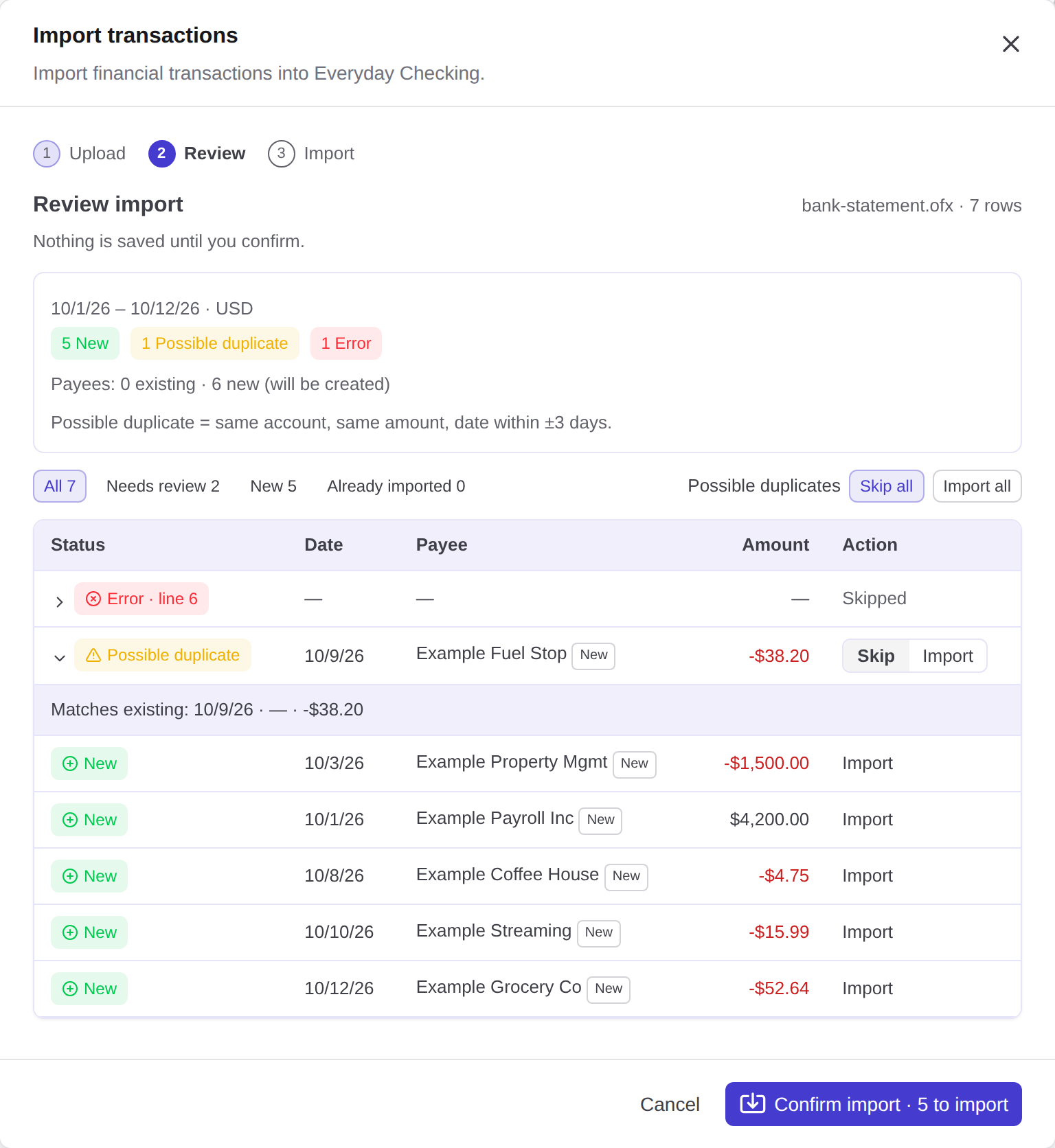
For OFX, QFX and QIF files, Budget Thing reads the whole file first and shows a preview called Review import. It does not save anything until you choose Confirm import. If you cancel, close the dialog or leave it unconfirmed, no transactions are added. A preview you do not confirm expires after 24 hours (on self-hosted installations this is configurable).
The preview shows:
- The number of rows, the date range and the currency of the file.
- How many rows are New, Already imported, Skipped: you deleted it before, Possible duplicates and Errors.
- How many payees already exist and how many new payees would be created.
- Each row with its status. Rows that need your attention are listed first. Errors show the line number and the reason. The list shows the first rows only for very large files; the totals always cover the whole file.
| Status | What happens when you confirm |
|---|---|
| New | The transaction is imported. |
| Already imported | Skipped. Its bank-assigned ID or fingerprint was imported into this account before (see Duplicates). |
| Skipped: you deleted it before | Skipped. You deleted the transaction an earlier import created from this row and asked not to import it again (see Rows you deleted before). |
| Possible duplicate | Skipped unless you choose Import for it. |
| Error | Skipped. The line number and reason are shown. |
Possible duplicates
A row is flagged as a possible duplicate when the account already holds a transaction with the same amount and a date within 3 days (before or after) that did not come from an import of the same file format. That includes transactions you typed in, transactions that arrived through bank sync, and transactions imported from a different format. Income and expenses are compared separately, so a $12.34 refund does not flag a $12.34 purchase.
Expand a flagged row to see the existing transaction it matches. Then choose Skip or Import for that row, or use Skip all / Import all to set every possible duplicate at once; a choice on a single row overrides it. Skip is the default, and a skipped row is never dropped silently: it is counted in the result as skipped and listed in the import's details.
A possible duplicate is a guess, not proof. Two real purchases of the same amount a day apart will be flagged too. Use the matched transaction shown in the row to decide.
If your data changes while you review
When you confirm, Budget Thing checks the file against your account again. If transactions changed since the preview was made (for example a bank sync added one, or the same file was imported in another window), nothing is imported. The import returns to Awaiting confirmation with an updated preview and a message saying the preview is out of date. Open View import history, choose the import, check the new preview and confirm again. What you confirm is always exactly what is imported.
Nothing to import
If every row is already in the account, the preview says so and offers Done instead of Confirm import. If none of the rows could be read, the preview lists each error so you can fix the file.
What each imported transaction looks like:
- It is added to the account you opened.
- The payee is matched to an existing payee the same way bank sync matches
it, ignoring differences such as capitalization, card-processor prefixes,
store numbers and a trailing city and state (but not short numbers that are
part of the name, such as
Route 66 Diner), or a new payee is created. See How payees are matched. - The category is Uncategorized, unless the file carries a category (QIF and CSV) that matches exactly one of your active categories by name (capitalization is ignored; archived categories and groups are skipped), in which case that category is used. A category that cannot be matched safely produces a warning and the transaction stays Uncategorized.
- Positive amounts become income and negative amounts become expenses.
- Transactions the file marks as cleared (a
Cflag in QIF, or a cleared column in CSV) are marked cleared. - Transfers are not detected. A transfer-like entry is imported as an ordinary transaction with a warning. Fix it afterwards by recording or linking the transfer yourself.
Export from your bank
Every bank words this differently. Look for Download, Export or Statements near your transaction list, and:
- Prefer OFX or QFX if offered. Those files carry a unique ID for each transaction, which gives the most reliable duplicate detection.
- "Quicken", "Microsoft Money" or "Web Connect" downloads are usually QFX and work as they are.
- Choose a date range that covers what you want. Overlapping ranges are fine (see Duplicates).
- Do not open and re-save the file in a spreadsheet or text editor that changes its format or encoding.
From Quicken (QIF)
Export one account at a time from Quicken. The file must begin with a !Type:
line, such as !Type:Bank.
Budget Thing reads the payee, amount, memo, check number, category and cleared flag from each QIF record. Split transactions are imported as a single transaction for the total; the split detail is not kept.
For Quicken's export steps, and for exporting a CSV from Quicken Simplifi, see Import from Quicken or Simplifi.
CSV files
A CSV file has no fixed layout, so you first tell Budget Thing which column is which. After you choose Upload and match columns:
- Match columns. Budget Thing reads the first rows of the file and fills in what it can recognise from the headers (for example Date, Description, Amount, Debit, Credit). Check each match against the sample values shown.
- Review. You see the first rows of your file as they will be read. Every row in the file is imported, not only the ones shown.
- Import transactions.
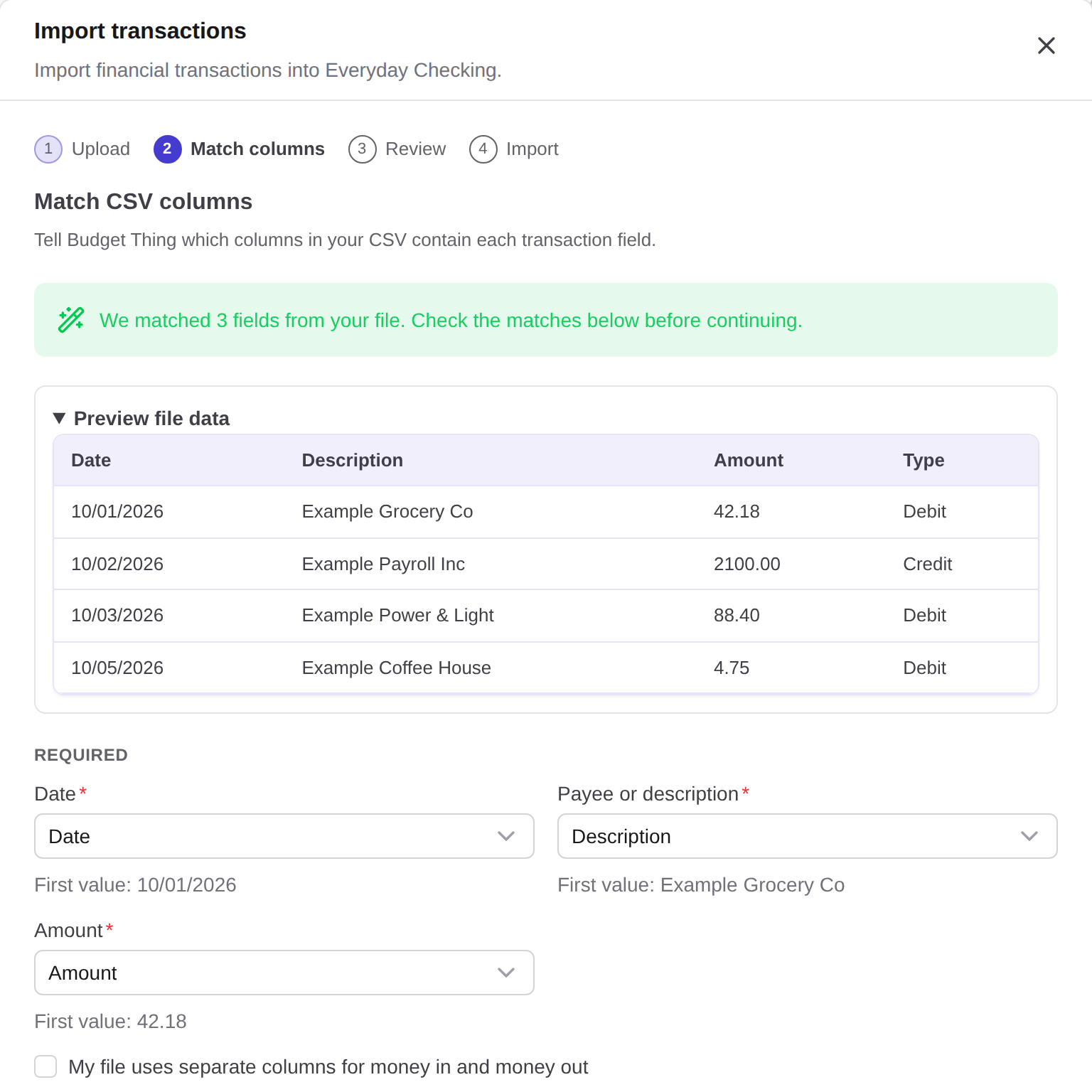
Required fields
- Date, and the Date format it is written in.
- Payee or description.
- The amount, either as:
- one Amount column with signed values, or
- separate Money out (debit) and Money in (credit) columns. Turn on My file uses separate columns for money in and money out, then choose how Debit and credit meaning is read. The default suits almost every bank. See the note below.
When you use separate debit and credit columns, the Debit and credit
meaning list sits next to the toggle. The default, Debit is money out
(expense), Credit is money in (income), is correct whether your bank writes
money out as -12.50 or as 12.50.
Choose Reversed only if your file lists money you receive under Debit and money you spend under Credit. It turns every debit into income and every credit into an expense, so check the Review step before you import. A negative value in the Credit column is read as money in.
A row with an amount of zero is skipped as invalid.
Optional fields
Memo, Transaction ID, Check number, Cleared status and Category. Matching a Transaction ID column gives that file the same strong duplicate detection as OFX (see below).
Built-in layouts
Some apps' CSV exports are recognized from their column headers, so the columns are matched for you. There is one:
- Goodbudget: see Import from Goodbudget. Envelopes become categories.
You still confirm the column matches before anything is imported.
Advanced CSV options
Only the delimiter is detected from the file. The other settings start at their defaults, so change them if the preview looks wrong:
- Delimiter: detected automatically from comma, semicolon, tab or pipe.
- Encoding: UTF-8 only. The file is checked, not converted, so re-save a file from another encoding as UTF-8 first.
- Decimal separator (default
.) and Thousands separator (default,): for example set the decimal separator to,for European banks. Amounts like(12.50)are read as negative. - Rows before header and Footer rows (both default to 0): skip title lines above the header or totals below the data.
- Header row: turn off if the file has none. Columns are then identified by their position, starting at 0.
The Date format uses Go-style layouts, for example 2006-01-02 for
2025-03-31, 01/02/2006 for 03/31/2025, and 02/01/2006 for 31/03/2025. If
dates are recognized from a standard header the format starts as 2006-01-02;
change it if your file differs.
Saved import setups
Select Save these column matches for future imports before importing, give the setup a name, and next time choose it under Reuse a saved import setup to fill in the columns. Setups are shared across the workspace. Manage or delete them from Manage saved import setups; deleting one does not affect imports already done. Built-in setups, when listed, cannot be edited or deleted.
Duplicates and re-importing
Importing the same file again, or two files with overlapping dates, does not create duplicate transactions. How a repeat is recognised depends on the file:
| File | A transaction counts as already imported when… |
|---|---|
| OFX / QFX | its bank-assigned transaction ID (FITID) was already imported into this account |
| CSV with a Transaction ID column | that ID was already imported into this account |
| QIF, and CSV without a Transaction ID | its fingerprint matches: the same date, amount, payee, memo, check number, category and cleared flag |
Fingerprints ignore capitalization and extra spaces, so COFFEE SHOP and
Coffee Shop count as the same payee. For fingerprints, two genuinely identical transactions in one file (say, two
$4.50 coffees on the same day) are both kept: the first, second and so on are
tracked separately, so re-importing the same file still adds nothing.
Things to know:
- Duplicates are checked per account and per format. The same transactions imported once from an OFX file and again from a CSV will not be recognised as the same, and both will be added. Stick to one format per account, or start the new format from a date after your last import.
- OFX and QFX are tracked separately from each other for the same reason.
- Fingerprints compare the file's text, so a bank that changes the wording of a payee name or memo between downloads will produce a transaction that looks new. Differences in capitalization or spacing alone do not.
- Rows that were already imported are skipped and counted in the result, not listed one by one. In the preview they are marked Already imported.
- Deleted transactions either come back or stay out, depending on what you chose when you deleted them. See Rows you deleted before.
- The exact-match check above only compares transactions imported through this feature. For OFX, QFX and QIF files the preview also flags possible duplicates among transactions you typed in, that arrived through bank sync or that were imported from another format. CSV files do not have this preview yet, so importing a period of a CSV that you already entered by hand or synced will create duplicates. Import only the dates you are missing.
Rows you deleted before
When you delete a transaction that a file import created, the delete confirmation has a Don't import these again checkbox. It is unchecked by default, for a single delete and for deleting several transactions at once.
- Unchecked: the transaction is forgotten completely. If you import the file again, its row is imported again. Use this when you deleted a transaction by mistake or want a fresh copy.
- Checked: Budget Thing remembers that you did not want it. Importing the same file, or another file that overlaps it, skips the row on every later import. Use this when you typed a transaction in by hand, the import added a copy, and you deleted the copy: bank exports overlap, so without the checkbox the copy would return with the next import.
Rows skipped this way are counted separately from duplicates in the import result, for example 3 skipped because you deleted them before. They are marked Skipped: you deleted it before in the review step.
To bring them back, choose Import them anyway on the import result. Budget Thing asks for the same file again (it does not keep the file after an import finishes), then imports only the rows you had deleted and nothing else. Once imported they are ordinary transactions, so a later import of the file skips them as already imported.
Transactions you deleted before this option existed count as deleted on purpose too, because we cannot tell whether those deletions were deliberate. Importing a file that contains them skips those rows and reports them the same way; use Import them anyway to get them back.
Deleting a whole account, and any other way transactions are removed, never keeps this memory.
Dates
- OFX / QFX: the posted date's calendar day is used; time and time zone are ignored.
- CSV: read with the date format you set.
- QIF: the date order is decided once for the whole file, never per
transaction. Budget Thing looks at every date: a day above 12 in the first
position (
25/04/2026) means day/month/year, a day above 12 in the second position (04/25/2026) means month/day/year. Dates may use/,.or-separators,2026-04-25year-first dates, and Quicken's space-padded apostrophe form (4/ 5'26). A two-digit year after an apostrophe is 20yy; without an apostrophe00-68are 2000-2068 and69-99are 1969-1999. If every date in the file could be read either way (all days are 12 or lower), your workspace's date format decides the order, and the import finishes with a warning so you can check the dates. A file that mixes both orders is rejected. Because earlier versions read day/month files as month/day, re-importing such a file (or an all-ambiguous file in a workspace with a day-first date format) creates new transactions instead of matching the ones imported before. - OFX / QFX text encoding: OFX 1.x files declare their character set in the
header (
ENCODING/CHARSET). USASCII with1252(Windows-1252), ISO 8859-1 and UTF-8 are supported. A file with bytes that are not valid in its declared character set, or with an unsupported character set, is rejected rather than imported with garbled text. A file that declares USASCII but contains valid UTF-8 text is accepted. QIF files must be UTF-8.
Limits
These are the defaults. A self-hosted installation can change them.
- File size: 25 MB.
- Transactions per file: 100,000. A file over the limit fails.
- Upload time: the upload link lasts 15 minutes. After that, restart the upload to get a new one.
- Line length: 1 MB per line for OFX, QFX and QIF. CSV rows can have up to 256 columns and 256 KB per field.
- Encoding: CSV must be UTF-8.
- History: completed and failed imports appear in View import history for a limited time. A failed import can be retried with the file until it expires.
- Preview: an OFX, QFX or QIF preview you have not confirmed is kept for 24 hours, then expires. Start the import again with the file.
Troubleshooting
| What you see | What to do |
|---|---|
| The selected format does not match | Choose the format that matches the file, or re-export it. |
| Unsupported or malformed financial file | The file is not OFX, QFX, QIF or CSV, is empty, or was altered. Re-export it from the source. |
| FITID is required on a row (OFX/QFX) | The bank's file is missing the transaction ID for that transaction. The row is skipped; add it by hand. |
| Invalid date on rows | CSV: fix Date format in the column match. QIF/OFX: the date is not in a supported form. |
| Invalid amount | CSV: check Decimal separator and Thousands separator, and that you chose the right amount layout. |
| Mapped column was not found | The saved setup's headers do not match this file. Choose None under saved setups and match the columns again. |
| CSV is not valid UTF-8 | Re-save the file as UTF-8 and upload it again. |
| Everything is imported with the wrong sign | CSV with separate debit and credit columns: check Debit and credit meaning. Leave it on the default unless your file lists money in under Debit; Reversed flips every row. With a single Amount column, check that the bank's positive and negative values mean what you expect. |
| Transactions are Uncategorized | Expected. Categorise them afterwards; the import only assigns a category when the file's category name matches one of yours exactly once. |
| Same transactions appear twice | See Duplicates and re-importing. For OFX, QFX and QIF, check the Possible duplicates in the review step before you confirm. |
| This preview is out of date | Your account changed while you were reviewing. Nothing was imported. Open the import from View import history, check the updated preview and confirm again. |
| The import is stuck on Awaiting confirmation | The file was checked and is waiting for you. Open it from View import history and choose Confirm import, or let it expire. |
| Status says Completed with Errors | Some rows were skipped or warned about. Open the result to see each row's number and reason. |
For general import problems, see Import Problems.