Import from YNAB
Budget Thing reads a YNAB export and rebuilds it as accounts, categories, payees, transactions and budgeting history in your workspace.
Coming from Zerosum? The same import reads a Zerosum export. See Import from Zerosum.
The flow has three steps, shown along the top as Upload, Review accounts and Import.
The import only runs in a workspace that has no transactions yet. Accounts, categories and payees can already be there, but a single transaction stops it: the upload is refused with YNAB import requires a workspace with no transactions, and nothing is imported. Create a new workspace for the import, or delete the existing transactions first. Budget Thing checks again just before it writes anything, so a transaction added while the import waits also stops it.
1. Export from YNAB
Export your budget from YNAB. The result is a ZIP archive containing a register file and, if your budget has one, a plan file.
Upload the ZIP exactly as YNAB produced it. Budget Thing finds the files it needs inside; the budget name and export timestamp in the file names do not matter.
The register is required. The plan file is optional — if it is missing, your transactions still import, and the inspection step tells you no budget plan data found.
2. Upload and review
- Open Import data in your workspace (Settings → Data) and choose YNAB in the source list.
- Drop the export onto Choose your YNAB export, or choose a file.
- Choose Upload and review.
Budget Thing inspects the file before importing anything: we're finding accounts and transactions so you can review them first. Nothing is written to your workspace during the inspection.
You then get YNAB export found, listing every account discovered, how many transactions each holds, whether budget plan data was included, the Date format your export uses, and a table to map the accounts:
| Column | What it is |
|---|---|
| YNAB account | The account name as it appears in the export. |
| Source type | Always unknown: YNAB's export does not include account types, which is why you choose them here. |
| Transactions | How many transactions came with it. |
| Budget Thing type | The account type it will become. |
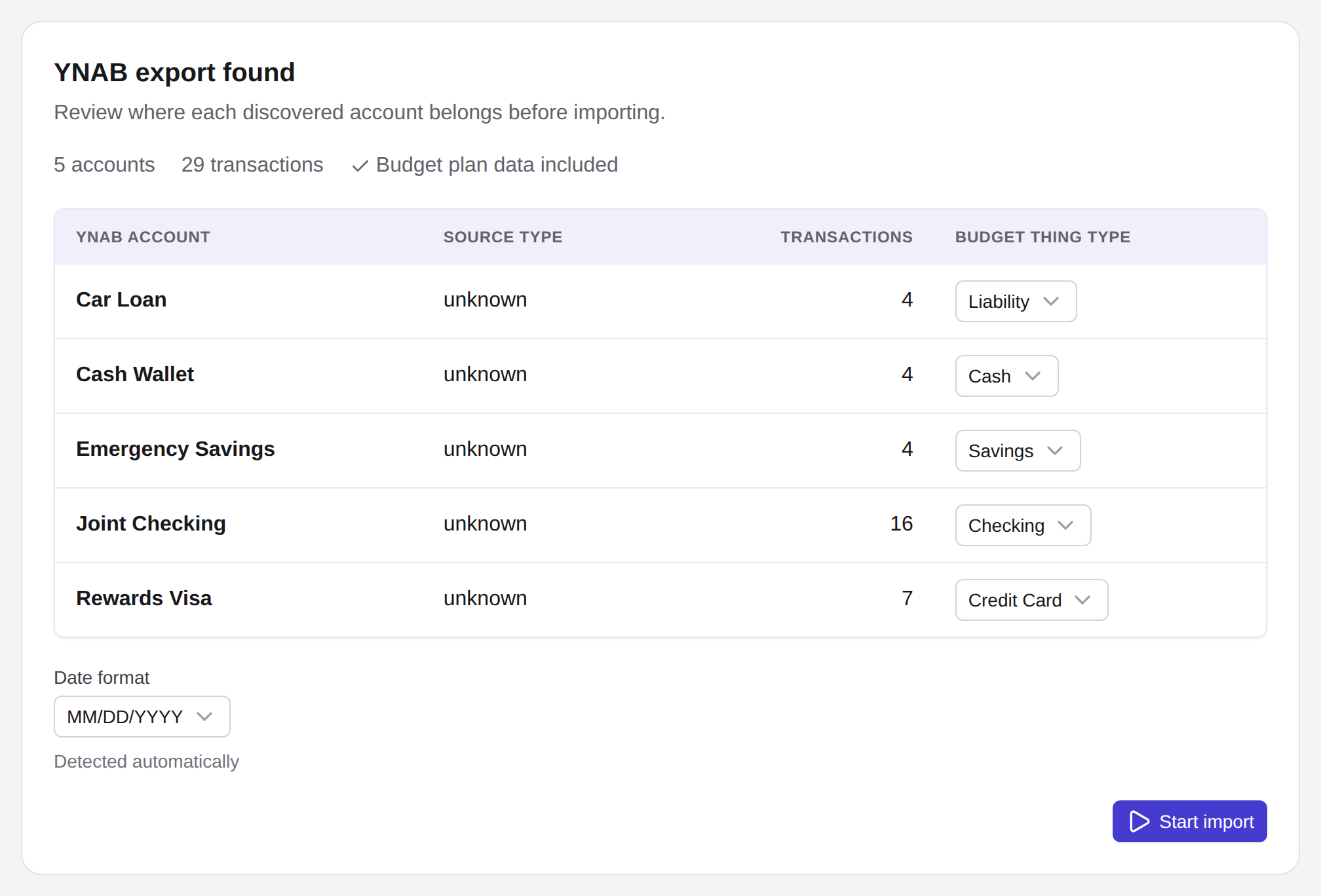
Every account needs a destination type before you can continue — the screen says choose a destination type for every account.
Budget Thing pre-selects a type for each account from its name, and you can change any of them. Names starting with CD are suggested as Savings, and names containing line of credit as Liability. Otherwise the rows below are checked from the top, and the first match wins:
| If the YNAB account name contains | Suggested type |
|---|---|
| credit card, credit, card, Visa, Mastercard, Amex, rewards | Credit Card |
| loan, mortgage | Liability |
| PayPal, Venmo, Cash App, Apple Pay, Apple Cash, Google Pay, digital wallet | Digital Wallet |
| cash, wallet | Cash |
| savings, money market | Savings |
| checking, current, debit, spending, joint | Checking |
| investment, brokerage, Vanguard, Fidelity, 401k, IRA, Roth | Investment |
| Anything else | Checking |
Because the first match wins, Rewards Checking is suggested as a Credit Card and Cash App as a Digital Wallet, so read down the list before you continue. The import never suggests Asset; choose it yourself for property, vehicles and similar.
The Budget Thing type decides how an account behaves: whether it is a budget account, a credit card with its own payment category, or a tracking account. It also decides how your YNAB transfers come across — see How transfers are imported. Changing your mind after thousands of transactions have landed is far more work than choosing carefully here.
How transfers are imported
A transfer in YNAB is imported as one Budget Thing transfer linking both accounts, and it follows the same category rules as a transfer you enter yourself. What happens depends on the Budget Thing types you chose for the two accounts, not on the YNAB names:
| YNAB transfer | How it is imported |
|---|---|
| Between two bank, cash, asset or investment accounts | A transfer with no category. |
| A payment into a credit card | A card payment from the card's payment category. Any category on the YNAB row is ignored. |
| A payment into a liability | A transfer that keeps its YNAB category. |
| Between two credit cards, or between two liabilities | A transfer with no category. |
| Between a credit card and a liability | A transfer that keeps its YNAB category. |
| From a credit card or liability into a bank, cash, asset or investment account (a cash advance or loan drawdown) | A transfer that keeps its YNAB category and adds the borrowed money to it, like a cash advance you enter yourself. |
Where a transfer keeps its YNAB category but the YNAB row had none, it lands in Uncategorized for you to sort out afterwards. Transfers between two cards or two liabilities never do, because they take no category at all.
A YNAB split that includes a transfer to another account imports too: the transfer part becomes a transfer between the two accounts, and the rest of the split keeps its categories.
Imported card payments reduce the card's Ready to pay in the same way as a payment you make yourself. A starting balance on a card comes across as debt that no category is backing, so Ready to pay may start below the card balance — see Debt You Already Had.
How dates are read
YNAB writes dates to match your regional settings, so exports from different countries look different. Budget Thing recognises all of these:
MM/DD/YYYYDD/MM/YYYYYYYY-MM-DDYYYY/MM/DDDD-MM-YYYYDD.MM.YYYYYYYY.MM.DD
Rather than assuming a US format, Budget Thing looks at every date in the
export and picks the format that fits all of them. When only one fits, the
Date format field shows it as Detected automatically. For example, a file
containing this date is read as DD/MM/YYYY, not as a US date:
13/02/2026
Because the whole export is checked, one clear date is enough to settle the
rest. This file is detected as DD/MM/YYYY, since 13/02/2026 cannot be
MM/DD/YYYY:
01/02/2026
02/02/2026
13/02/2026
When dates could be read more than one way
Some files only contain dates that fit more than one format. These could be
1 February and 3 April (DD/MM/YYYY) or 2 January and 4 March
(MM/DD/YYYY):
01/02/2026
03/04/2026
Budget Thing then suggests a format and asks you to confirm it: we couldn't determine the date format with certainty. Check the suggestion in Date format, or choose one of the other formats that fit your dates, before you start the import.
Think of a transaction whose date you know, such as a rent payment or a payday, and check which format puts it on the right day.
Whichever format is detected or confirmed, the entire import uses exactly that format. Budget Thing never mixes formats within one file.
When no format fits
If no supported format fits every date in the export, the preview still shows the accounts and transactions it found, but tells you we couldn't determine the date format used by this file and the import cannot be started. View details lists the rows whose dates did not fit. See The date format could not be determined.
3. Run the import
Once every account has a type and the Date format is settled, choose Start import. The progress screen shows each stage — accounts, categories, payees, validation, transactions, reconciliation and a final pass — with a percentage and a running count of records processed.
You can leave the page. The import continues in the background, and returning to it picks the progress back up.
When it finishes you get YNAB import complete, with a summary of what was created:
- Accounts, categories, payees and transactions created
- Split transactions and reconciliations created
- Account transfers and category transfers created
- Negative-balance rollovers
- Zero-value rows skipped
How payees are handled
The workspace has no transactions when the import starts, but it can still
have payees, for example ones you created by hand. If it does, the import
reuses them instead of
creating duplicates. Differences in capitalization, spacing, card-processor
prefixes, store numbers and a trailing city and state are ignored (short
numbers that are part of a name, as in Route 66 Diner, are kept), so
STARBUCKS #1234 in YNAB lands on an existing Starbucks payee, and the
names of payees you merged earlier resolve to the payee they were merged into.
Variants of the same new merchant within the export become one payee, named
after the first spelling found. If a name could belong to more than one
existing payee, the import creates a new payee rather than guessing, and
generic names such as PAYMENT THANK YOU never match an existing payee. YNAB Transfer : <account> entries become account transfers and never
create payees. The same rules apply as for other file imports; see
How payees are matched.
From there, View accounts and View transactions take you straight into the imported data.
Imported accounts are listed alphabetically by name. Any accounts that were already in the workspace keep their order and stay ahead of the imported ones; you can rearrange them afterwards as usual. An existing account cannot have the same name as an account in the export: if one does, the import fails and nothing is written, so rename or delete that account first.
If it does not finish cleanly, see Import Problems.