Budget Periods
A budget period is the stretch of time your workspace plans money in. It is a run of calendar dates — 1 to 15 September, or 18 September to 1 October — and everything on the Categories screen and Plan Ahead is organized by it.
Budget Thing does not assume you budget by the calendar month. Each workspace has its own budgeting schedule, so a household paid every second Friday can plan every two weeks instead of translating pay cheques into months.
Monthly budgeting is still fully supported, and a workspace that has never chosen anything budgets by calendar month. It is simply one option among several.
The schedules you can choose
| Schedule | What it produces | What you set |
|---|---|---|
| Weekly | One week at a time. | Week starts on — the weekday each period begins. |
| Every 2 weeks | A fortnight at a time. | A budget period starts on — any date that begins one of your periods. |
| Every 4 weeks | Four weeks at a time, thirteen periods a year. | A budget period starts on. |
| Twice monthly | Two periods inside each calendar month. | First period starts and Second period starts — two days of the month. |
| Monthly | One month at a time. | Budget month starts on — the day your budget month begins. |
For Monthly, the 1st matches calendar months exactly. Any other day gives you a budget month that runs from that day to the day before the next one — the 15th of September to the 14th of October, for example. A day later than a short month allows falls on that month's final day instead, and the periods stay continuous.
For the fortnightly and four-weekly schedules, the date you give is an anchor: one period boundary Budget Thing counts from. It works in both directions, so choosing a date this month still lines up the periods that came before it.
Choose one when you create a workspace
The Create workspace form asks for a Budget period along with the workspace name, base currency and time zone — choose how often you want to plan your budget. You can change this later. Choose nothing in particular and the workspace budgets by calendar month.
See Create Your Workspace for the rest of the form.
Change it later in workspace settings
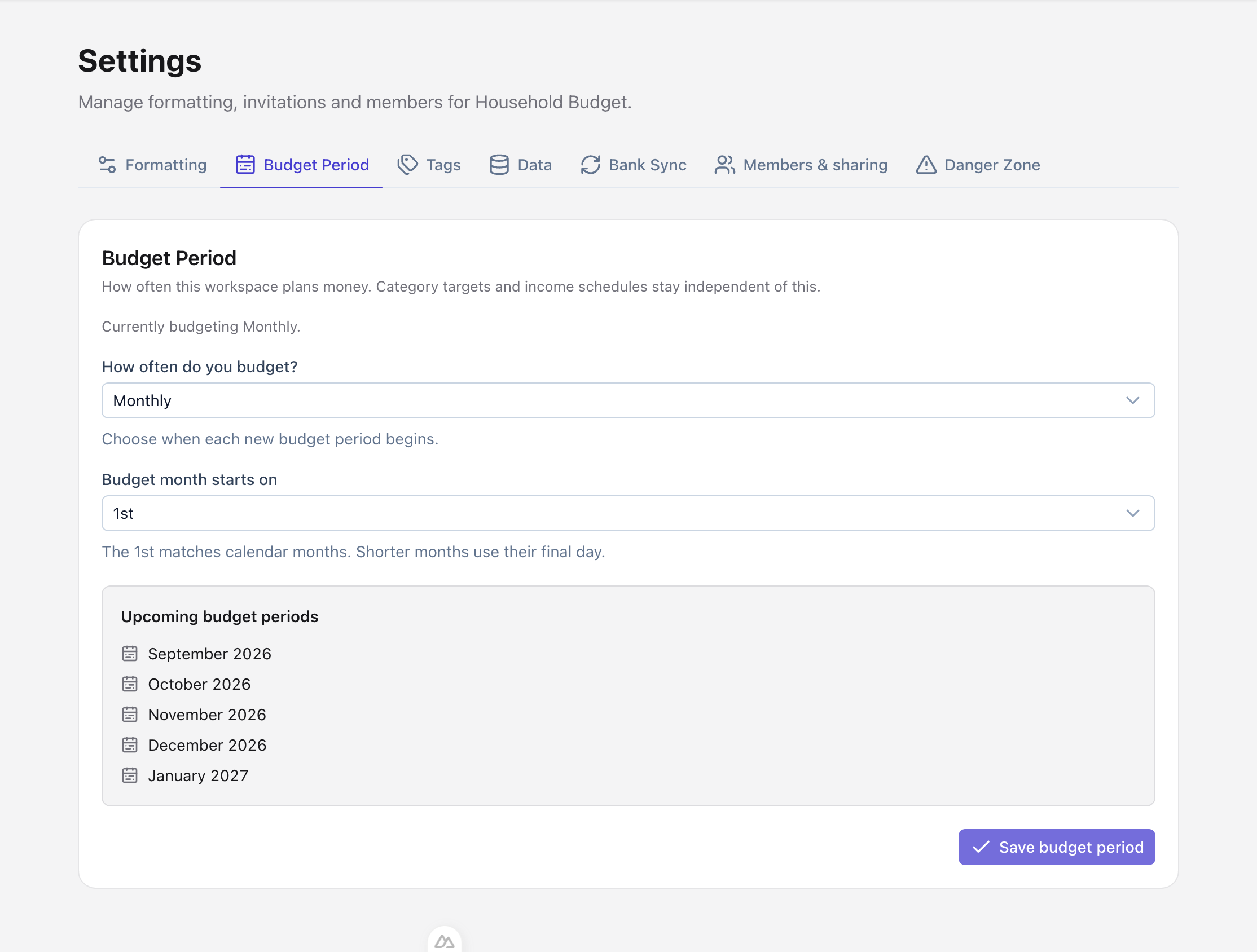
Open Workspace settings and choose the Budget Period tab. It tells you what you are budgeting on now — Currently budgeting Monthly. — and lets you pick a different schedule. Upcoming budget periods previews the dates the schedule you are looking at would produce, before you commit to it. Save with Save budget period, or walk away with Discard changes.
What happens to the periods you already planned
Changing the schedule is a forward-looking change, and Budget Thing is deliberately careful with what you have already done:
- Your current budget period stays as it is. The new schedule begins with your next budget period.
- Already-planned periods keep the dates they were planned with. A period you planned as 1–30 September remains 1–30 September, whatever you budget on afterwards.
- Nothing historical is reinterpreted. Past periods keep resolving the way they always did, so your history does not quietly change shape underneath you.
- No money moves. Assigned money, transactions and category balances are untouched by a schedule change.
One period between the old and the new schedule can be shorter than either cadence would normally produce — that is the join between them, and it only happens once per change.
If you have not planned or assigned anything yet, the schedule you pick is treated as your opening choice rather than as history, so it takes effect straight away instead of waiting for the next period.
A period can cross a calendar month
A two-week period might run 18 September to 1 October. Budget Thing treats that as one planning period: one set of planned amounts, one set of targets, one Assigned this period figure, and one step when you move to the previous or next period. It is never split into a September part and an October part.
Which day counts as "today"
A workspace has a Time zone. It is detected from your device when the workspace is created, and it is changed later alongside the formatting fields in workspace settings. It decides which calendar day counts as today in this workspace, and therefore which budget period is the current one. It does not change the dates of budget periods you have already planned. See Date and Number Format.
What budget periods do not change
- Category targets keep their own cadence. A category can have a monthly target in a workspace that budgets fortnightly. See Category Targets.
- Income schedules keep their own cadence. An occurrence counts in whichever budget period contains its date. See Income Schedules.
- Reports stay calendar-based. Monthly, quarterly, yearly and custom-range reports are reporting ranges, not budget periods. See Reports.
Coming from calendar months
Nothing is lost if you have been budgeting in Budget Thing already. An existing workspace keeps calendar-month budgeting until you change it, and the plans you made are now budget-period plans covering those same calendar months. Switch schedules later and those older periods still show the dates you planned them with.