Category Targets
A target records how much a category needs and how often. Budget Thing uses it to show what the category needs in the budget period you are looking at, how much of that you have already assigned, and how much is still missing.
A target is guidance, not money. Setting one never assigns anything; it only tells Budget Thing what to aim for.
A category with No target works normally — you can still assign money to it whenever you like. Targets are worth adding where you want Budget Thing to tell you how much to set aside.
Where targets live
A category holds at most one target, and you can reach it from three places:
- the Categories screen: select a category's name to open its details panel (a bottom sheet on a phone), then choose Add a target or Edit target. The panel also shows what the target needs this pay period;
- the category's own page, under Target, with Add a target or Edit target;
- the Target column on Plan Ahead. Plan Ahead also shows, under each period's planned amount, how much a repeating target still needs in that period.
Groups and Budget Thing's own system categories — Available to Assign, Uncategorized — cannot hold a target.
The four kinds of target
What kind of target is this? offers four behaviors. Choose the one that matches how you think about the category.
| Target | What it means | What counts towards it |
|---|---|---|
| Keep an amount available | Keep this much available each period. Money left over counts towards the next target. | What the category held plus what you assigned or moved in this period. Spending from it does not count against you. |
| Add an amount regularly | Add this amount each period, regardless of what is already available. | Only what you assign during the period. |
| Reach a balance | Build the category up until its available balance reaches this amount, then stop. | The category's available balance. |
| Reach an amount by a date | Reach this amount by a date you choose. Budget Thing works out what each budget period needs. | The category's available balance. |
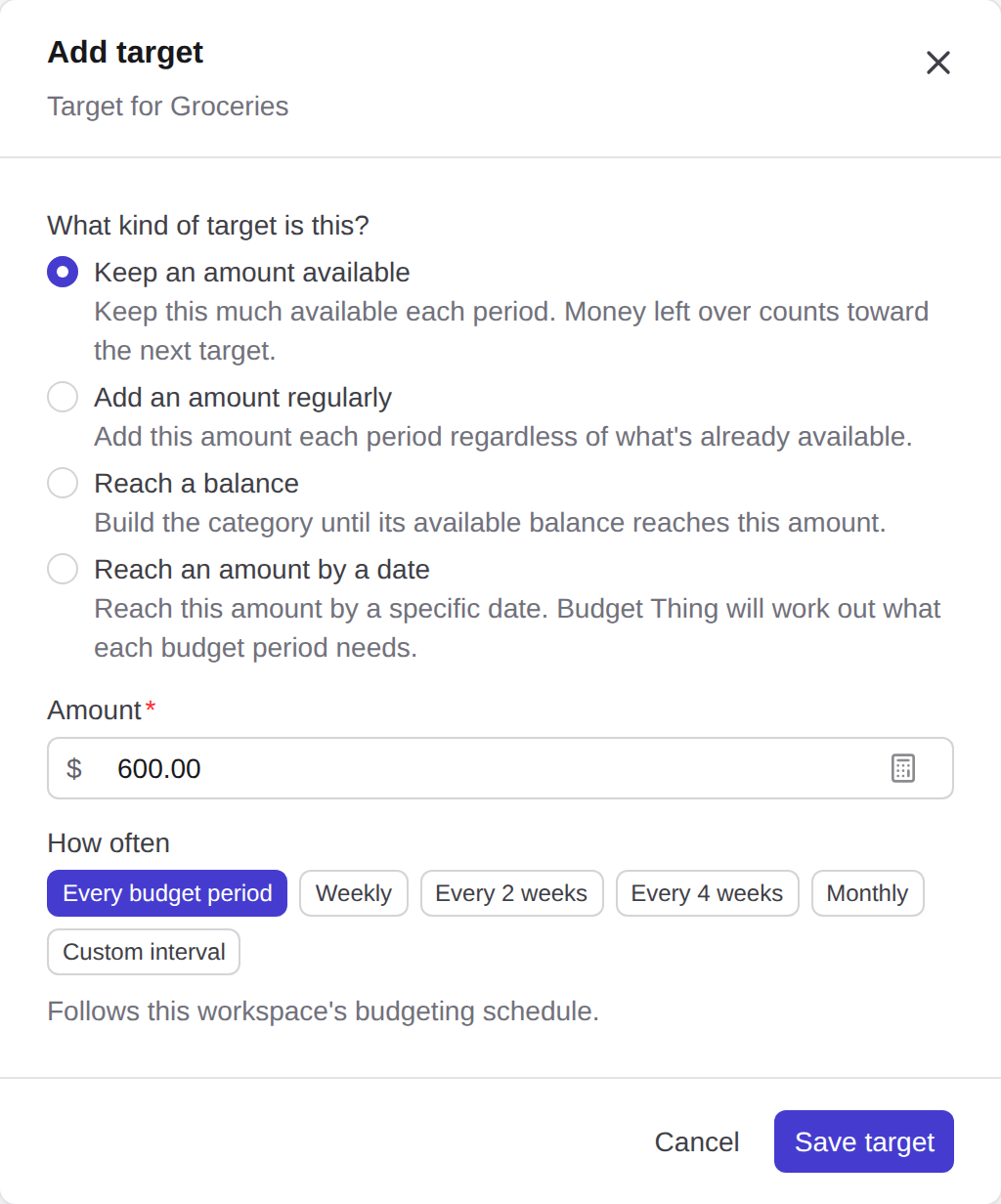
Groceries suits Keep an amount available: whatever is left over at the end counts towards next period. Once you have funded the category for the period, spending from it doesn't make the target need money again. Moving money out to another category does, because that money was taken back rather than spent. A holiday fund suits Add an amount regularly or Reach an amount by a date, because what matters is the deposit or the deadline rather than a level to hold.
For Reach an amount by a date, the shortfall is divided over the budget periods that remain before the date, rounded up so the instalments always add up to enough. Leave it late and the instalments simply get larger.
Which targets appear as goal trackers
Reach a balance and Save by a date targets have an end, so each one appears as a card under Goal trackers on the Reports page, showing how full the category is. Refill and Contribution targets repeat every period, so they don't appear there. Select a card to open its full-screen tracker, where you can choose a design and number of cells; see Goal trackers.
Target cadence is separate from your budget period
How often sets the target's own rhythm, and it is independent of your workspace's budget period. A household can budget every two weeks while Rent has a monthly target.
| How often | What you set |
|---|---|
| Every budget period | Nothing — it follows the workspace's budgeting schedule. |
| Weekly | One period starts on, so Budget Thing knows which cycle the category follows. |
| Every 2 weeks | One period starts on. |
| Every 4 weeks | One period starts on. |
| Monthly | Day of the month. Shorter months use their final day. |
| Custom interval | Repeat every a number of days, weeks, months or years — quarterly and yearly targets live here. |
Reach a balance and Reach an amount by a date do not repeat, so they ask for no cadence at all.
Where the two rhythms differ, Budget Thing counts the target's occurrences that fall inside the budget period. A 100 weekly target inside a fortnightly period needs 200 in that period — two occurrences, not half a month's worth. Nothing is estimated by dividing a monthly amount by four or a yearly amount by twelve.
A target set to Every budget period follows whatever the workspace budgets on. Switch the workspace from monthly to every two weeks and a 400-per-period grocery target becomes 400 a fortnight — deliberately, because that is what the setting means. Choose Monthly instead if the amount should stay a monthly amount.
How a target reads in the current pay period
On the Categories screen, the Needed figure and the row status summarize the target and its progress. Select a category's name to open its details panel. Its Target block shows, for the pay period on screen:
| Figure | Meaning |
|---|---|
Needed in {month} | What this pay period needs: what the target requires to stay on track, or the amount you planned for the category, whichever is larger. A planned amount counts even when the category has no target. |
Assigned in {month} | What you assigned during this pay period. Moving money between categories does not change it. |
Still needed in {month} | What is still missing: the target's own shortfall or the planned amount not yet assigned, whichever is larger. Never negative. It is worked out by Budget Thing for each kind of target, so it can differ from Needed minus Assigned. |
| Whole goal still needs | Reach an amount by a date targets only: what is left to reach the full amount. |
| Suggested this pay period | A hint for a Keep an amount available bill due in a later pay period. See Bills in a later pay period. |
For a category with its own target, a list headed by the month, for example Nov by pay period, shows what each pay period that starts in the month needs. Each figure is that pay period's own. Budget Thing doesn't add them up into a month total.
A monthly target is needed all at once
A monthly target, or a bill with a due date, isn't split across pay periods. It is Needed in full in the one pay period that contains its date. If you budget every two weeks and Rent is $1,400 on the 1st, the pay period that contains the 1st shows Needed $1,400, and the other pay period shows nothing. Choose Every pay period as How often when you want the amount needed in every pay period.
Bills in a later pay period
A Keep an amount available bill whose date falls in a later pay period isn't Needed yet, so the category appears under Coming up on the Categories screen. Its details panel shows a Suggested this pay period amount: what is still short, divided by the pay periods until the due date. It is only a suggestion. It fills in nothing by itself, it is never called Needed, and you can ignore it. Other kinds of target get no suggestion, because money set aside early wouldn't count toward them.
Progress bars in the details panel
Open a category's details to see its target as bars. This pay period shows what you have assigned out of what the period needs, with the amounts and a percentage. A balance target or a by-date target also shows Whole goal: how much of the full target amount you have reached so far. Repeating targets (keep an amount available, add an amount regularly) show only the first bar. The first bar uses your own word for a budget period. The bars stay visible when you hide the goal icons on the Categories screen.
On the Categories screen, the goal icon follows the same split: for a balance or by-date target it shows how much of the whole goal is funded, with a tick only when the whole goal is funded and an on track state (a ring with a dot) when this period's share is covered but the goal is not. Repeating targets show the current period only. See Categories overview.
Edit target
Edit target in the details panel has the same fields as before: the kind of target, the amount, How often (one row of choices, with Every pay period first and the same custom intervals) and the dates each kind needs. Under the fields, a sentence says what your choices mean, for example Needs $400 once a month, all in the pay period that includes the 1st. Remove target is in the same place and asks you to confirm.
A category whose target comes from your debt plan, such as Debt Paydown, shows a note that the target comes from your debt plan instead of the form, with an Open your debt plan link. See System categories.
Debt Paydown never offers Add target or Edit target, on Plan, Plan Ahead or the Categories screen. The Debt Center sets its target automatically, and it appears read-only. When your debt plan has no payment planned for the period, the Target column says Set by Debt Center and No debt payments planned, and links to the Debt Center. Its planned amount on Plan Ahead is read-only too, because the Debt Center sets it. The API refuses to create, change or remove a target on Debt Paydown.
The payment category of an active debt, such as a car loan category, works the same way: no Set planned amount, no Add target or Edit target, and a Set by Debt Center link instead. You can still assign money to it. See Categories that pay a debt.
Putting money into a target
Targets and assignments stay separate on purpose:
- On the Categories screen, the strip's Assign gives every category what its target still needs this pay period. It only shows when Left to assign covers all of it. See Assign Money on the Categories Screen.
- On Plan Ahead, Apply targets fills in planned amounts for a period from what its targets require. That is planning only — it moves no money.
What targets never do
- Creating or editing a target does not assign money or change any balance.
- Remove target removes the funding goal only. It does not remove money from the category and does not change any transactions.
- A target does not reserve cash, and expected income does not fund one. Only an assignment of money you actually have changes what a category can spend.