Income Schedules
An income schedule records income you expect to receive and when you expect it. Its occurrences make up Projected income in Plan Ahead and Expected income on Categories screen.
An income schedule is a forecast. It does not record income, increase Left to assign or put money in categories. You can assign the money only after it actually arrives and is recorded.
Create an income schedule
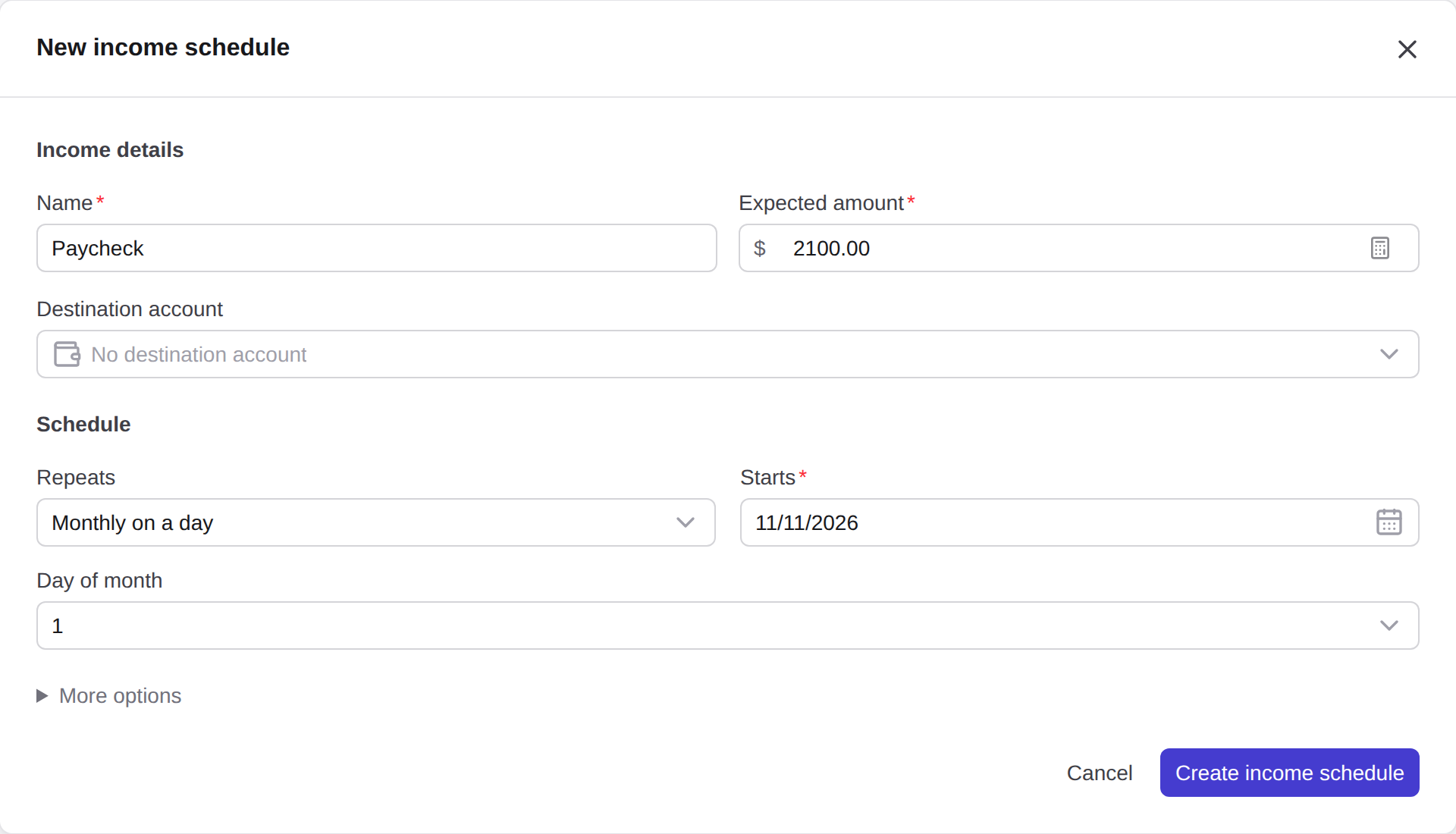
- On Categories, select Income schedules in the header (or the Expected income line under Left to assign). This opens the Income schedules page.
- In a workspace with no income schedules yet, the page opens on the create form, with Customize wording (the word for each budget period) collapsed below it. Otherwise, choose New income schedule.
- Enter a name and the Expected amount.
- Optionally choose a Destination account. If the workspace has only one account, it is preselected. A payee can be linked later, when you edit the schedule.
- Choose how the schedule Repeats and when it starts. For a monthly schedule, the Day of month follows the start date until you pick a day yourself.
- To stop on a date, open More options and set the end date. Leave it blank to continue indefinitely. Then choose Create income schedule.
How it repeats
| Option | What you set |
|---|---|
| Every budget period | Nothing — one occurrence in each workspace budget period. |
| Weekly | A weekday. |
| Every 2 weeks | A cycle anchor date. |
| Twice a month | Two different days of the month. |
| Monthly on a day | A day of the month. |
| Monthly on a weekday | A week of the month and weekday. |
| One time | A single date. |
For day-of-month schedules, shorter months use their last available day. An every-two-weeks schedule uses its anchor to determine which weeks are pay weeks.
Income schedules and budget periods
An income schedule keeps its own rhythm, whatever your workspace budgets on. Apart from Every budget period, each option follows its own calendar dates, and an occurrence counts in whichever budget period contains that date — so a weekly wage contributes several occurrences to a fortnightly period, while a monthly salary contributes one.
Every budget period is the exception that deliberately follows the workspace: it creates one expected-income occurrence in each budget period, and if the workspace changes its budgeting schedule, future occurrences follow the new one. It suits income that arrives once per budgeting cycle rather than on a fixed calendar date.
Months with an extra paycheck
Some months hold more paydays than usual. An every-two-weeks schedule has three pay dates in two or three months of the year, and a weekly schedule has five pay dates in any month with five of its weekday. Twice-a-month and monthly-on-a-day schedules always have the same number of pay dates, so they never produce an extra paycheck.
If your workspace budgets monthly, the extra paycheck simply appears in that month's Expected income. For example, an every-two-weeks schedule anchored on Friday 2 October 2026 projects three paychecks in October (2, 16 and 30) and two in November (13 and 27), and Expected income is the total of all of them.
Months with an extra paycheck
In a pay period with an extra paycheck, meaning three every-two-weeks paychecks or five weekly ones, the Categories screen shows a line under the header figures, for example 3 of 3 paychecks · extra paycheck. A pay period without an extra paycheck shows no line.
The extra-paycheck card
Once per month with an extra paycheck, the Categories screen shows a card you can dismiss. It offers Savings, Targets and Next month, or Decide later. These choices only take you to where you decide:
- Savings reminds you to find a savings category in the list and use its Assigned box.
- Targets switches the Categories list to Needs action.
- Next month opens Plan Ahead.
The card does not assign anything. Once dismissed it stays dismissed for that month in this browser.
If your workspace budgets every two weeks, as your pay arrives, each pay period holds one paycheck, so the line and the card never appear.
Twice-a-month dates are used exactly as you set them. They do not move for weekends or holidays, so use an override if a payday lands on a different date.
Override or skip one occurrence
A schedule generates individual expected payments called occurrences. Each is shown as Projected, Overridden or Skipped.
- Override changes the date or amount for one occurrence.
- Skip removes one occurrence from the forecast.
- Restore default returns an occurrence to the schedule's value.
These changes update Projected income and the planning comparison in Plan Ahead. They still do not record real income.
Deactivate or delete a schedule
Deactivate stops future occurrences while preserving existing history. Inactive schedules can be included in the list when needed. Permanently delete removes the schedule and its overrides and cannot be undone.
When historical Plan Activity refers to a schedule, Budget Thing may require you to deactivate it instead of deleting it so the audit record remains intact.
Use an AI assistant
If you connect an AI assistant, it can answer "when is my next paycheck?" from your income schedules. With read and write access it can also create or change a schedule, move, re-amount or skip one paycheck, and put one back to what the schedule says. It always shows you a schedule and asks before deleting it.