Round Up into Savings
Round-up saves the change from your purchases for you. Spend $4.30 on coffee with a $1 increment, and $0.70 moves from your coffee category into a savings category of your choice. You don't have to decide anything each time.
Round-up is included in every plan, Free too. See Feature availability.
A round-up is a move between categories. It changes how much is Available in each category. It doesn't move money between bank accounts. If your savings category is backed by a real savings account, transfer the cash yourself when it suits you. See Accounts vs. Categories.
Turn on round-up
- Open Workspace settings, choose the Budget Period tab and find Round up into savings.
- Turn on the Round up into savings switch.
- Choose the savings category that receives the change in Move the change to. The first time, Budget Thing asks you to Pick a savings category first, and round-up turns on as soon as you choose one.
- Choose the increment in Round up to the next: $1, $5 or $10. $1 is the default.
- Under Which purchases, choose how categories take part (see Choose which categories round up), then choose Choose categories to pick them.
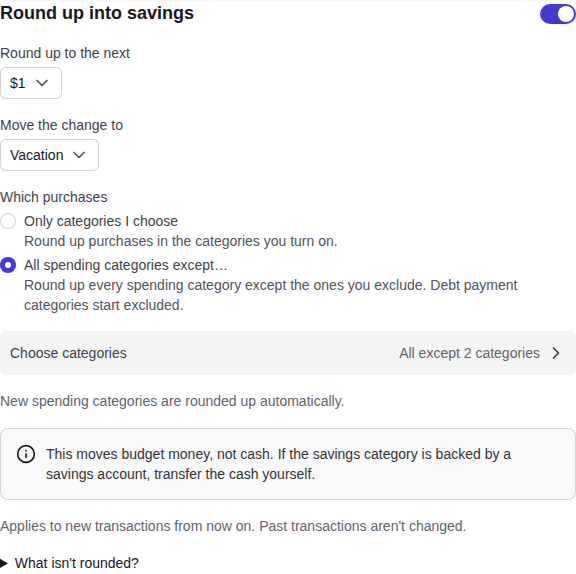
Round-up only rounds purchases dated on or after the day a category starts rounding up. Purchases already in your budget are never changed.
Choose which categories round up
Which purchases has two choices:
- Only categories I choose. Only the categories you turn on are rounded up. Every category starts off. This is the default, and it's what you had before if you set up round-up earlier.
- All spending categories except… Every spending category is rounded up except the ones you exclude. Categories you create later are rounded up automatically, so you don't have to remember to turn them on.
Pick the second choice when you want to save from almost everything. For example, to round up everything except your mortgage and car loan payments, choose All spending categories except…. Categories that pay a debt, such as loan, mortgage and credit card payment categories and any category a Debt Center debt is budgeted from, start on the excluded list for you. Check Choose categories to exclude anything else.
The Choose categories button shows what you chose, such as 5 categories chosen or All except 3 categories.
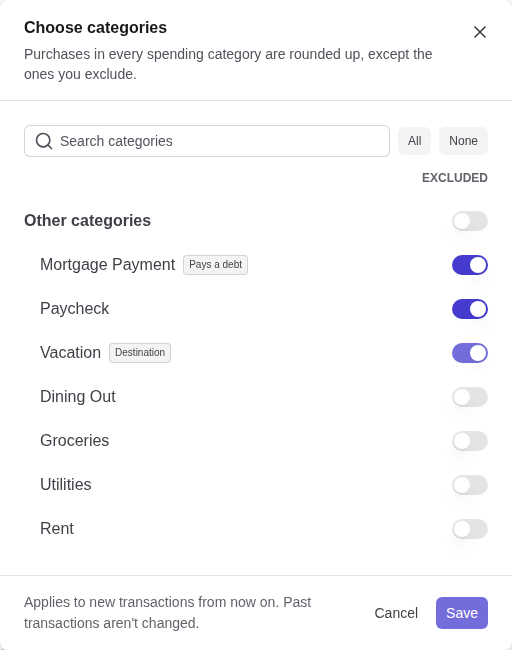
The Choose categories dialog
The dialog lists your spending categories by category group:
- With Only categories I choose, each switch reads Rounded up. Turn on the categories to round up.
- With All spending categories except…, each switch reads Excluded. Turn on the categories to leave out.
- The switch next to a group name changes every category in that group.
- All and None change every category in the list. When you've typed in the search box, they change only the categories that match.
- Categories that pay a debt are marked Pays a debt. The savings category is marked Destination and can't be rounded up itself.
Nothing changes until you choose Save. Cancel leaves everything as it was.
You can also turn round-up on or off for a single category with Round up purchases when you edit the category. In All spending categories except… mode, turning it off adds the category to the excluded list.
New purchases only
A category rounds up purchases dated on or after the day it starts rounding up:
- With Only categories I choose: the day you turn the category on.
- With All spending categories except…: the day you switched to this choice, the day you created the category, or the day you took it off the excluded list, whichever is latest.
Switching between the two choices also starts from that day, and it never changes round-ups that already happened. Each choice remembers its own list, so if you switch back, the categories you chose before are still chosen.
Increments in other currencies
The increments follow your workspace currency:
| Currency | Increments | Default |
|---|---|---|
| Currencies with cents, like US dollars or euros | 1, 5 or 10 | 1 |
| Currencies with no decimal places, like Japanese yen or Korean won | 100, 500 or 1,000 | 100 |
If you change your workspace currency, the increment goes back to the new currency's default.
How much moves
Each purchase is rounded up to the next multiple of your increment, and the difference moves to your savings category:
| Purchase | Increment | Round-up |
|---|---|---|
| $4.30 | $1 | $0.70 |
| $12.30 | $5 | $2.70 |
| $20.00 | $5 | nothing (it is already a multiple of $5) |
Round-up never overspends a category. If the purchase's category has less Available than the round-up after the purchase, only what is Available moves. If nothing is Available, nothing moves. A round-up that comes up short isn't tried again later.
Round-up changes Available, not Assigned, in both categories, and it doesn't touch Left to assign. Account balances and your spending and income reports stay the same, because a round-up is not a transaction.
When purchases are rounded up
| How the purchase gets into Budget Thing | Rounded up? |
|---|---|
| You enter it by hand | Yes, when you save it. |
| Bank sync downloads it for review | Only when you approve it. Nothing moves while it waits for review. Approving many items at once rounds up each one. |
| A recurring transaction posts it | Yes. |
| A file import (CSV, OFX, QFX or QIF), or a YNAB or Actual import | No. Imports bring in history, so they are never rounded up. |
What isn't rounded up
- Income, refunds and other money coming in.
- Transfers between accounts, including credit card and loan payments.
- Split transactions that use more than one category.
- Purchases in a category you haven't chosen, or have excluded, or in a hidden category.
- Purchases dated before the category started rounding up.
- Purchases in the savings category itself.
- Purchases in system categories, such as Uncategorized or Debt Paydown, in either choice.
A refund doesn't take back an earlier round-up. What you saved stays saved.
Where you see round-ups
Developers using the API can also read whether a round-up moved in full, moved in part or was skipped, and which category-transfer rows are round-ups. See the round-up API reference.
- On the purchase. When you open the transaction, a line such as Round-up $2.70 to Vacation shows under the date. Choose it to go to the savings category. In the transaction list, a rounded-up purchase has a small savings icon; point at it to see the same line.
- In both categories. Each round-up is a category transfer with the memo Round-up. It appears in the transaction list of the purchase's category and of your savings category, labeled Round-up instead of Category Transfer. It can't be selected, edited or deleted on its own.
- On the Budget page. If your savings category is no longer available, a Round-up is paused banner appears at the top. See Pause or turn off round-up.
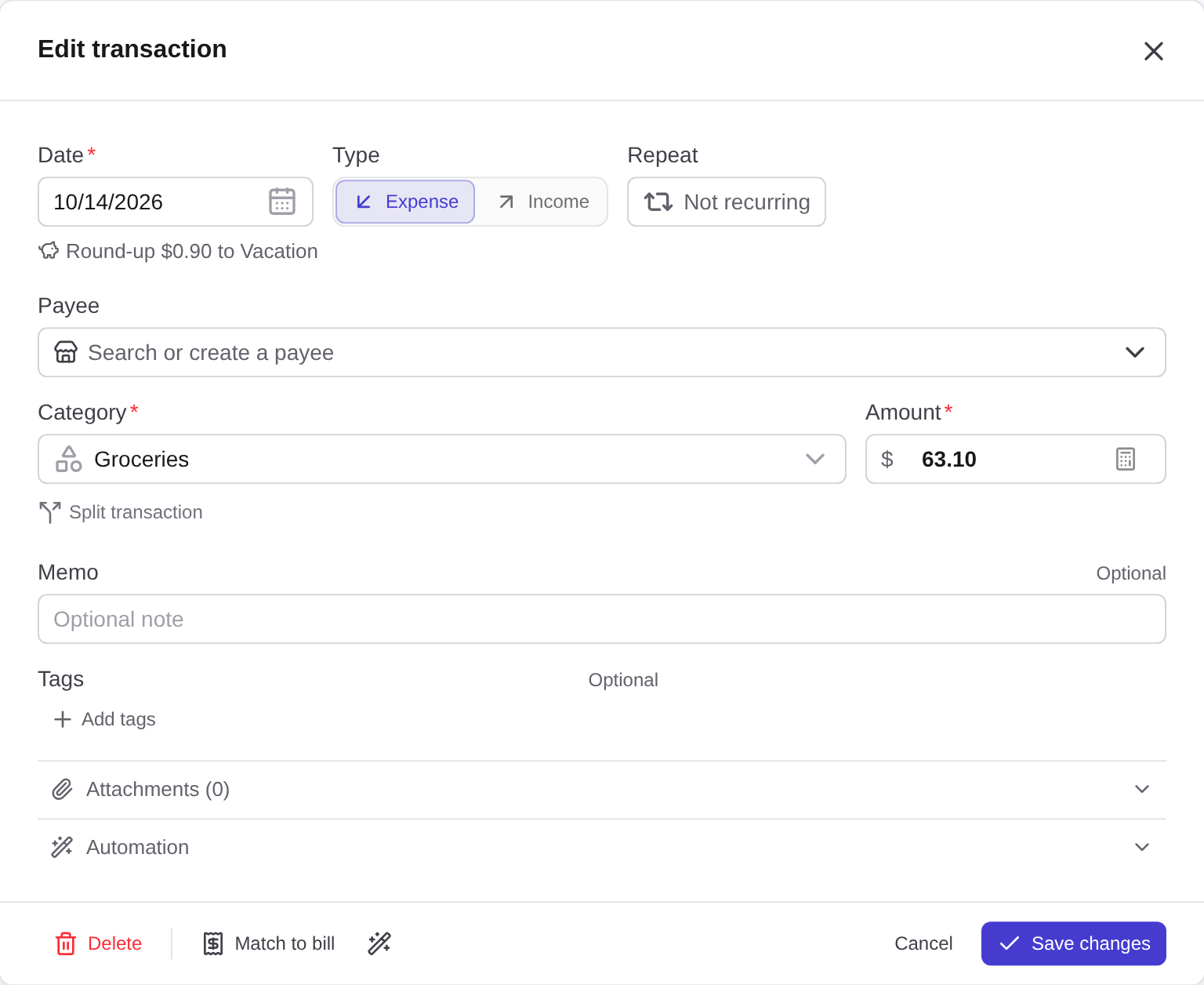
If a category had less Available than the full round-up, the line shows the smaller amount that moved, followed by how much wasn't moved because there wasn't enough available. When nothing could move, the purchase shows a round-up line in a warning color, such as Round-up $0.70 skipped: not enough available in the category. In the transaction list a skipped round-up has the same small savings icon in the warning color, with that line as its tooltip. Nothing is tried again later.
Edit or delete a rounded-up purchase
The round-up follows its purchase, and it stays the same round-up: it keeps its place in your category activity instead of being deleted and created again.
- Change the amount, and the round-up is worked out again for the new amount. It gets bigger or smaller to match. If the new amount is an exact multiple of your increment, the round-up is removed. If the category has less Available than the new round-up, only what is Available moves, and the purchase shows how much was left out.
- Move the purchase to another category that rounds up, and the round-up now comes out of the new category. The old category gets its money back.
- Move the purchase to a category that doesn't round up (one you haven't chosen or have excluded, a hidden or system category, or the savings category itself), or split it across categories, and the round-up is removed.
- Move a purchase into a category that rounds up, and it gets a round-up only when it is dated on or after the day that category started rounding up, like a new purchase. Round-up is never added to older purchases.
- Change the date, and the round-up is worked out again.
- Change only the memo, payee, tags or cleared status, and the round-up stays as it is.
- Turn the purchase into a transfer, and the round-up is removed.
- Delete the purchase, and the round-up moves back to the category it came from.
The same rules apply while round-up is paused or turned off (see below), with one difference: a round-up that already exists can follow its purchase and get smaller or go away, but it never gets bigger, and a purchase without a round-up never gets one.
You can't edit or delete a round-up on its own. Change or delete the purchase instead.
To undo a round-up from a downloaded transaction you approved, delete the transaction the approval created. Approving a downloaded transaction has no undo.
When a purchase is edited or deleted, its round-up goes back even if you've already spent that money from your savings category. The savings category can then show as overspent. Cover it like any other overspending.
Pause or turn off round-up
- Turn off a category (or exclude it) to stop rounding up its purchases.
- Turn off Round up into savings to stop it everywhere.
Round-ups that already happened stay where they are either way. If you edit one of those purchases later, its round-up still follows it: when you change the amount or move the purchase to another category, the round-up shrinks, moves to the new category or is removed, so your category balances stay right. It never grows and is never added to a purchase that has none. While Round up into savings is off, a round-up that follows a purchase keeps going to the savings category it was made for. It uses the increment you last chose.
If you hide or archive your savings category, round-up pauses. The Budget page shows a Round-up is paused banner, and so do the Round up into savings settings. Choose Choose category on either one and pick a new savings category. Nothing is lost, and round-up starts again with the next purchase once a savings category is chosen. Past purchases aren't changed. Until then, an existing round-up still follows an edited purchase as described above, and stays with the savings category it went to.
If your plan changes
Round-up works the same on every plan, so changing plans never changes it.
Round-up used to need a paid plan. If yours was on when your plan dropped to one without it, round-up was switched off at that point. When round-up became available on every plan, it was not turned back on for you. Instead, the Budget page and the Round up into savings settings show a one-time notice: Round-up savings is now included in your plan. It was turned off when your plan changed. Turn it back on?
- Choose Turn on to start again with the savings category, increment and categories you had. If that savings category is gone or hidden, you pick a new one first. Round-up applies to purchases entered from then on.
- Choose Dismiss to leave round-up off. The notice doesn't come back, and you can turn round-up on in the settings whenever you like.
Until you choose, no new round-ups are made. Round-ups already made stay, and editing or deleting an older purchase still shrinks, moves or removes its round-up as described above.