Manage Billing
Plan & Billing is where the money side of your account lives: your current plan, when it renews, how you pay, and what you have been charged.
Who can manage it
Your subscription belongs to your own user account, so you manage it yourself. There is no separate billing administrator. Workspace roles are separate and grant no billing access — see Members and Sharing.
Monthly or annual
Paid plans are billed monthly or annually. The current setting is shown as Monthly billing or Annual billing next to your plan.
Annual billing is charged once for the year and is normally cheaper per month; Compare plans shows the saving. Switch with Change billing on your current plan.
- Monthly to annual takes effect immediately. Budget Thing prorates the rest of your current month and charges the difference.
- Annual to monthly takes effect at the end of your current annual period. Plan & Billing shows the date it applies from.
Some plans are only offered on one of the two periods, in which case the other is marked unavailable.
If your plan's price changes
If your plan's price ever changes, we email you at least 60 days before the new price starts. It always starts at a renewal, never in the middle of a period you've paid for. Until then you keep paying your current price, and if you cancel or switch plans before that date you'll never pay the new one. See Price Changes for what the email says and when a price can change.
If a new customer would pay less than you for the same plan, we also move you down to that price at your next renewal and email you first. You don't have to do anything.
Payment method
Manage billing opens the billing portal, where payment details are handled. Payments are processed by Stripe. In the portal you can also update your billing address and tax ID, see past invoices, and cancel your subscription.
If something is wrong with your card, Plan & Billing shows There's a problem with your payment, the date the issue began, and how long your access continues while Stripe retries. Fix payment method takes you straight to the portal.
While Stripe retries, your paid access stays active. If it is never resolved, the subscription lapses. If the account is then scheduled for deletion, Plan & Billing says so and shows the date — renewing before that date prevents it.
Status
Plan & Billing shows a status for the subscription: Active, Free trial, Trial ending, Past due, Payment required, Billing setup required, Cancellation scheduled, Expired, Paused or Free. Alongside it you see the renewal date, or the date your current plan or paid access ends. After a cancellation or downgrade to Free takes effect, Plan & Billing shows Free as your plan, with no expiry date.
During a free trial the status reads Free trial, with the date the trial ends and the date of the first charge. After you cancel the trial it reads Trial ending until you move to Free.
Refresh status re-checks with the payment provider, which is useful right after a payment when the status has not caught up yet.
Invoices
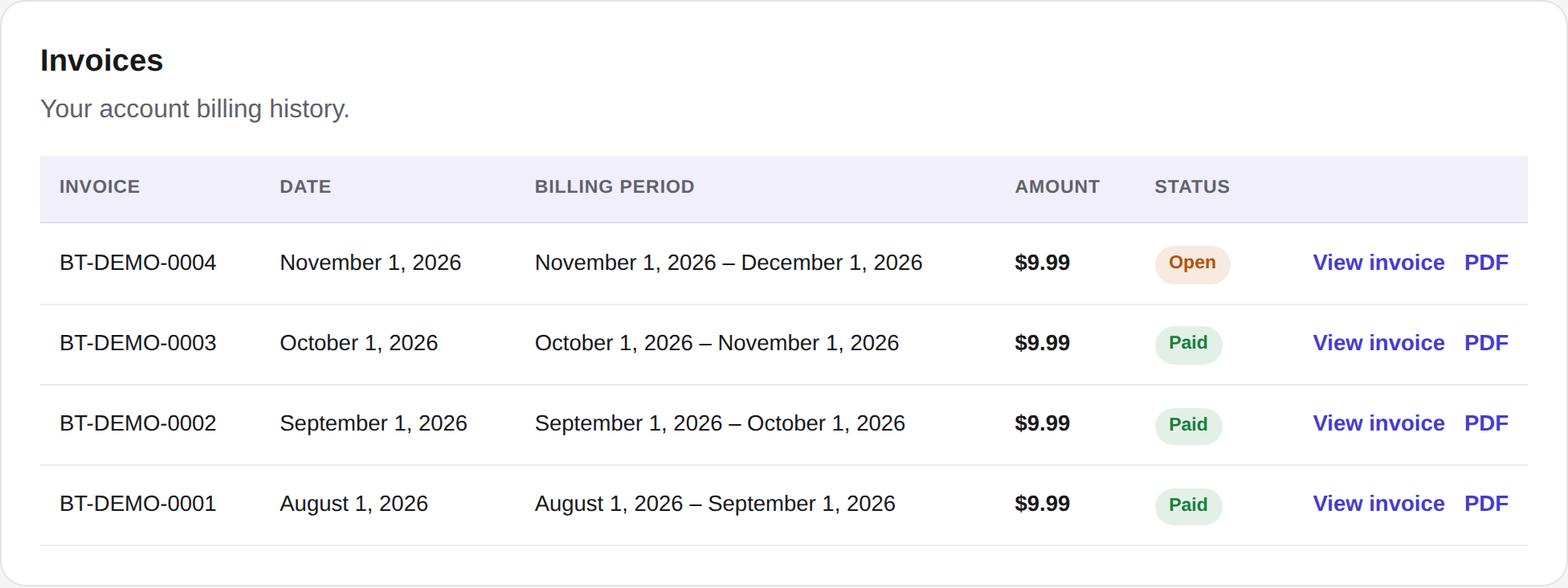
Invoices lists your billing history: the invoice number, date, billing period, amount and status — Paid, Open, Draft, Void or Uncollectible. Each row offers View invoice and PDF, both of which open in a new tab.
Under the amount, an invoice that had a discount, tax or account credit lists each one: the discount, the tax, the Starting credit you held and the Credit applied to that invoice. See Account credit on your invoices.
Invoices appear after your first charge, so a new account shows No invoices yet.