Goal Trackers
How close am I to my savings goal? A goal tracker turns a category's Reach a balance or Save by a date target into a picture that fills as money lands in the category. Open Reports → Goal trackers and select a goal's card to see it full screen.
The full-screen tracker
The page has its own address, so the Back button, a bookmark or your phone's back gesture all work. It shows:
- The percent, rounded down, with a check mark once the goal is reached.
- One money line, for example "$2,000.00 of $5,000.00 · $3,000.00 to go". A Save by a date goal adds the date and this budget period's amount.
- The tracker. Cells fill in order as you save. The cell in progress fills from the bottom up, so you can see a partly funded cell. The next cell to fill has a dashed outline, so filled, empty and next never rely on color alone. A one-piece design such as the piggy bank or progress bar has no next cell, so it keeps one plain outline.
- A line under it that reads "Next: $100.00 fills cell 21 of 50". Tap or click any cell to see its number, amount and whether it is filled.
- Milestones at 25, 50, 75 and 100%: small amber badges on the cell that crosses each one, and chips under the tracker such as "✓ 50% · $2,500.00".
- Show all 50 cells as a list, a table of every cell with its number, amount and state, for keyboard and screen reader users.
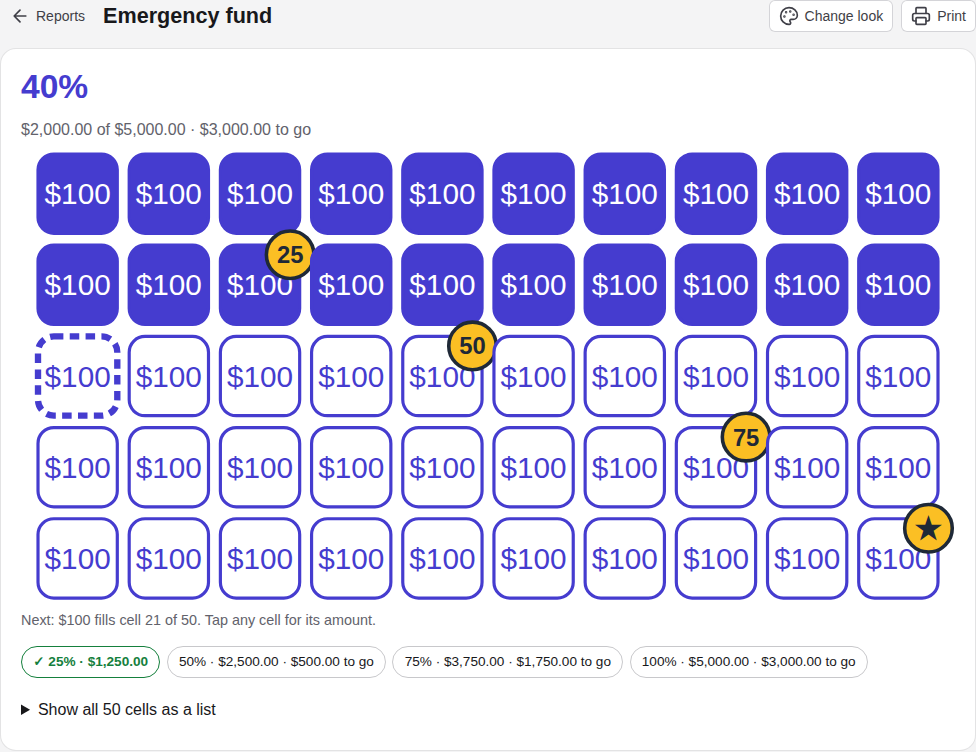
A tracker fills only from real progress. You can't color a cell by hand.
Change look
Select Change look to open a panel next to the tracker (a sheet on a phone). Everything applies as you choose it, with no Save button, and the tracker stays visible so you see the result at once.
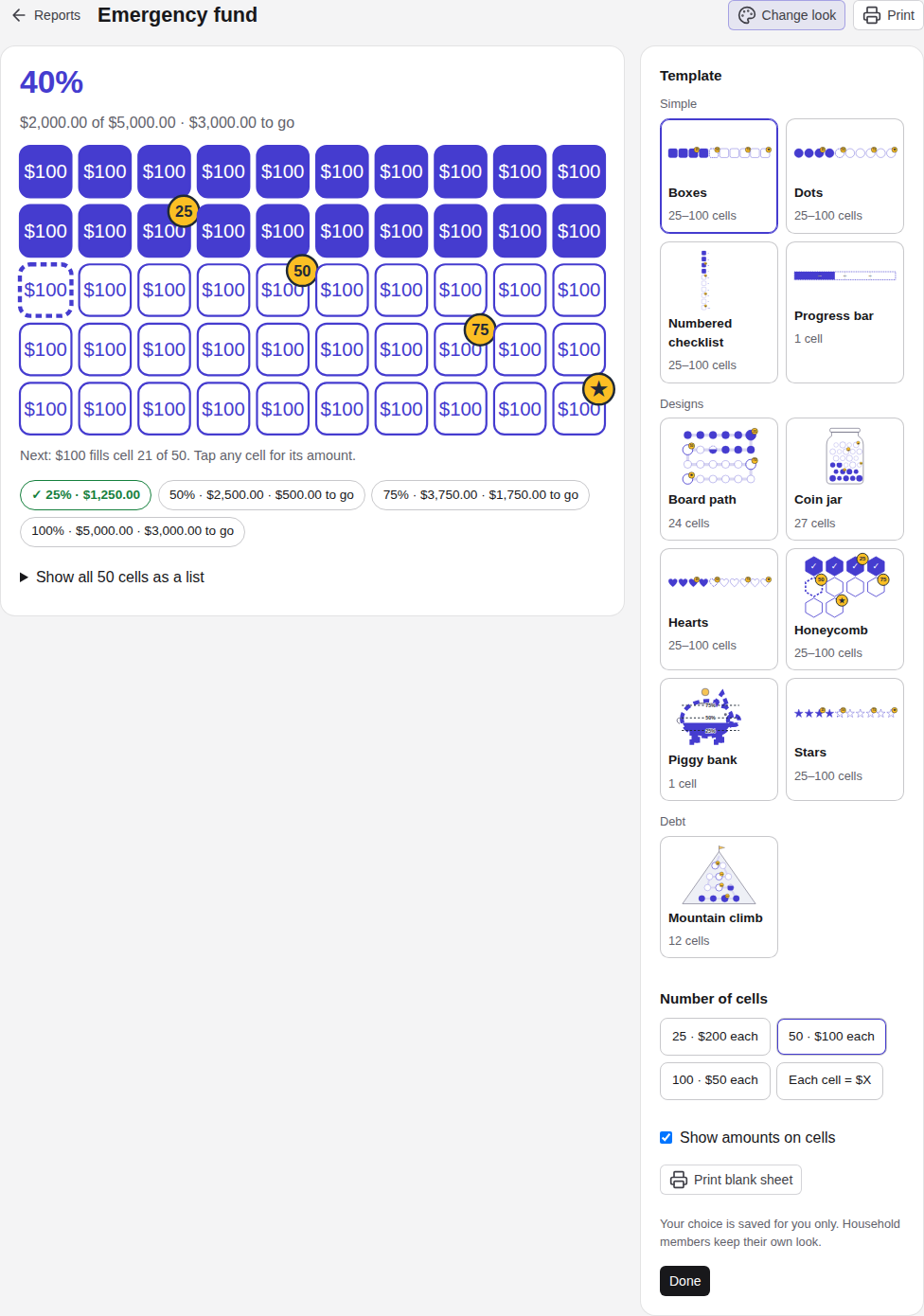
- Template. Pick a design. Each preview shows your own goal at its real progress. Simple looks are Boxes, Dots, Progress bar and Numbered checklist. Designs are Hearts, Stars, Honeycomb, Coin jar, Board path and Piggy bank, and Debt has Mountain climb.
- Number of cells. For grids and the checklist choose 25, 50 or 100 cells. Each option shows what one cell is worth, such as "50 · $100.00 each". Choose Each cell = $X to say how much a cell is worth: type a whole amount and the panel tells you how many cells that makes, for example "This makes 20 cells." A tracker never has more than 100 cells, so a smaller amount is rounded up. A goal worth less than the number of cells you chose gets fewer cells, so a cell is never worth less than one whole unit. Illustrated designs have a fixed number of cells because the count is part of the artwork.
- Show amounts on cells. Amounts appear on cells big enough to read them (about 30 pixels or more) and hide on smaller ones. Boxes, Honeycomb and Coin jar show them by default. This choice is saved on the device you use.
- Print blank sheet. Prints the same picture with nothing filled, so you can color it in by hand. It doesn't change your real progress.
Your look is yours alone. Other members of a shared workspace keep their own, and yours follows you to every device you sign in on. If a choice can't be saved, a message asks you to try again. If a design can't be loaded, the tracker shows Boxes and says so in Change look.
If you change the target, the cells work themselves out again from the new amount. Raising the target can un-fill the last cells and remove the Goal reached state.
When the goal is reached
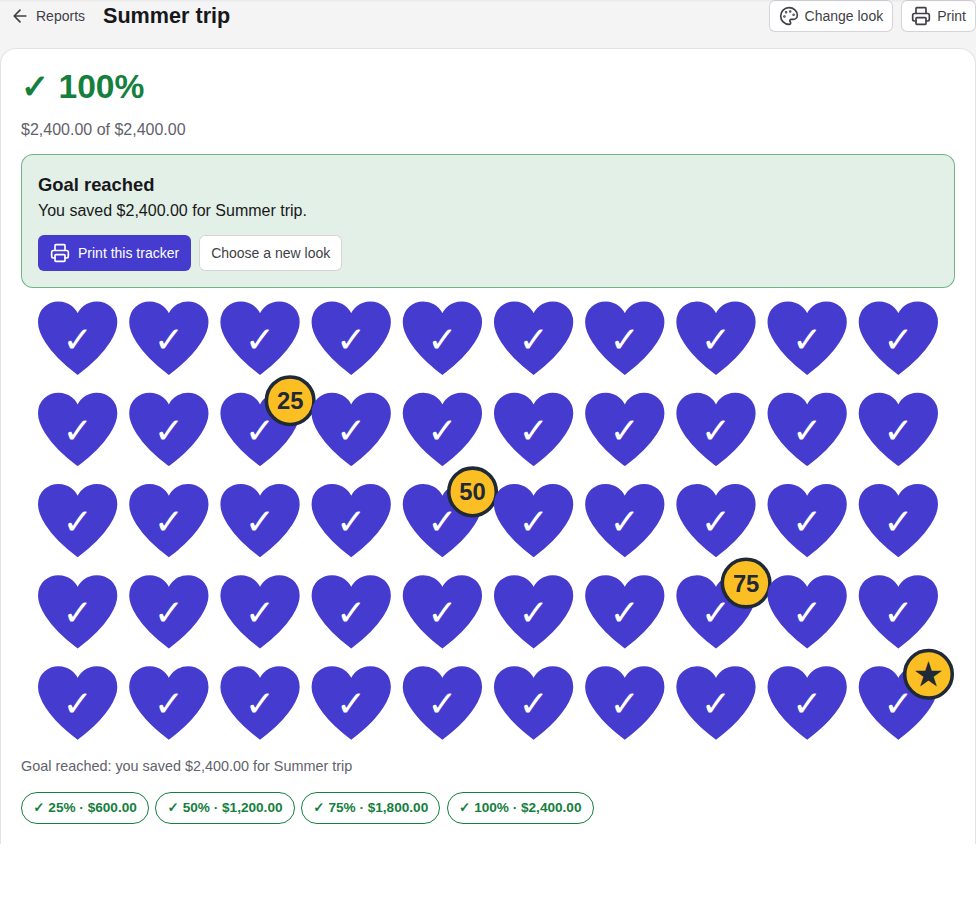
At 100% the percent shows a check mark and a green Goal reached panel says "You saved $5,000.00 for Emergency fund." It offers Print this tracker and Choose a new look. The filled cells pulse once, about a second long, the first time you see the goal reached on a device. It never loops, and nothing moves if your device is set to reduce motion. The panel stays until you change or remove the target.
Print
Print opens your browser's print dialog with just the goal name, the percent line and the tracker, without buttons or menus. Choose Save as PDF to keep a copy. It works in color or black and white.
Illustrated designs
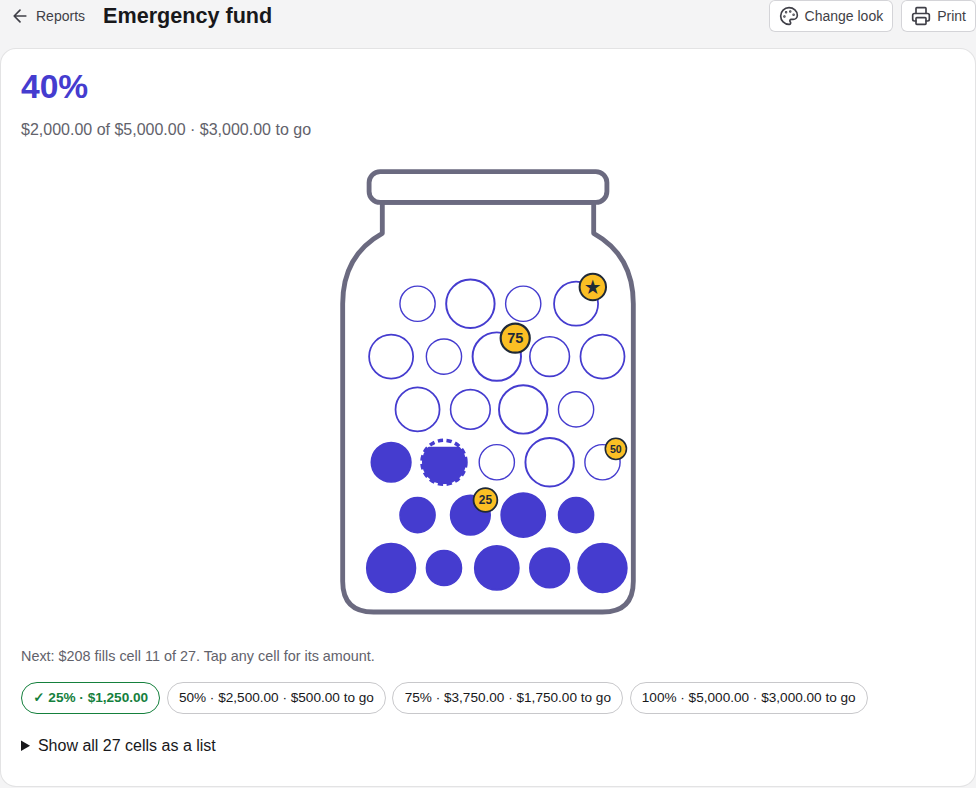
Coin jar, Board path, Piggy bank and Mountain climb are drawn pictures. Their cells have their own sizes (the coins in the jar are different values), and the Piggy bank is a single shape that fills from the bottom with tick marks at 25, 50 and 75%.
Accessibility
The tracker is a progress bar that announces the goal, the percent and the amounts. The picture itself is hidden from screen readers, and the cell list is the detailed route. The line under the tracker is announced when you select a cell and when a goal is reached. Change look is a button that says whether it is open, the options are native radio buttons and a checkbox, and every control has a visible focus ring. Layouts reflow to one column and work at 200% zoom.
Debt payoff trackers
Debts in Debt Center have the same tracker, with "paid off" wording instead of "saved". It shows on Reports under Debt payoff trackers once you start one, and always in Debt Center.
Troubleshooting
- The goal isn't there. Only Reach a balance and Save by a date targets have trackers. If you removed or changed the target, the page says "This goal isn't tracked anymore" and links back to Reports.
- The tracker shows less than I expect. The percent comes from the category's available balance divided by the target. Money assigned to other categories doesn't count, and it never shows 100% until the goal is really reached.
- Amounts disappeared from the cells. They hide automatically when cells get small. Choose fewer cells or a wider screen, or check Show amounts on cells.