Scenario Planning
What happens to my balance if I buy this, get a raise or skip that bill? A scenario is a saved set of what-if changes laid over an account's balance forecast. You see the forecast as it stands and the forecast with your changes side by side.
A scenario only changes the forecast you are looking at. It never creates transactions, bills, income schedules or budget entries, and deleting a scenario touches none of them.
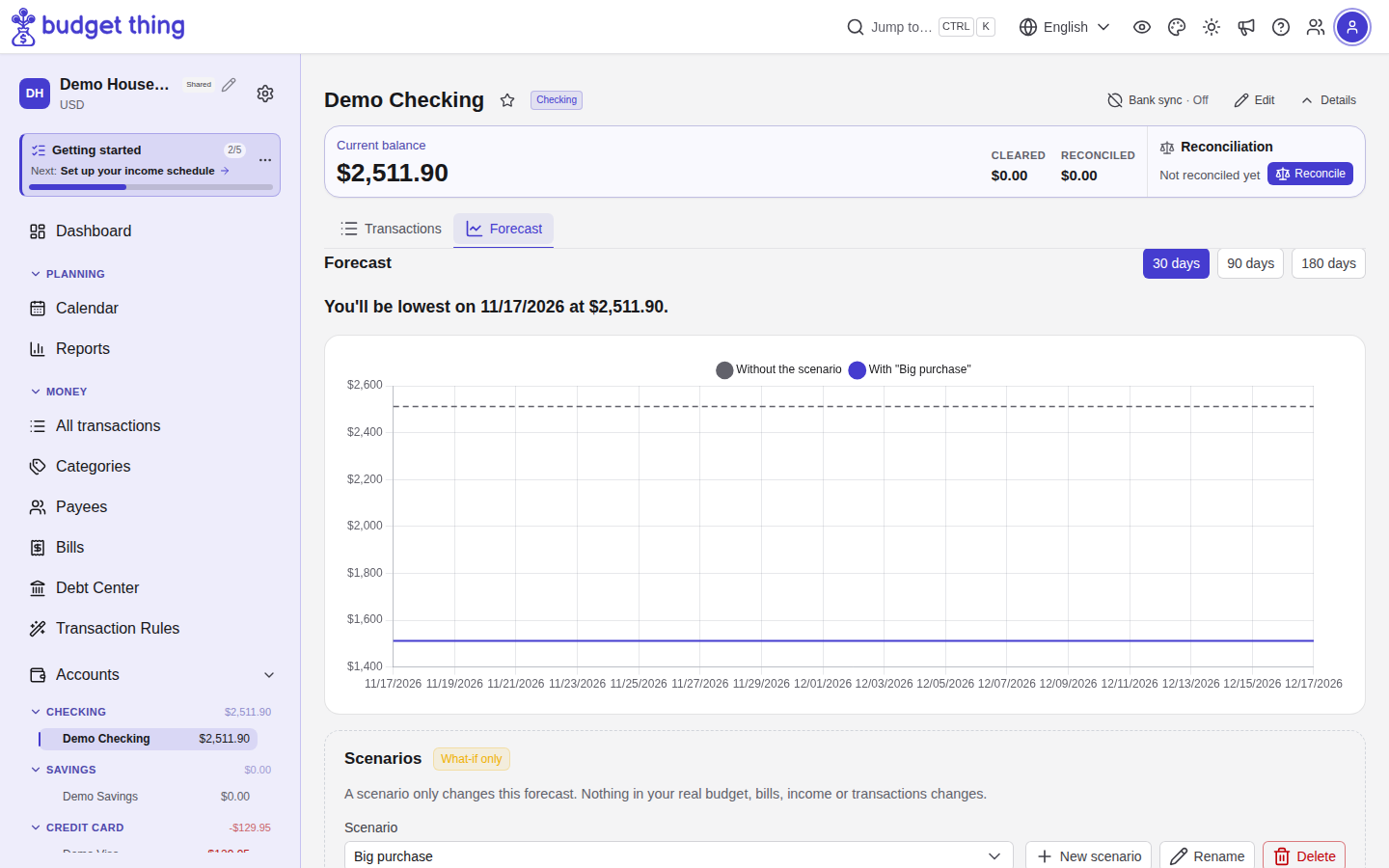
Open an account, choose its Forecast tab and find Scenarios under the chart.
Create a scenario
- Choose New scenario, give it a name (for example "New laptop") and choose Save. A workspace can hold up to 20 scenarios.
- Choose Add adjustment and pick what changes:
- One-off expense or One-off income: an amount on a date.
- New recurring expense: an amount that repeats (every day, week, month, year and so on) from a start date, with an optional end date.
- Change in recurring income: pick one of your income schedules and the new amount per paycheck from a date, for example a raise.
- Skip a bill: pick a bill and the date from which its payments are left out, with an optional end date.
- Give it an amount and date and choose Add. An adjustment can't start before today. A scenario can hold up to 50 adjustments.
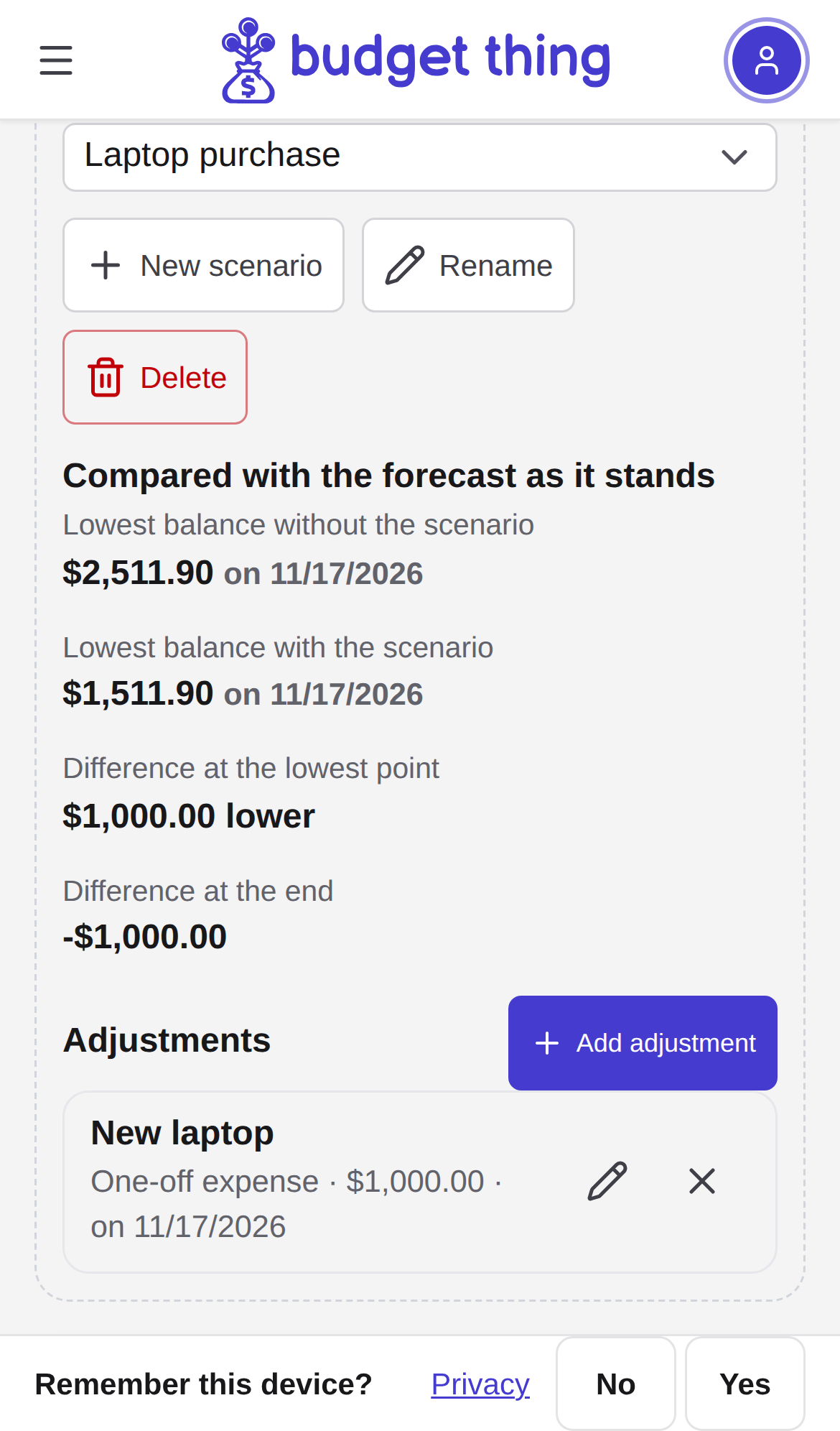
Use the pencil beside an adjustment to edit it and the x to remove it. Rename and Delete are next to the scenario picker; deleting asks you to confirm and removes the scenario's adjustments with it.
Compare the lines
Choose a scenario and the chart draws two lines on the same dates: a dashed line for the forecast without the scenario and a solid line with it. Under the picker you get:
- the lowest balance with and without the scenario, and the day each is reached;
- the difference at the lowest point ("$1,000.00 lower") and at the end of the forecast.
The chart has a written summary of the same figures, and the table of events below it keeps showing the forecast as it stands, without the scenario. The scenario follows the Forecast length you choose.
On a phone and with a keyboard
Everything stacks in one column with no sideways scrolling, and the adjustments appear as a list. Every control works with the keyboard: Enter saves, Escape closes a form, and changes are announced to screen readers. If a scenario can't be loaded or saved you get a message with Try again.
Limits
- Like the forecast, a scenario is a projection built from your bills, income schedules and recurring transactions; everyday spending isn't forecast.
- A one-off or recurring expense you add applies to the account whose Forecast tab you are on. An income change or a skipped bill applies to the account that schedule or bill belongs to, so skipping a bill paid from another account won't move this line. Your scenarios are shared across the workspace and can be compared on any account.
- Once an adjustment has an end date you can change it but not remove it. Delete the adjustment and add it again to run without one.
- Anyone who can read a workspace can open its scenarios; owners, admins and editors can create and change them.
- Scenarios are available on every plan.
- Scenarios are also available through the API and to assistants.