Bulk Actions
Any transaction list lets you act on several rows at once. Tick the checkbox on each row you want, or use the header checkbox to select every row currently in the list. A bar appears at the bottom showing how many are selected.
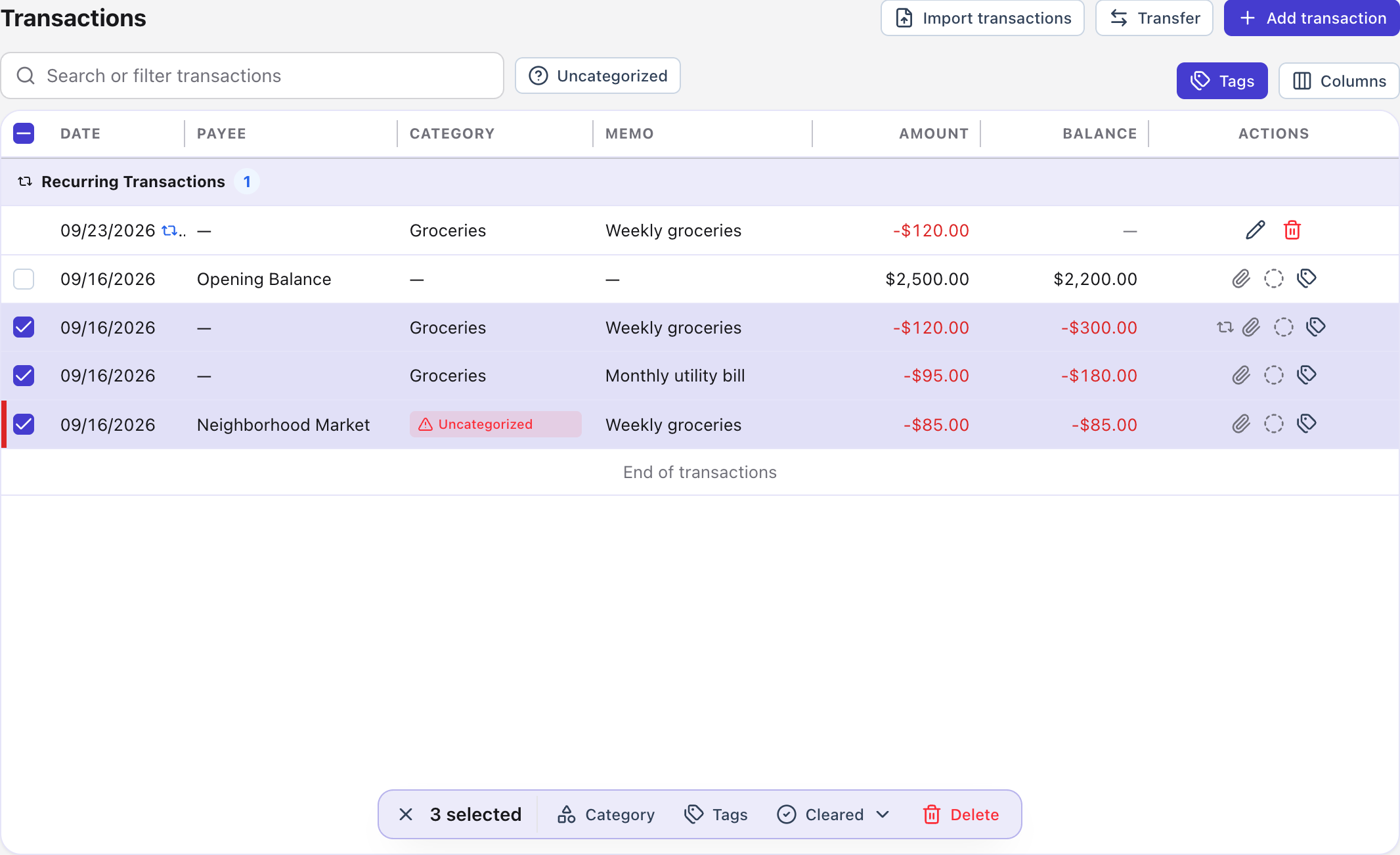
What you can do
| Action | Effect |
|---|---|
| Category | Set every selected transaction to one category, or use Uncategorized to clear the category instead. |
| Payee | Set every selected transaction to one payee (search, or type a new name to create it), or choose No payee to remove the payee. Reconciled transactions can change payee. |
| Account | Move every selected transaction to another account. See Moving transactions to another account. |
| Tags | Add the chosen tags to all of them, or switch to Remove to take those tags off. |
| Cleared | Mark as cleared or Mark as uncleared. |
| Export | Download the selected transactions as a CSV file. See Exporting selected transactions. |
| Delete | Remove all of them. |
Right-click shortcut
On a computer you can also right-click a transaction to open the same actions without moving to the bar. Right-click a row that is part of your selection to get the bulk actions for every selected row. Right-click a row that isn't selected and the actions apply to just that row, without ticking its checkbox or changing your selection. The menu adds Edit and Add attachment (or View attachments) for that row, and Find, which searches for the row's payee, category, tags or account (see Find from a transaction). Everything in the menu is also available from the row's buttons or the bar, or by typing in the search box, so nothing is right-click only. Hold Ctrl (Windows, Linux) or Cmd (Mac) while right-clicking, or right-click selected text, a link or a text box, to get your browser's own menu. Right-click isn't available on phones and tablets; use the bar.
You can also right-click a downloaded transaction in an account's Needs review section. The menu offers the actions already on that row: Accept (or the matching confirm action for a transfer, payment or match), Change payee and Reject. Right-click a row that is part of a selection of several downloaded transactions to Accept or Reject all of them. If your selection mixes downloaded and ordinary transactions, you get your browser's own menu. As with ordinary rows, right-clicking never ticks the row's checkbox.
Find from a transaction
Right-click a single transaction and open Find to search for things like it. The submenu lists Payee: Amazon, Category: Groceries (one entry for each category of a split transaction), Tag: for each tag, and Account: when you aren't already inside one account. Choosing an entry replaces whatever you had searched for with that one filter, in the same list you are viewing. The filter appears in the search box, where you can add to it or clear it. Entries the transaction has no value for are left out, and Find doesn't appear when several transactions are selected. A category transfer only offers its categories. See Search for more about filters.
After a Category, Account or Cleared change, a message with an Undo button appears. Undo puts the selected transactions back the way they were. If something goes wrong part way, a message says some were restored, so check the list. Deleting can't be undone, and neither can a category change on a split transaction or a cleared change that includes a transfer, so those show no Undo.
Setting a category replaces whatever category each transaction had. It does not merge with the existing one.
The tag panel has Add and Remove modes, and you can create a new tag without leaving it — Create opens a small form, and the new tag is included in the tags about to be applied.
Clearing is a statement against one bank account, so Cleared appears when the list belongs to a single account, or when every selected transaction in the workspace-wide list is in the same account. If your selection spans several accounts, select the transactions of one account at a time.
On a narrow screen the same actions appear as buttons across the bar, with Payee, Account, Export and Delete under More.
Moving transactions to another account
Account moves all the selected transactions to the account you choose. Their categories, splits, tags, payees and attachments stay as they are, and the balances of both accounts update.
The move is all or nothing. It is refused, and nothing changes, if any selected transaction is:
- a transfer (it already sits between two accounts — edit the transfer itself to change either side),
- reconciled (undo the reconciliation first).
The error message names the first transaction that blocked the move. Category transfers can't be moved either; the Account action disappears when one is selected.
Exporting selected transactions
Export downloads a CSV file, named transactions- and today's date, with one
row for each selected transaction, in the order of the list. It changes nothing,
so there is nothing to undo, and anyone who can see the transactions can export
them, including members who can only view the workspace.
The file is made to be read in a spreadsheet. It opens in Excel, Numbers, LibreOffice and Google Sheets with names and ordinary numbers, and its text is UTF-8 so accented and non-Latin names display correctly. The columns, in order:
| Column | What it holds |
|---|---|
date | The transaction date, as YYYY-MM-DD. |
account | The account's name. |
toAccount | For a transfer, the name of the account the money went to. Empty for everything else. |
payee | The payee's name, or empty. |
category | The category's name. A split transaction is one row, with every category of its splits separated by ; . |
memo | The memo. |
amount | The effect on account in the workspace's currency, with a minus sign for money going out: -12.50 for a 12.50 expense, 12.50 for income. |
currency | The workspace's currency code, such as USD. |
cleared | true or false. |
reconciled | true or false. |
createdBy | The name of the member who added it. |
Amounts are plain numbers with a . as the decimal point, no thousands
separators and no currency symbol, with as many decimals as the currency uses:
two for US dollars, none for Japanese yen, three for Kuwaiti dinars. A name or
memo that starts with =, +, - or @ is shown with a single quote in front
so a spreadsheet doesn't read it as a formula. A name that no longer exists
leaves its cell empty.
This file is for reading and reporting, not for restoring data, and it doesn't
carry IDs. For a file that does, with IDs and amounts in the currency's smallest
unit, use the transactions.csv in Export Your Data.
Export works on up to 500 transactions, the same limit as the other bulk actions. It isn't offered when the selection includes a category transfer; deselect those first. If a selected transaction was deleted by someone else in the meantime, nothing is downloaded and a message asks you to try again.
Deleting several transactions
Bulk delete asks you to confirm and then removes the transactions permanently — there is no undo, and any attachments go with them. Only the workspace owner and administrators can delete. See Edit or Delete a Transaction.
If any of the selected transactions was created by a bank file import, the confirmation also has a Don't import these again checkbox, unchecked by default. It applies to all the selected transactions that came from a file; see Rows you deleted before.
If any of the selected transactions is reconciled, the delete is refused rather than partly applied; nothing is deleted.
Downloaded transactions are separate
Rows waiting in the bank sync inbox have their own set of bulk actions — set a payee, set a category, Accept them as new transactions, or Reject them. Accepting or rejecting a selection happens in one step, so the rows leave the list together; any that couldn't be handled stay in the list. Selecting exactly one downloaded row together with one of your own transactions offers Match instead, which links the two.
Because the two kinds behave differently, the bar shows one set or the other, never both.