Search Transactions
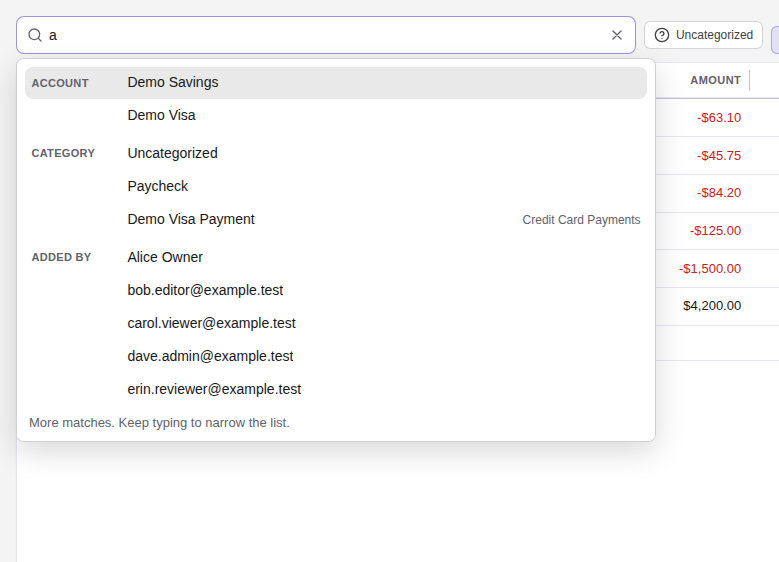
Every transaction list has a Search transactions box above it. Click it and start typing: one list suggests everything you can filter on, and picking a suggestion narrows the list. The list stays closed while the box is empty, opens with the first character you type, and closes again if you clear the box.
What the suggestions show
As you type, matches appear in one list, grouped under a type label on the left in this order: Account, Category (with its category group beside it), Payee, Tag, Added by (only in a workspace with more than one member) and Status (Cleared, Uncleared, Reconciled, Unreconciled). Use the arrow keys and Enter, or click, to pick one. Esc closes the list.
To browse one type's values, type its name and a colon (for example category:).
To look in one place only, type the type name and a colon before what you are
looking for. category: gro suggests only categories that match "gro". This works
for every type, in your language: payee:, tag:, account:, added by: and
status: (or is:).
Date and amount
Date… and Amount… are in the list too, and open their editor right there. For the simple cases you can type the value instead.
Type a number such as 50 and an Amount group appears at the top of the
list, above the text matches, with one-click comparisons: = 50, > 50,
≥ 50, < 50 and ≤ 50, plus Amount…. The amount: prefix is
optional, so these forms work with or without it:
| Type this | To filter on |
|---|---|
50 or =50 | Exactly 50 |
>50 | More than 50 (50 itself is not included) |
>=50 | 50 or more |
<50 | Less than 50 (50 itself is not included) |
<=50 | 50 or less |
20-50 | Between 20 and 50, both included |
Typing a date
Type a date the way your workspace shows it (the date format in your workspace
settings, for example MM/DD/YYYY) and a Date group appears, with On,
On or after and On or before that date, plus Date…. The Date…
row shows your format as a reminder. The date: prefix is optional. The
examples below use a MM/DD/YYYY workspace; use your own order and separator.
| Type this | To filter on |
|---|---|
11/12/2026 | That day (also offers on or after, on or before) |
1/5/2026 | That day; the day and month can be one digit |
11/12 | The most recent 12 November on or before today (workspace time zone) |
>11/12/2026 or >=11/12/2026 | That day or later |
<11/12/2026 or <=11/12/2026 | That day or earlier |
11/01/2026..11/30/2026 | Between two days, both included |
2026-11-12 | That day; the ISO form always works |
Impossible dates such as 02/30/2026 aren't offered. A date has no - range
separator, because - can be part of the date itself; use ...
Some text is both an amount and a date: 12.11 in a DD.MM.YYYY workspace is
12.11 as an amount and 12 November as a date. Both groups are shown, Amount
first, and you pick the one you mean. Dates in suggestions and filter tokens use
your workspace date format.
If what you typed isn't one of these, choose Amount… or Date… and use the editor. The Amount editor offers all six comparisons: Equals, Greater than, Greater than or equal to, Less than, Less than or equal to and Between.
Amount filters saved in a link or a bookmark before this change keep their old meaning: an "or more" or "or less" filter still includes the amount itself.
Search for words
Type any word or part of a word and the end of the list offers up to four rows:
- Find "rent" in any field: matches the payee, category, memo or account name.
- Payee: Find "rent" in the Payee: matches the payee name only.
- Category: Find "rent" in the Category: matches the category name only, including any split's category.
- Memo: Find "rent" in the Memo: matches the memo only, including split memos.
Pick a row to narrow the list to transactions that contain the text. The match
ignores capitals and looks for the text anywhere in the field, so rent also
finds Current account. Characters such as % and _ are matched exactly as
typed.
Press Enter without highlighting a row (before using the arrow keys) to pick any field. To pick a suggestion instead, use the arrow keys first, or click.
To look in one field, start with its name and a colon: memo: rent shows only
the Memo row, and payee: cafe shows the matching payees and the Payee row.
The result is a token inside the box: "rent" for any field, or
Memo: "rent", Payee: "cafe" and Category: "rent". Each kind holds one
text, so a second memo search replaces the first, while an any-field text, a Memo
text and a Payee text can all be active together. Text searches combine with
every other filter. They can be up to 200 characters.
Find one transaction
To find a payment you remember making:
- Click Search transactions and type part of the payee's name.
- Pick the payee from the Payee group, or press Enter to find the text in any field.
- If there are still too many rows, add Date or Amount as well.
Each choice you make becomes a token inside the box, such as
Payee: Corner Cafe, Is: Cleared or Memo: "rent". Filters of different types combine, so a
payee plus a date range shows only what matches both. Each type holds one value:
picking another category replaces the first.
Press Backspace in an empty box to remove the last token. Select a token to
edit it: it moves into the box as text (for example Payee: bath), with
suggestions open. Press Enter or pick a suggestion to replace the original
token, or clear the text and press Enter (or Backspace) to remove it.
Esc, Tab or a click outside puts the original token back unchanged. Text
you had already typed becomes its own token before another token opens for
editing. Select the x on a token to remove it, or select the x at the end
of the box to clear everything.
Search from the right place
Searching from the workspace-wide All transactions list covers every account. Searching from inside an account register only ever returns that account's transactions, because the account filter is fixed there.
If you cannot find something, start from All transactions — it is the only view with nothing filtered out to begin with.
Find from a transaction
On a computer, right-click a transaction and choose Find to search for its payee, category, tags or account in one click. It replaces your current search with that one filter, which then shows in the search box. See Right-click shortcut.
The Uncategorized button next to the search box is a one-click filter for transactions whose category is still unset.
Full detail on each filter type, and on the order results come back in, is in Filters and Sorting.