Create a Rule
A rule is written in the editor as IF some conditions THEN some actions.
Build the rule
- Open Transaction Rules and choose Create Rule.
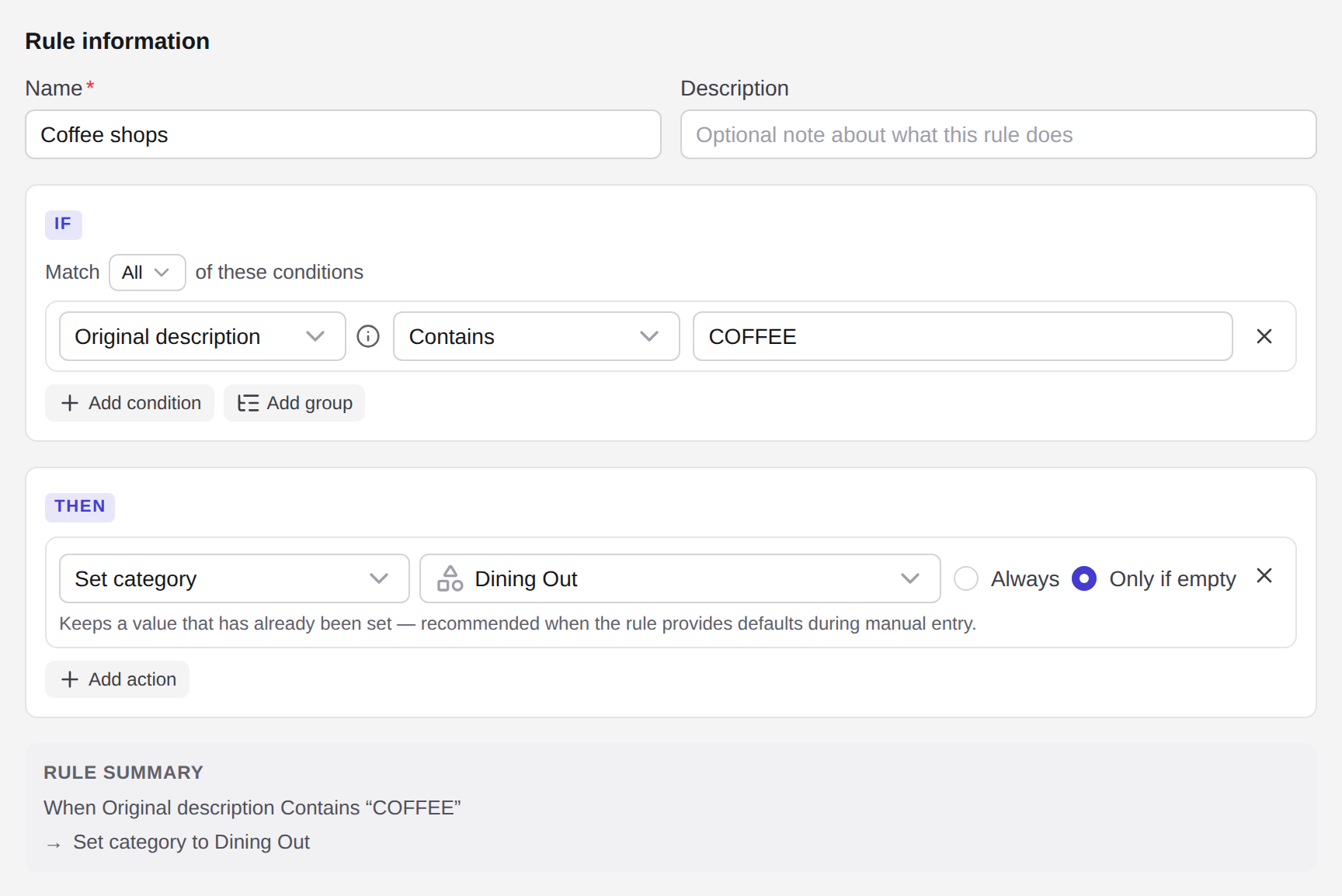
- Under Rule information, give the rule a Name — something you will
recognise in the list, such as
Costco purchases. A Description is optional. - In the IF section, add the conditions. Choose a Field, an Operator and a Value. See Rule Conditions.
- In the THEN section, add at least one action. See Rule Actions.
- Test it (below), then choose Create Rule.
Below the two sections, Rule summary reads the rule back in plain words.
Combining conditions
Above the conditions, Match All or Any of these conditions decides how they combine. Add group nests a set of conditions with its own All or Any, which is how a rule expresses something like "the payee is one of these and the amount is over 100".
A rule with no conditions at all is not useful, and a rule needs at least one action to save.
Test before you save
The editor has a Test rule section. Fill in a sample transaction, choose Test rule, and Budget Thing reports:
- whether the rule matched,
- which conditions did not match, if it failed,
- the Proposed changes, shown as before and after.
Testing does not save or change any transactions. It is the quickest way to find a rule that is broader than you intended before it touches real data.
Test on past transactions
Below it, Test on past transactions checks the rule you are editing, even unsaved, against your existing transactions. Optionally pick an account and a from and to date, then choose Run test. Budget Thing shows:
- how many of the transactions it checked the rule matches, and how many it would change,
- a note when some of those changes would touch reconciled transactions,
- examples, each with the transaction and its before and after values.
Only the newest 5,000 transactions are checked, and the result says so when there were more. Narrow the account or dates to look further back. Transfers are not checked. A rule never recategorizes a split transaction, so a category change is never shown for one; the result counts the split transactions where that happened. Any other change to a split transaction is still counted and shown. A Split transaction action is shown for a transaction that has a single category and is not reconciled; the example lists the new lines in place of the old category.
The test is a preview only: nothing is saved or changed. When it would change transactions, Apply to these N transactions appears under the result, and a result with an Undo button follows. Applying is a separate, deliberate step; see Apply a Rule to Existing Transactions.
Advanced options
Two settings live under Advanced options:
- Enabled — whether the rule runs at all. Leave it on unless you are drafting.
- Stop processing additional rules — when this rule matches, lower-priority matching rules do not run. See Rule Order and Matching.
After saving
Saving a rule does not change transactions you already have. The rule runs on new transactions as they arrive. To clean up history, use Test on past transactions to preview the effect on existing transactions, then apply it and undo it if you change your mind. See Apply a Rule to Existing Transactions.
If you are writing a rule because a particular imported transaction annoyed you, let Budget Thing draft it — see Create a Rule from a Transaction.