Rule Order and Matching
Rules are not a first-match list. Every rule whose conditions match gets a turn, and the order of the list decides who has the last word.
How a transaction is processed
- Matching is decided first. Every rule is tested against the transaction exactly as it arrived.
- Matching rules then run in list order, from top to bottom, each applying its actions to the transaction as it now stands.
The first step is worth understanding: because matching is decided up front, one rule's actions can never change whether a later rule matches. A rule that renames a payee does not stop a later rule that was matching on the old name — the outcome does not depend on where the rules happen to sit relative to each other.
Which value wins
When two matching rules set the same field, the later one overwrites the earlier one, so the rule furthest down the list wins.
There are two exceptions:
- an action set to Only if empty does not write over a value that is already there, and
- an action whose value is already the current value changes nothing.
When this happens during manual entry, Budget Thing tells you that several rules set the field and which value ended up being used.
You control the order
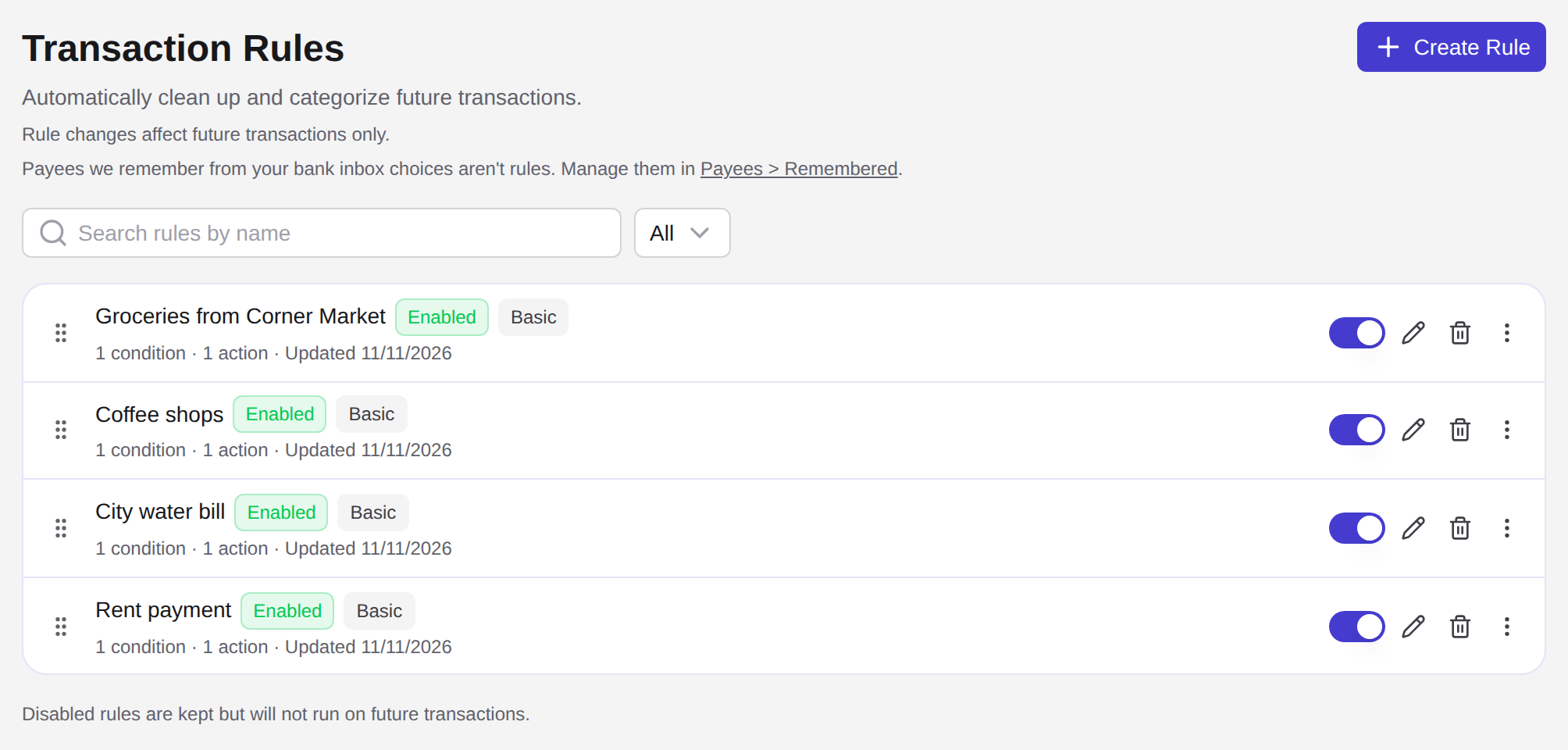
The rule list is ordered by you:
- drag a rule by its handle, or
- use Move up, Move down, Move to top and Move to bottom in the rule's ⋮ menu. On a computer you can also right-click a rule to open the same menu.
Put broad rules near the top and specific ones below, so the specific rule has the final say.
Order cannot be changed while the list is searched, filtered or sorted — the visible order would not be the real one. Clear the search, set the All / Enabled / Disabled filter back to All and the View menu back to Priority order first. See See which rules still do anything.
Stop processing additional rules
Each rule has a Stop processing additional rules switch. When such a rule matches, the rules below it still count as matched but their actions do not run, and Budget Thing says which rule stopped them. A rule with this switch on is marked Stops processing in the list.
Use it for a rule that should be the final word on a transaction — and sparingly, because it silently suppresses everything below.
This switch changes how the rest of the list behaves, so it is an Advanced feature. See Basic and Advanced Rules.
Seeing what actually happened
Two views make the outcome visible instead of guessed:
- Test rule in the editor runs one rule against a sample transaction and shows the proposed before and after.
- Test Current Rules on a transaction reports which rules would match it now, in order, and where one rule stopped the others. It is diagnostic only — the transaction is not modified.
Each rule also keeps a History of the transactions it affected, which is informational.