Transactions
Transactions are the record of what actually happened to your money. Everything else in Budget Thing — category balances, account balances, reports — is derived from them.
What a transaction records
| Field | Purpose |
|---|---|
| Date | When it happened. |
| Account | Which account the money moved in or out of. |
| Payee | Who you paid, or who paid you. |
| Category | Which budget category it came from. |
| Amount | How much moved. |
| Memo | An optional note to yourself. |
| Cleared status | Whether the bank has confirmed it. |
| Tags | An extra classification layer, independent of categories. |
| Attachments | Receipts and other supporting files. |
| Added by | Which member of a shared workspace created it. |
Transfers between your own accounts are a special case and do not use a category — see Transfers.
The three kinds of transaction
The same form records all three, chosen with the Expense / Income / Transfer toggle:
- an expense takes money out of an account and out of a category,
- an income brings money in, and
- a transfer moves money between two accounts you own.
One payment can also be divided across several categories — see Split Transactions.
Tags are not categories
Every transaction belongs to exactly one category, but it can carry several tags. Categories answer which pot of money did this come from; tags answer what else is true about this. See Tags.
Statuses
A transaction moves through up to three states: uncleared, then cleared once the bank confirms it, then reconciled once it has been checked against a statement. Reconciling locks the transaction.
Who added a transaction
In a shared workspace, each transaction you add by hand, add through an access token or create by approving a Needs review item records the member who did it, by display name. Bank-synced transactions are credited to the member who approved them in the inbox, including bulk approvals. A file import (or a YNAB or Actual import) is credited to the member who ran it, and each posting of a recurring transaction to the member who created the recurring transaction. Transactions that existed before this was recorded, and recurring transactions created before it, have no "added by"; they are not updated afterwards.
If that member later leaves the workspace, the transaction keeps the name they had when they added it. Without a stored name, the app shows it as Former member. Nothing else about the member is stored on the transaction.
You see this in a workspace with more than one member:
- On a computer, the transaction list has an Added by column. You can hide it from the column menu like any other column.
- On a phone, each transaction card shows "Added by" under the payee.
- Open a transaction to see Added by above its attachments.
- Rows with no "added by" show a dash.
To list one person's transactions, choose Added by in the filter menu and
pick a member. The menu lists every current member of the workspace by display
name with their email address beneath (or by email alone if they have no name),
whether or not any of their transactions are on screen. See Filters and Sorting.
A workspace with only its owner shows none of this. The same information is
available to the API (createdBy on each transaction and as a list filter) and
in workspace exports.
Filtering the list on a phone
On a narrow screen the transactions list uses a compact header: the title sits on the first row with three 44-pixel icon buttons at its right edge, Search transactions (a magnifying glass), the Uncategorized shortcut and Export (a download arrow, shown once the list has rows), and the tabs sit on the row below, so more transactions fit on screen. On an account page the same buttons sit beside the account name.
Tap the magnifying glass and the search box opens across the row: type, or pick what to filter by from the list (account, category, payee, tag, who added it, status, date or amount). Each active filter shows as a token inside the box that you can tap to edit or remove, and the box stays open while a filter or search is active. When it is empty and you tap away, it folds back to the icon. The Uncategorized icon has the same label, which screen readers announce, and the x inside the box clears all filters.
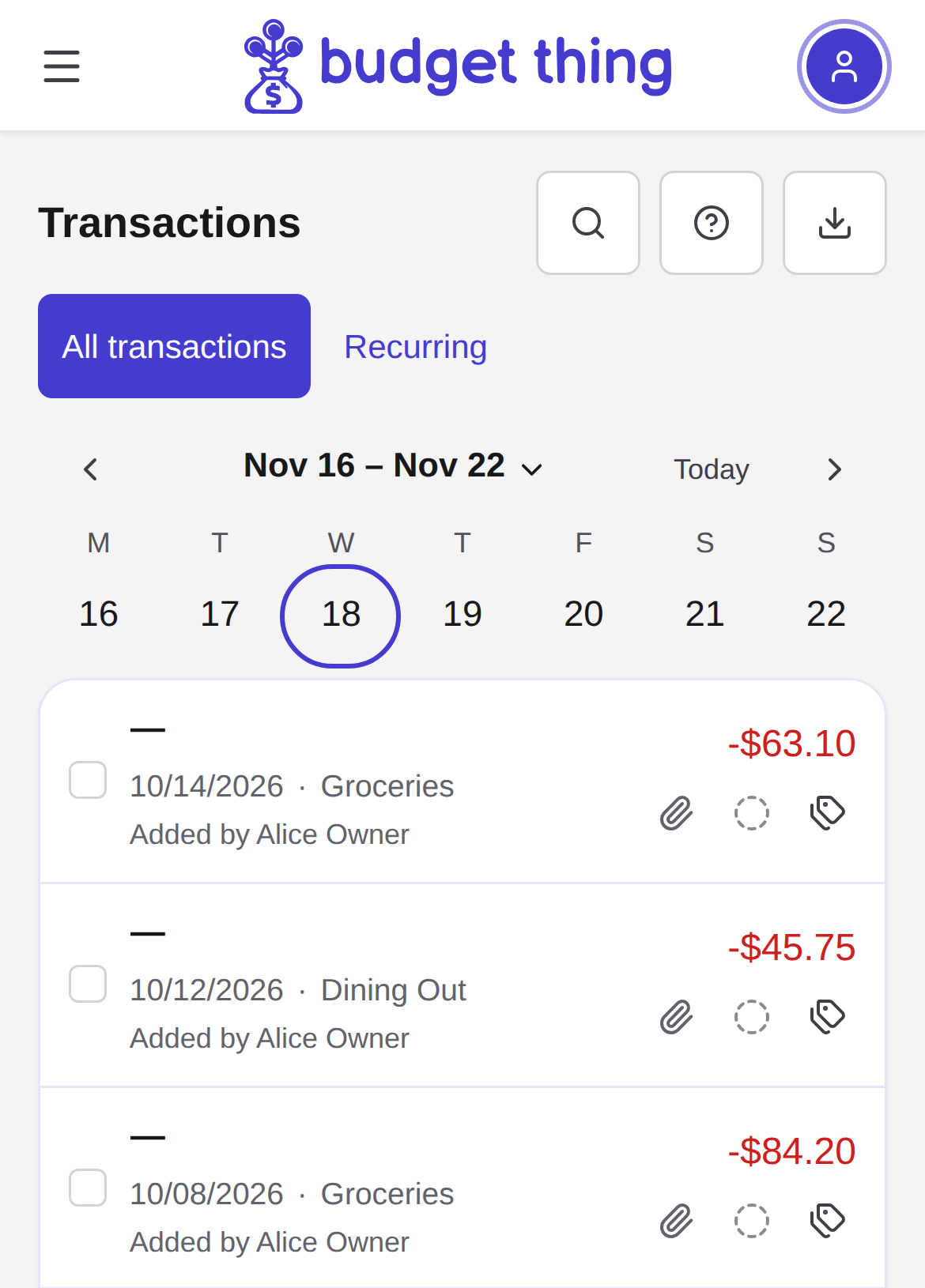
Exporting the list
Choose Export above the list to download a CSV file of the transactions it shows right now, including any search, filters and date range. On a phone, Export is an icon-only button in the title row, beside the Search and Uncategorized icons. If more than 25,000 transactions match, you get a message to narrow the list and no file. See Export Your Data for the columns.
Saved filters
Each member can save a set of transaction filters under a name, so they don't have to set them up again. Saved filters belong to you and one workspace: other members can't see or change them unless you share one with the workspace, and members with view-only access can save their own. You can keep up to 50 per workspace. They aren't included in backups or workspace copies. To save, apply, rename or delete one, see Save a set of filters. Developers can reach the same filters through the API.
Amount precision
Monetary values are stored at four-decimal precision internally. That means changing your currency or formatting settings later never quietly loses accuracy in figures you already recorded.