Payees
A payee is whoever you paid, or whoever paid you. Budget Thing does not ask you to set them up in advance — the list builds itself as you record transactions.
First time here
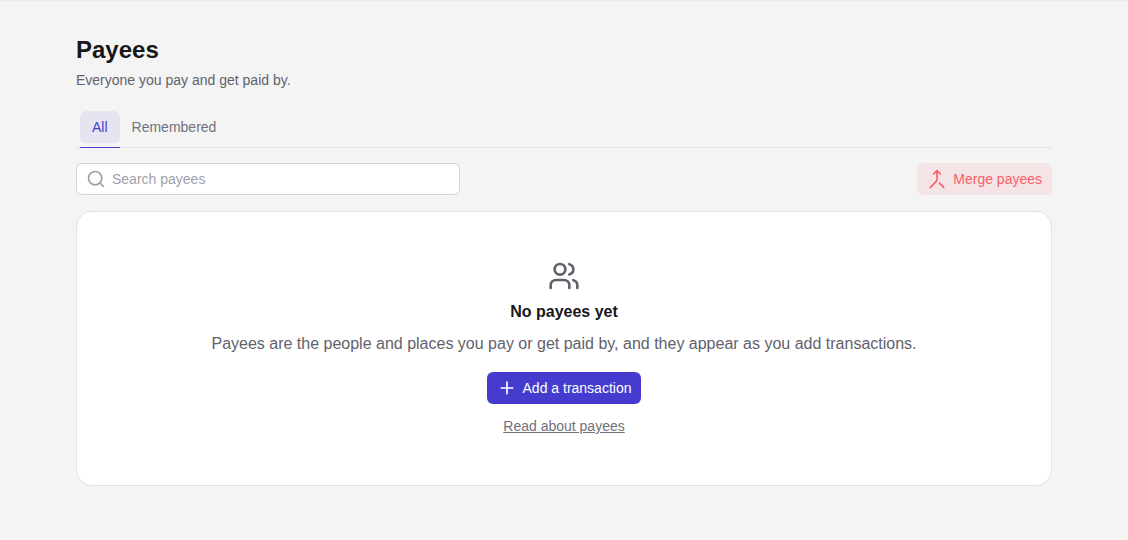
Until you record a transaction there are no payees, so Payees opens on a short explanation, Add a transaction and a link to this article. Once you have payees, searching for a name that doesn't exist shows No payees match your search with Clear filters to get the full list back.
Payees build up as you type
The Payee field on the transaction form searches the payees you already have as you type. If nothing matches, the field offers to create the name you typed, and it becomes a payee from then on.
The whole list lives under Payees in the sidebar — Everyone you pay and get paid by. Selecting one opens a view of every transaction assigned to it.
Renaming a payee
Renaming is a workspace-wide change: it renames the payee everywhere it is used, on past transactions as well as future ones.
If a single transaction has the wrong payee, do not rename the payee — open the transaction and choose a different one. Renaming would relabel every other transaction that shares it.
A connected AI assistant with read and write access can rename a payee for you. It's required to ask you first: it shows you the payee's current and new names and how many transactions use it, and your AI app usually asks you to approve the change. If another payee already has that name, renaming keeps them separate; merge them instead (below).
Merging duplicates
Because payees are created from what you type and from what your bank sends,
duplicates happen: Coffee Shop and COFFEE SHOP #12.
- Open Payees.
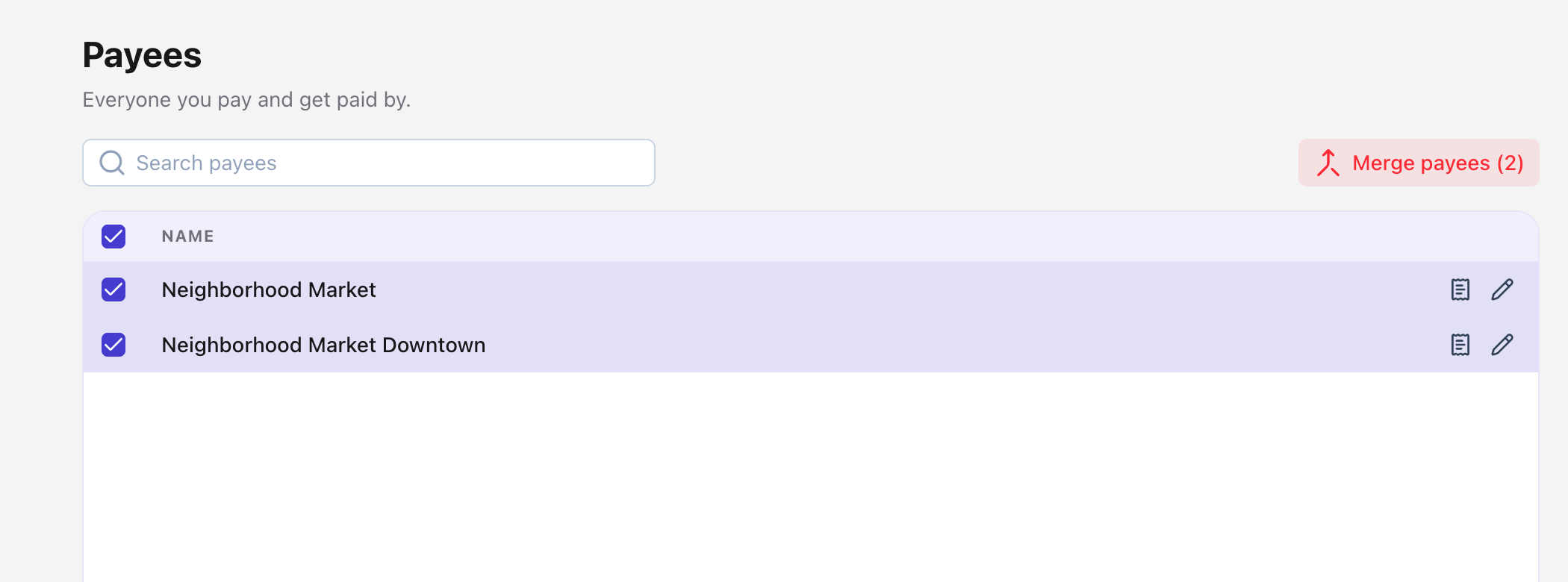
- Select the payees that are really the same one.
- Choose Merge payees.
- Pick the Destination payee — the one that should remain.
- Confirm.
The other payees are merged into the destination and their transactions, recurring transactions, bills and income schedules are reassigned to it. No transaction history is lost; nothing is deleted except the duplicate payee records themselves.
A connected AI assistant with read and write access can also merge up to 20 payees at a time for you. A merge can't be undone, so the assistant is required to ask you first, and your AI app asks you to approve the merge. Check which payees it names before you approve.
Cleaning up imported names
Downloaded transactions arrive with whatever name the bank sends, which is
often shouty and full of store numbers. Rather than merging the same mess every
month, write a transaction rule that
rewrites the payee — COSTCO WHSE becomes Costco — and optionally sets a
category at the same time.
Rules run automatically on new transactions. To clean up transactions you already have, merge the payees, or apply the rule to existing transactions.
Remembered payees
When you change the payee on a downloaded transaction and approve it, Budget Thing remembers it for that bank text, so the next one from the same merchant gets the same payee. The Remembered tab on this page lists these entries. Search them, edit the payee or category, or choose Forget to remove one. Forgetting never changes transactions you already approved. See The Bank Sync Inbox.
Add one by hand
You can also add an entry yourself, before the bank text ever arrives.
- Open Payees, choose the Remembered tab, and select Add remembered payee.
- Enter the Bank description as it appears on your statement, for example
SQ *BLUE BOTTLE COFFEE 0423. Budget Thing cleans it the same way it cleans downloaded transactions, so store numbers and card-processor prefixes don't matter. - Choose the Payee. Pick an existing one, or type a new name and choose it to create the payee.
- Optionally choose a Category, then select Add.
An entry you add this way is marked Manual in the list, and so is any entry you edit. The inbox never changes a Manual entry: approving a downloaded transaction with a different payee doesn't overwrite it. Edit or forget it from the same row. If that bank text is already remembered, the form says so; edit the existing entry instead.
Names that differ only by a short number, such as ROUTE 9 DINER and
ROUTE 66 DINER, are remembered separately. An entry that was remembered
before this change for both of them now follows the last bank text it was used
for, so the other one shows up for review without a remembered payee once and
you choose its payee again.