Alert emails
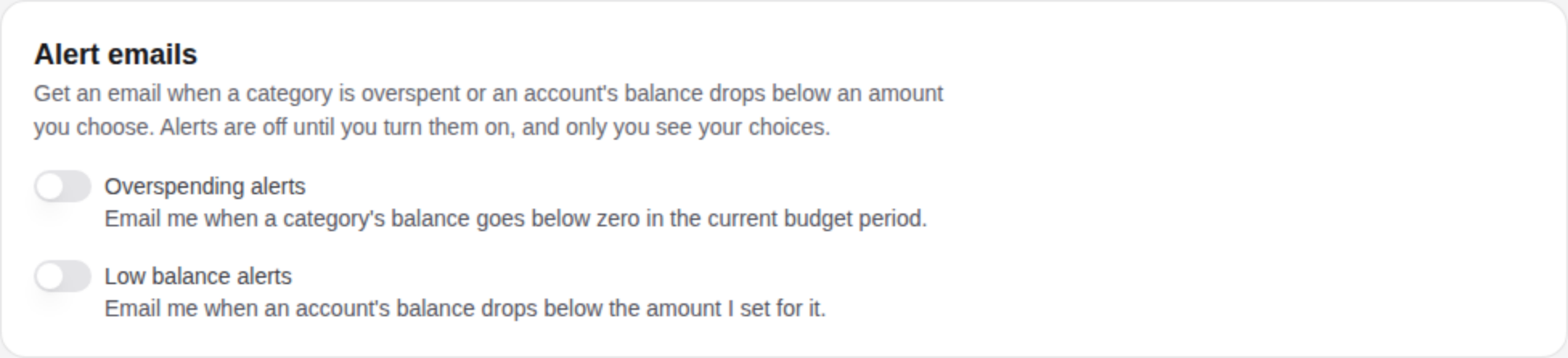
Budget Thing can email you when something in a workspace needs your attention:
- Overspending: a category's balance goes below zero in the current budget period.
- Low balance: an account's balance drops below an amount you choose.
You can also ask for a weekly summary of the workspace. The alerts and the summary are off by default. Nothing is emailed until you turn an alert on, and your choices are yours alone: other members of the workspace don't see them and set their own.
Turn alerts on
- Open the workspace and choose Settings, then the Alerts tab.
- Turn on Overspending alerts, Low balance alerts, or both. Each switch saves as soon as you flip it, and a message confirms it.
- To get the weekly summary, turn on Weekly summary and choose the day under Send it on. The day saves as soon as you pick it.
- If you turned on Low balance alerts, an Accounts to watch list appears. Choose an account under Watch another account, type the balance to be warned below (for example 50.00), and choose Save amounts. Repeat for each account. Use the x button on a row to stop watching that account, then Save amounts.
If a save fails, an error message explains why. A switch goes back to what was last saved, and the amounts you typed stay in the list so you can fix them and save again. You can do all of this with the keyboard and a screen reader. If you are a Viewer, Reviewer or Advisor, the Alerts tab shows your settings but can't change them.
Who gets alerts
Alerts are set per workspace. You get them only while you are an Owner, Admin or Editor of that workspace. Viewers, reviewers and advisors can't turn them on, and if you are removed from a workspace or your role changes to one of those, the emails stop.
Overspending alerts
When a category is overspent, you get one email for that category for the budget period. If it is still overspent after the period ends, you get one email for the new period, because it is still overspent then. The email lists every category that was newly overspent since the last one.
If you move money into the category and it recovers, then goes negative again in the same period, you are not emailed a second time for that period.
Low balance alerts
For each account you want to watch, you choose a balance. When the account's balance drops below it, you get one email. You won't be emailed again while the balance stays below that amount. Once it is back at the amount or above, the alert is ready again, and the next drop below it sends a new email.
A few rules:
- Only open asset accounts such as checking, savings and cash can be watched. Credit cards and other debts have no low balance.
- If you close or archive a watched account, it drops off your list and you stop getting alerts for it. You don't need to remove it first.
- An amount of zero alerts you when the account is overdrawn.
- Changing or removing an account's amount, or turning low balance alerts off and on, starts that account fresh.
When emails arrive
A background job checks every hour and sends alerts from 7:00 in the workspace's time zone, not overnight. If the balance recovers before the morning, nothing is sent. One email covers everything that is due for you in a workspace.
Weekly summary
The weekly summary is one short email a week about a workspace. It tells you:
- how much is left to assign,
- how many categories are overspent, and which ones,
- the bills due this week (the next seven days, not yet paid or skipped), if your plan includes Bills, and
- how many bank transactions are waiting in your inbox, if your plan includes bank sync.
The summary is available on every plan. A line your plan doesn't include is left out, not shown empty.
You choose the day it arrives (Monday unless you pick another). It is sent from 7:00 in the workspace's time zone on that day, once per week. If you turn it on after 7:00 on your chosen day, the first one arrives that day. As with alerts, you get it only while you are an Owner, Admin or Editor of the workspace, and your choice applies to that workspace alone.
Every summary has an Unsubscribe from this summary link. It doesn't need you to sign in, and it changes nothing until you select Turn off these emails on the page it opens. Your email app may also show its own Unsubscribe button, which turns the summary off directly. The summary also links to your alert settings, where you can change the day or turn it back on. Unsubscribing turns off this workspace's summary only, never your other workspaces or your alerts.
Send overspending to another system
If you use a tool such as Zapier, or your own service, it can subscribe to the
category.overspent webhook event to hear about an overspent category once per
budget period, the same as the email. It applies to the whole workspace and doesn't depend on
anyone's alert settings. See Webhook events for developers.
Turn alerts off
Every alert email has an Unsubscribe from these alerts link at the bottom. It opens a page that doesn't need you to sign in, and it changes nothing until you select Turn off these emails. It turns off only the alerts in that email, for that workspace: an email that lists both kinds turns off both, an email with one kind turns off that one, and your other workspaces, your watched accounts and your other emails are untouched. Your email app may also show its own Unsubscribe button, which does the same. The link is personal to you, so don't forward the email if you don't want someone else to be able to switch the alerts off. To turn them back on, open the workspace and use Settings > Alerts. The weekly summary email has its own Unsubscribe link (see above), which turns off only the summary for that workspace.
You can also turn them off in the app: open Settings > Alerts and turn the switch off, turn off Weekly summary, or remove the account from your list and choose Save amounts. Alerts aren't copied when a workspace is cloned or restored from a backup, so turn them on again there.
Developers can read and save the same settings through the API; see Alert settings.