Date and Number Format
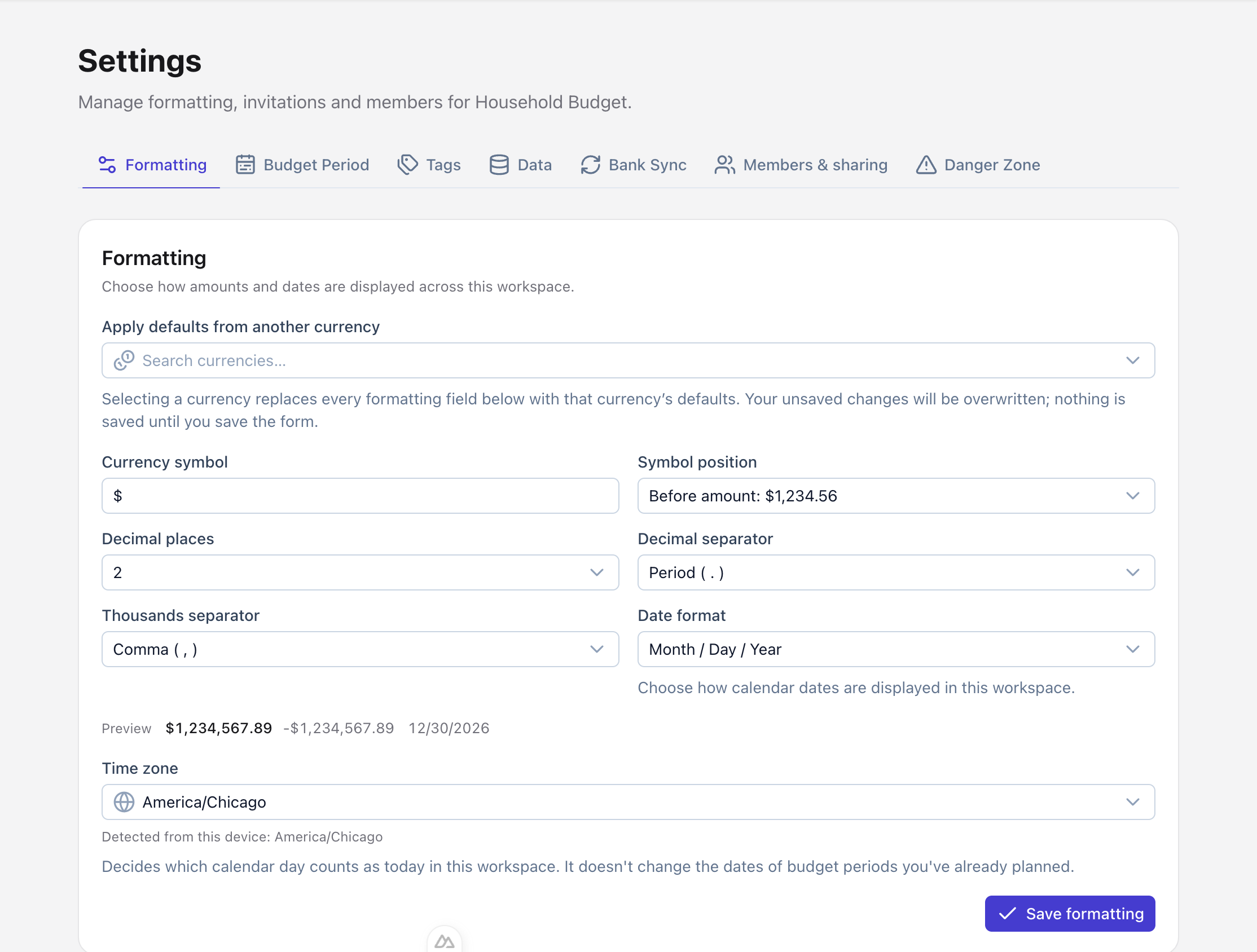
The Formatting tab in workspace settings controls how amounts and dates are displayed across the workspace. These are display settings: they change what you read, not what is recorded. The workspace's time zone is saved here too, and that one does a little more than display — see Time zone.
Everyone in the workspace sees the same formatting, so a shared budget always reads the same way for everybody.
Start from a currency
Rather than filling in five fields by hand, pick a currency and let Budget Thing fill in the common defaults for you. Search the currency list, select one, and the symbol, its position, the number of decimal places and both separators are populated.
In an existing workspace this is Apply defaults from another currency. Choosing a currency replaces every formatting field with that currency's defaults, overwriting anything you had changed but not yet saved. Nothing is stored until you select Save formatting.
Only the formatting settings are saved. Selecting a currency does not convert any existing amount.
Customising the fields
Each field can be set on its own:
- Currency symbol — any short symbol or code, such as
$,€orCHF. - Symbol position — Before amount or After amount.
- Decimal places — from 0 to 4. Use 0 for currencies without minor units.
- Decimal separator — period, comma, space, non-breaking space or apostrophe.
- Thousands separator — the same options, plus None.
The decimal separator and the thousands separator must be different, and a symbol is required. A live Preview shows a positive and a negative amount as you type, so you can check the result before saving.
Amounts are stored at four-decimal precision, so adjusting currency or formatting settings does not reduce the precision of figures already recorded.
Date format
Date format controls how calendar dates are displayed in the workspace. You choose the order of the parts — Day, Month and Year — and the separator that joins them. A preview shows the current date in the selected format.
The same format is used when you type a date, so entry and display always agree.
Time zone
Time zone is saved alongside the formatting fields, and it decides which calendar day counts as today in this workspace. That is what Budget Thing uses when it works out which budget period you are currently in, so a shared workspace agrees on the date whoever is looking at it and wherever they are.
The same today decides which transactions count towards each account's current balance. A transaction dated in the future is left out until that day arrives in the workspace's time zone, so a balance does not jump early or late because the server or your device is in a different zone. Changing the time zone updates the balances in the sidebar straight away.
Search the list for the zone you want. Budget Thing detects one from your device and offers Use this device's time zone if you have moved away from it.
The time zone does not change the dates of budget periods you have already planned. It only changes which day the workspace treats as today from now on.