Members and Sharing
A workspace can be shared with other people. Each person keeps their own Budget Thing sign-in; sharing gives their account access to your workspace, it does not give them your password.
Invitations and members live on the Members & sharing tab of workspace settings. Only the workspace owner can invite or remove members. Everyone else, Admins included, sees a Members tab instead.
Each member is shown with their display name, the name they set for themselves, an avatar with their initials and their email address underneath. A member who hasn't set a name is shown by email address alone. The same names appear in the Added by column and filter on the Transactions page (see Who added a transaction).
Invite someone
If you signed in more than about 13 minutes ago, sending an invitation first asks you to confirm it's you by signing in again; nothing is sent until you do and submit again. See When we ask you to sign in again.
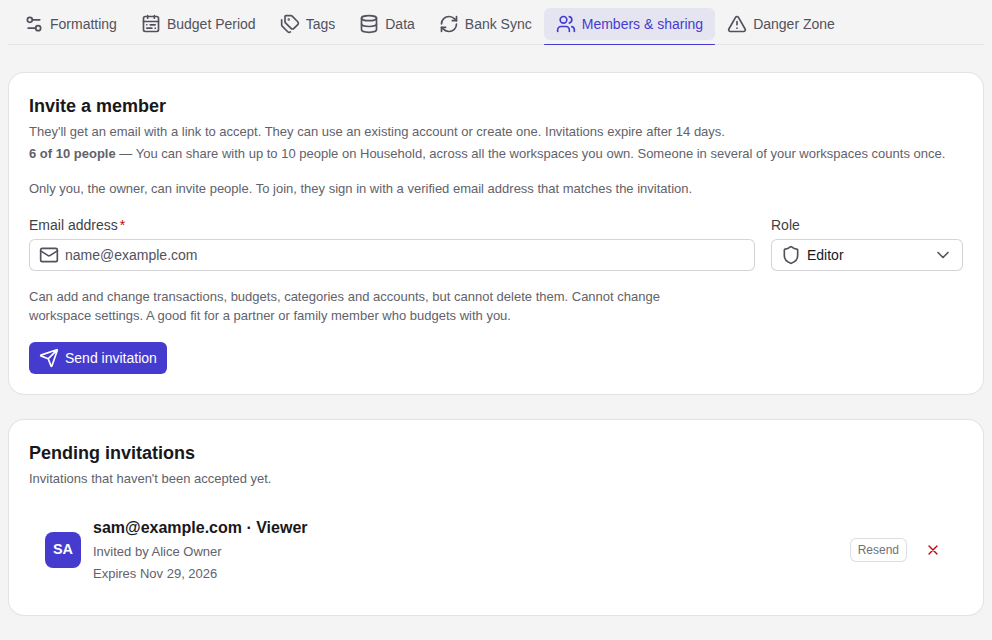
Enter their Email address, choose a Role, and select Send invitation. You can invite anyone, whether or not they already have a Budget Thing account. Budget Thing answers the same way for every address, so the form never reveals whether someone has an account.
Budget Thing emails them a link to accept. They can use an existing account or create one. An invitation is open for 14 days. Under Pending invitations each row shows the address, the role, who sent it (Invited by and their name, when they are still a member) and when it expires (Expires tomorrow inside the last day). Someone you invited has no display name yet, so the row shows their email address. You can revoke one at any time, and a revoked invitation can no longer be used to join. When an invitation lapses it disappears from the list. Invite the address again to start over. A pending invitation uses one of the places in your sharing limit until it is accepted, revoked or lapses, and a lapsed one frees its place at once.
You cannot invite someone who is already a member of the workspace, or an address that already has a pending invitation to it.
There are limits on how many invitations one person can send per hour, and on how many invitations one address can receive in a day. If you reach one, wait a while and try again.
Once someone accepts, they appear under Members.
Resend an invitation
If the email got lost, select Resend on the pending invitation. It sends the email again and gives the invitation a fresh 14 days. You can resend each invitation once every 10 minutes; until then Resend is disabled and the row says Resent just now. If Budget Thing could not deliver the email, the row says We couldn't deliver this email. Check the address, then resend.
Accepting an invitation
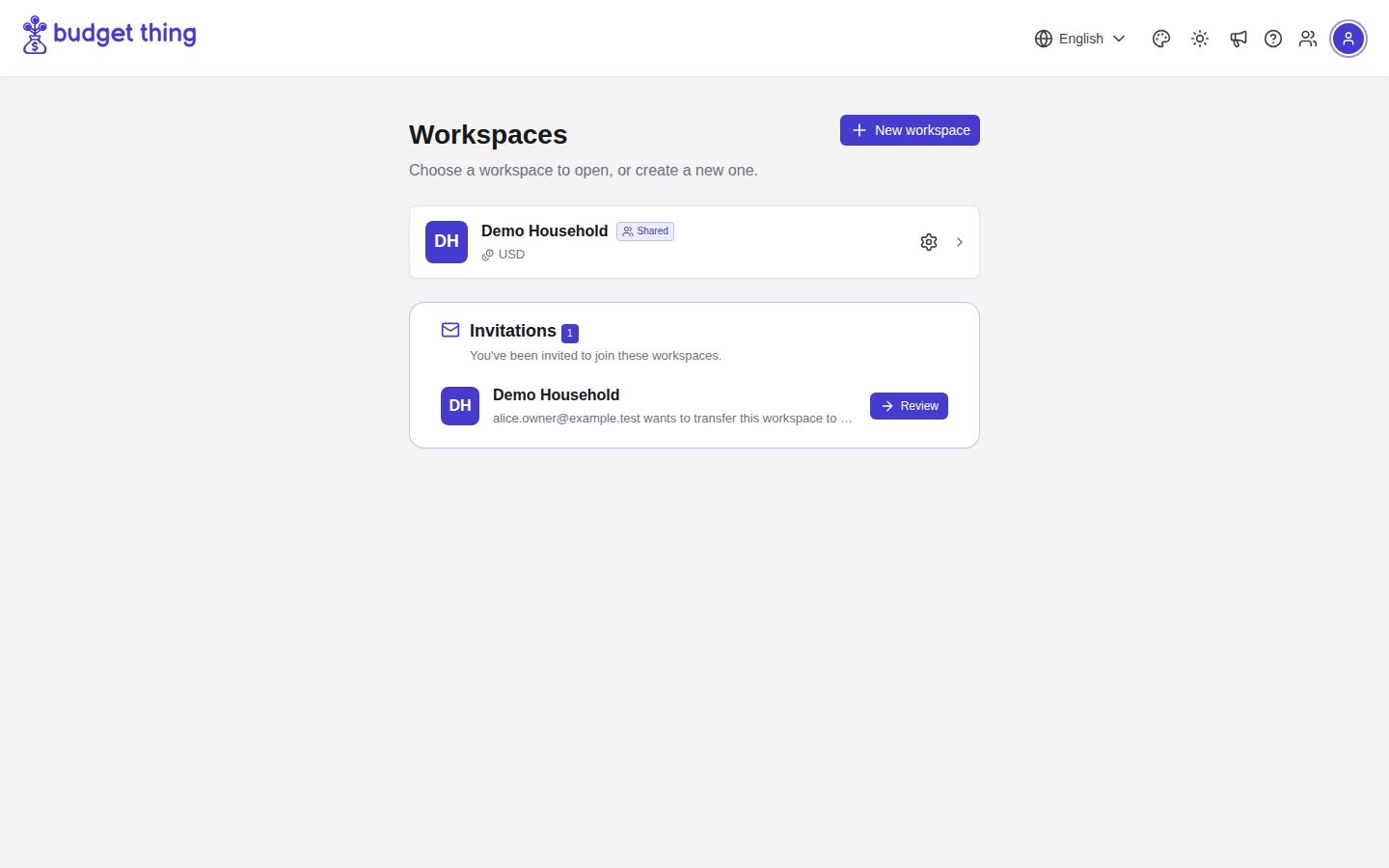
An invitation belongs to whoever has a verified email address that matches the address it was sent to, ignoring capital letters. There is nothing to claim or enter. Open the link in the email, or sign in and find the invitation in the invitations panel on your workspaces list, where each one shows when it expires.
The link opens an invitation page:
-
Signed out: choose Create account or Sign in. You come back to the invitation afterwards, including after you verify a new account's email.
-
Email not verified: the page asks you to verify your email first, with a button to resend the verification email.
-
Ready: it shows the workspace, who invited you, your role and the expiry date, with Accept invitation and Decline.
-
Expired: the page says the invitation has expired. Ask the person who invited you to send a new one.
-
Not available: for an invitation that was revoked, already used, sent to a different address, or that does not exist, the page says it is not available for the address you are signed in with. Choose Sign in with a different account to switch.
-
If you already have an account, sign in with the address the invitation was sent to. If you sign in with a different address, you do not see it.
-
If you do not have an account yet, create one with the address the invitation was sent to and verify it. The invitation is there on your first visit.
-
If your email is not verified yet, you are asked to verify it first. Until you do, the invitation stays hidden and cannot be accepted.
Review it and choose Accept or Decline. Nothing happens until you accept: being invited never adds you to a workspace on its own. An invitation that has lapsed cannot be accepted. Ask the person who invited you to send a new one.
The Shared badge
As soon as a second person has accepted, the workspace shows a small Shared badge beside its name. Everyone in the workspace sees it — the owner who sent the invitations as well as the people who accepted them — so it is always clear that someone else can see this budget. A workspace with only its owner shows no badge, and an invitation nobody has accepted yet does not count. If you drag the sidebar very narrow, the badge is hidden to leave room for the workspace name. Widen the sidebar to see it again.

See who added a transaction
Once a workspace is shared, the transaction lists show who added each transaction in an Added by column, and you can filter the list to one member's transactions. Bank-synced transactions show the member who approved them, imports the member who ran the import, and recurring transactions the member who created the recurring transaction. Transactions added before this existed have no name and aren't updated afterwards. See Transactions overview.
To see who spent what over a period, open the Spending by Category report and group it by member or filter it to one person.
See what changed since you last visited
When a workspace has more than one member, the Dashboard shows a Since you last visited card with what the other members changed since you last marked it as seen. Each person who made changes gets one row with their name, how many changes they made, when they last made one and a short summary such as "Added 8 transactions, edited 3". A New label (not just a dot) marks changes you haven't seen. Select a row to see their newest changes; the card lists three people at first, and Show all lists the rest.
- Mark as seen clears the card. Opening the Dashboard doesn't, so a quick look never makes changes disappear. Afterwards the card says you're all caught up and since when.
- Your own changes aren't listed, and neither are changes made by bank sync or other automation.
- It covers transactions, budget amounts, accounts and bills. It only shows changes to the data your role can see, and every role can use it, including viewers.
- A person who has left the workspace appears as Former member.
- A workspace with only you in it doesn't show the card.
- The card is built from the last 30 days of history. It helps you catch up; it isn't a record of who did what.
On a phone the card fills the width, each row is a large tap target, and Mark as seen sits under the heading. Screen readers announce each row with the person's name, change count and whether it is new, and read out when you mark it as seen.
How many people you can share with
Your plan sets one limit for all the workspaces you own: how many different people you can share with. There is no separate limit per workspace.
- A person counts once, however many of your workspaces they are in. Sharing four workspaces with your partner uses one place, not four.
- A pending invitation counts, the same as a person who has accepted. It counts by email address, so the same address invited to several of your workspaces uses one place, and an address that belongs to someone you already share with uses no new place. An invitation that has lapsed does not count.
- You never count yourself.
- People in a workspace you have deleted stop counting. People in an archived workspace still count, because an archived workspace can be restored.
| Plan | People you can share with |
|---|---|
| Free | None. Sharing is not part of the plan. |
| Connected | None. Sharing is not part of the plan. |
| Plus | 5 |
| Household | 10 |
| Solo Business | 5 |
The roles you can give people are the same on every plan that includes sharing. What Household adds over Plus is room for more people (10 instead of 5), not a different set of permissions.
The Members & sharing tab shows your usage, for example 2 of 5 people. If you are at the limit and invite someone new, Budget Thing says "You can share with up to 5 people on Plus" and offers Upgrade plan. Inviting someone you already share with, to another workspace, always works, because they use no new place.
Nobody loses access when a limit changes. If your account is ever over its limit, everyone you already share with keeps their access and you can still add those same people to more workspaces. Only inviting someone new is paused until you are back within the limit.
See Which Features Your Plan Includes for how plan limits work.
Roles
Every member holds one role. The roles are:
| Role | Can change budget data | Can manage the workspace |
|---|---|---|
| Owner | Yes | Yes |
| Admin | Yes | Yes |
| Editor | Yes | No |
| Reviewer | No | No |
| Viewer | No | No |
| Advisor | No | No |
Owner, Admin and Editor can create and change workspace data — transactions, budgets, categories and so on. Reviewer, Viewer and Advisor have read access to the workspace without the ability to change what is in it.
"Can manage the workspace" means renaming it and changing its settings. Inviting and removing members, managing webhooks, transferring ownership and deleting the workspace are for the owner only — see Danger Zone.
Who can delete something depends on what it is:
| Item | Who can delete it |
|---|---|
| Accounts, categories, payees and income schedules | Owner only |
| Transactions, tags and transaction rules | Owner and Admin |
Editor is the role pre-selected when you send an invitation. Owner is not an option in the invite form; there is one owner, established when the workspace is created.
Reviewer, Viewer and Advisor are identical read-only roles. Each can see the workspace's budget data and reports but cannot change anything. The names only help you remember why you invited someone: a Reviewer looks over your budget with you, such as a coach or accountability partner; a Viewer is a family member who wants to keep an eye on things; an Advisor is a bookkeeper, accountant or financial advisor. The name doesn't change what they can see or do.
The invite form and the Members list describe each role in plain language. In the invite form, each option shows a one-line description and the full description appears under the selection. In the Members list, the description appears under each person's role, and read-only roles show a lock icon labeled "Read only". Only the owner can invite people.
Removing people
If you own the workspace, select Remove member next to someone to take away their access to the workspace. Their own Budget Thing account is untouched.
If a workspace was shared with you, you do not manage its members. Instead the Members tab offers Leave workspace, which removes your own access. You can rejoin later if the owner invites you again.
Transfer ownership
A workspace has one owner. If you want to leave a shared workspace without deleting it for everyone, you can hand it to another member. Only the owner can start a transfer, from Settings > Danger Zone > Delete workspace > Transfer to a member and leave. See Danger Zone. Starting a transfer asks you to sign in again first if your last sign-in was more than about 13 minutes ago; after signing in the picker reopens with nobody selected.
- You pick an active member and send the request. They are emailed a link, and the workspace shows a banner to everyone in it: Ownership transfer pending. A workspace can have one pending transfer at a time.
- The member has 7 days to answer. The banner shows when it expires. You stay the owner until they accept, and you can Cancel transfer from the banner whenever you like.
- When they Accept and become owner, the transfer happens in one step: they become the owner, you leave the workspace, and the bank connections you set up in it are disconnected.
If the 7 days pass with no answer, the request expires, you stay the owner and you are emailed. A pending transfer is also canceled automatically if the workspace is deleted, the member leaves or is removed, or you or they ask to delete their account.
If you are asked to take over a workspace
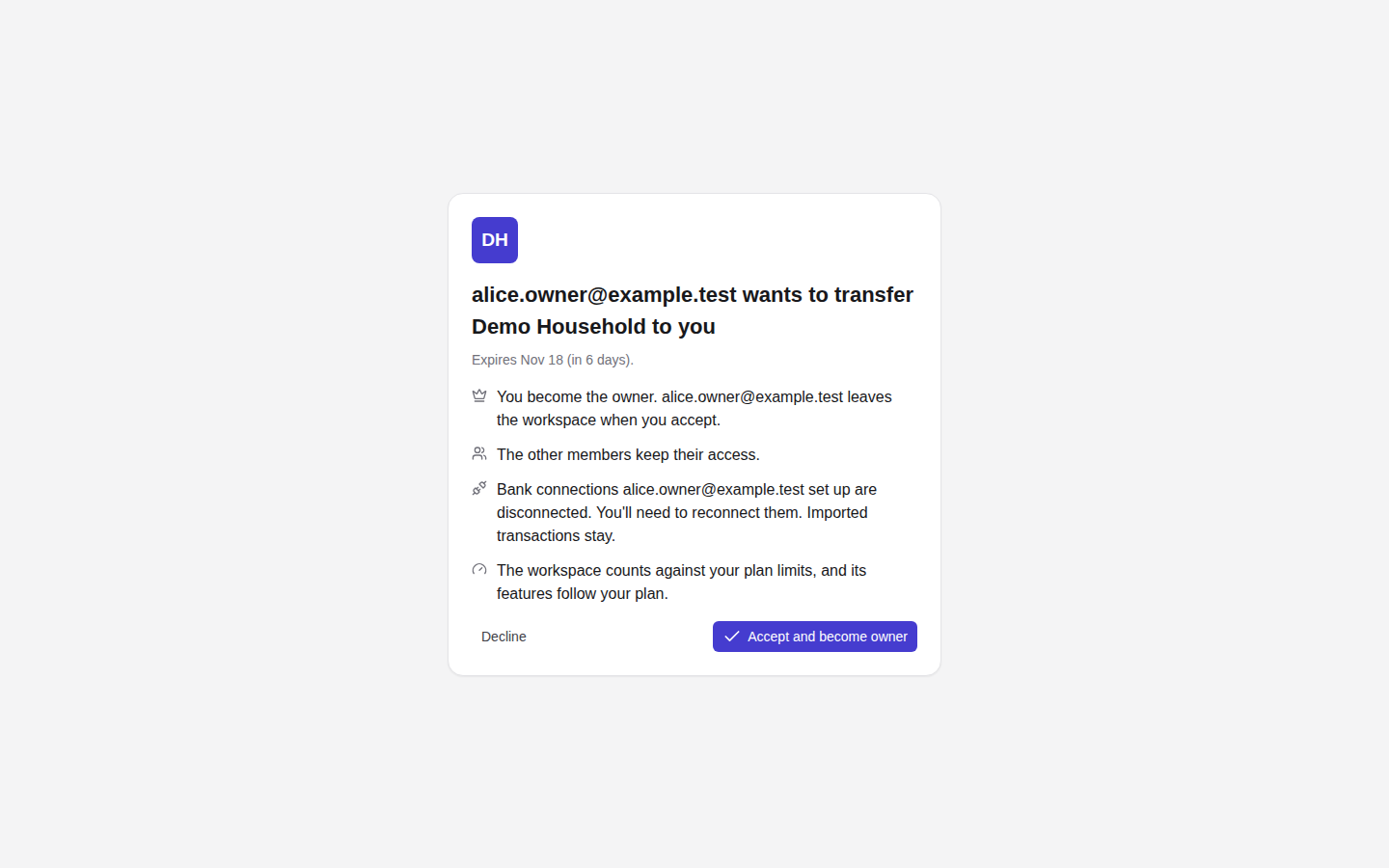
You get an email and a Review card above your workspaces list. Open it to see what you take on, then choose Accept and become owner or Decline. There is no one-tap accept, because the details matter:
- You become the owner and the previous owner leaves.
- The other members keep their access.
- Bank connections the previous owner set up are disconnected. Imported transactions stay.
- The workspace counts against your plan limits, and its features follow your plan.
Declining tells the previous owner, who stays the owner. Nothing else changes.
Plan checks
Taking on a workspace must not push the new owner over a limit on their plan, so Budget Thing checks before the request is sent and again when it is accepted. A transfer is refused if it would make the new owner's usage exceed, or add to a limit they are already over, on any of these:
- the number of workspaces they own
- the number of business workspaces they own, when the workspace is a business workspace
- the number of different people they share with (the sharing limit; a person they already share with does not count again)
- whether their plan includes workspace sharing at all
- bank connections that stay connected, and the limits on accounts, categories and storage in the workspace
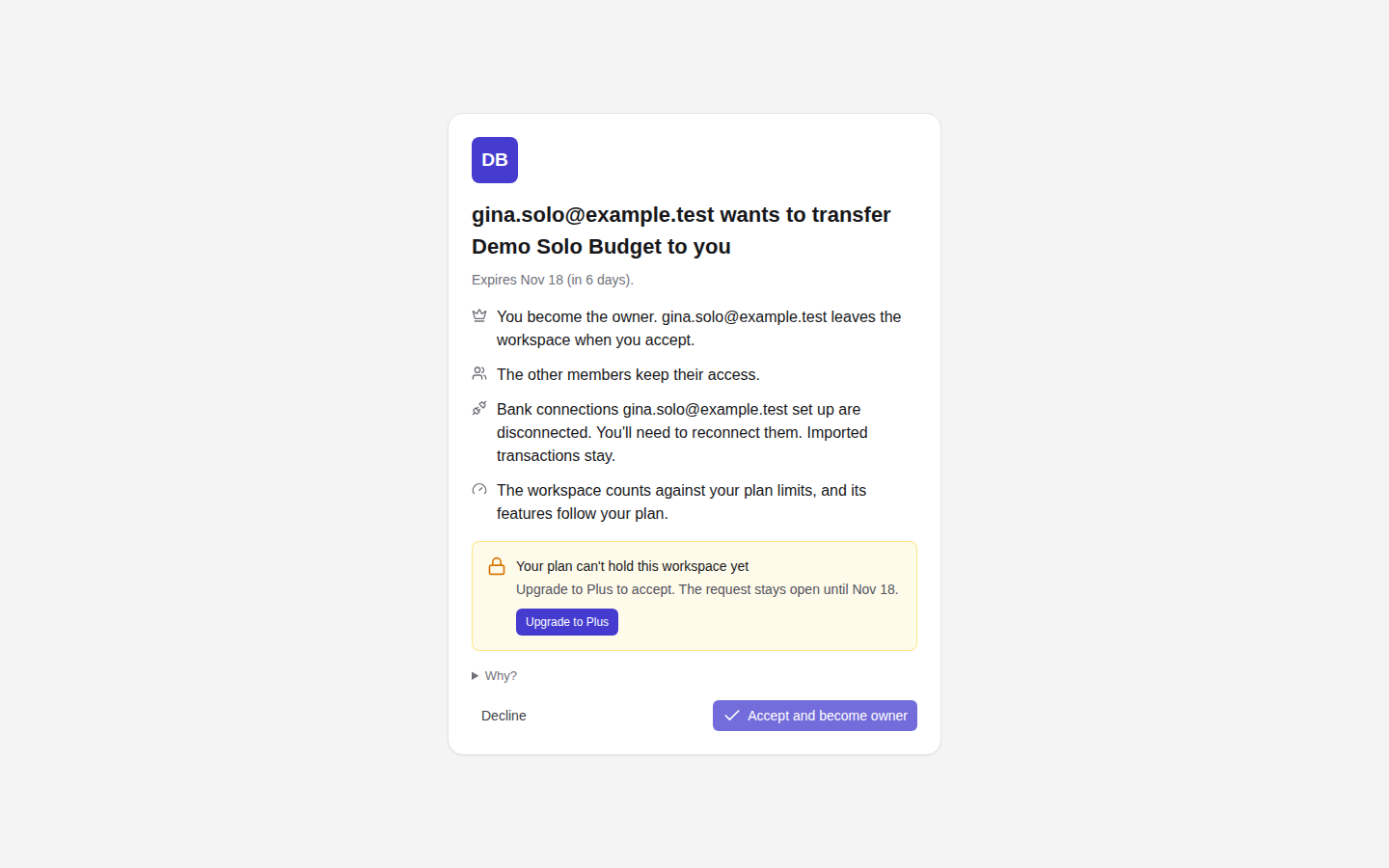
The message names what blocks the transfer and, when there is one, the lowest plan that would fit. When you are the one asked to take over, a blocked request shows Your plan can't hold this workspace yet with an Upgrade button. The request stays open for its 7 days, so you can upgrade and then accept.
Bank connections after a transfer
Bank connections are tied to the credentials of the person who set them up, so they are not handed over. When a transfer is accepted, every connection the previous owner created in the workspace is disconnected, and Budget Thing revokes its access at the bank. Transactions that were already imported stay, as do the accounts they belong to. Connections created by other members are not affected.
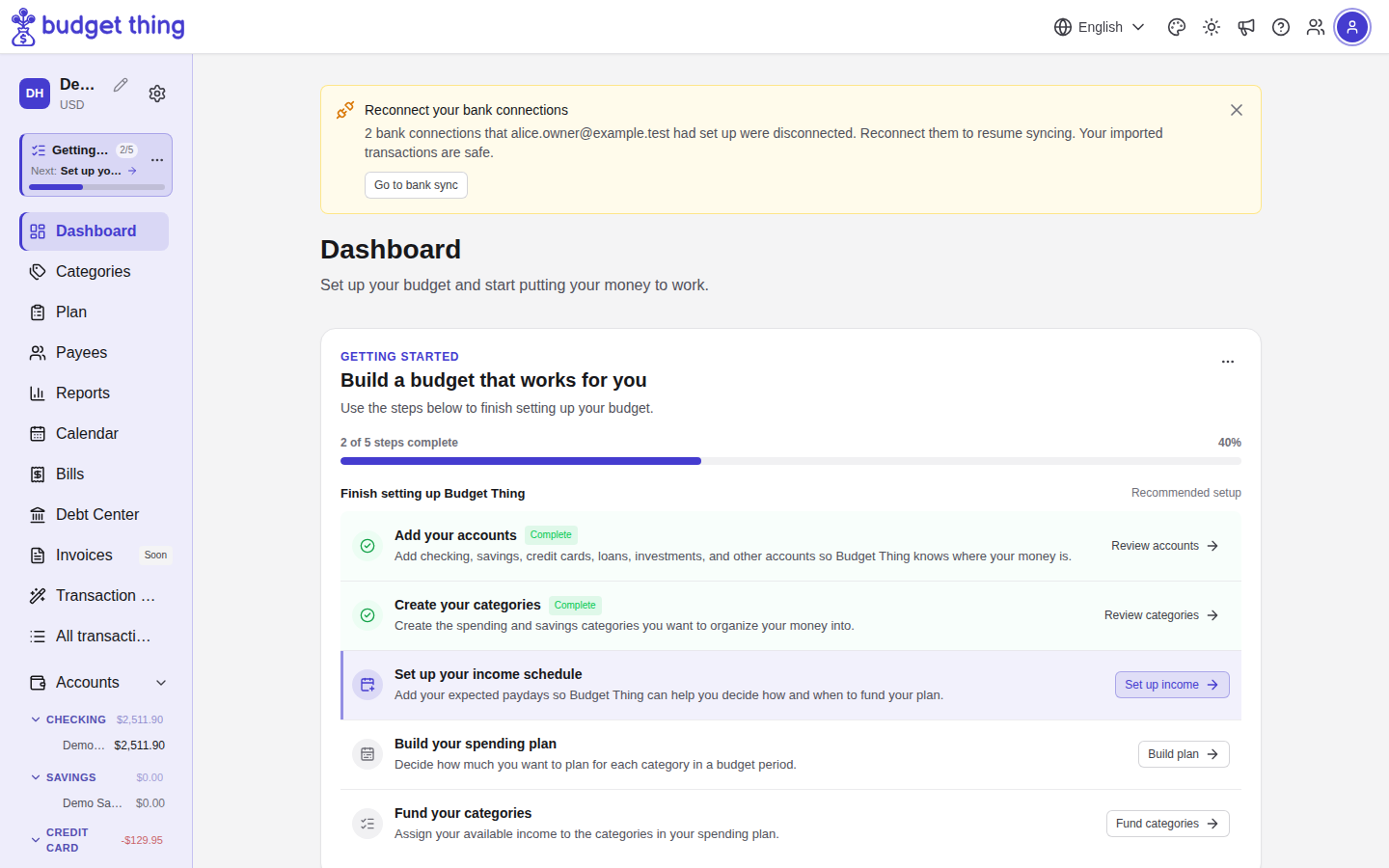
The new owner sees Reconnect your bank connections with a Go to bank sync button. Disconnected connections show as Disconnected under Settings > Bank sync, where you can set them up again. See Manage Connections.
Support access is separate from sharing
Budget Thing support is never a member of your workspace. If you want support to look at it, turn on Support Access: support can then open it read-only, like a viewer, until the time you choose.
Billing roles are different
Workspace roles decide what someone can do inside the budget. They do not control the subscription. Billing belongs to each person's own user account, and only that person can manage their plan and payment details — see Manage Billing.
The features and limits of a shared workspace always come from the workspace owner's plan, whichever plan the other members are on. See Shared workspaces use the owner's plan.